
How to Set Up the New Airalo Single-Install eSIM (and Get Connected Abroad)
Step-by-step setup for the new Airalo: check your version, install one eSIM per device, buy and stack packages, connect on arrival, and fix common problems such as a deleted eSIM or a new phone.
Disclosure: This page may contain affiliate links. They do not influence our editorial conclusions. Read the disclosure.
Our pick
- See price at Airalo
Top pick
Airalo
Travel eSIM store selling prepaid local, regional and global data packages for more than 200 locations through its app and airalo.com, now moving customers to a...
Steps in this guide
Airalo began moving customers to a "new Airalo" on November 9, 2026. In this version you install one eSIM on a device once and then keep adding data packages for each trip. This guide walks through setup, buying a package, getting connected and the common problems, using Airalo's own help-center instructions. The rollout is phased and may take up to twelve months, so some readers will still see the older version for a while.

First, check which version of Airalo you have
Airalo now runs two versions side by side, and each one has its own steps.
- New Airalo: the app asks you to "Just set up once and add data later," and the bottom tab is called Packages (it used to be "My eSIMs").
- Public Airalo: the app shows separate install instructions for each purchase, and the tab is still called My eSIMs.
If you still see My eSIMs, nothing has changed for you yet. Airalo says customers who have not been moved can keep using the platform as usual, and old eSIMs stay under Past eSIMs during the transition (Packages, then your device name, then View past eSIMs).
What you need before you start
The help center lists a few basics before setup:
- A stable Wi-Fi connection. Setup downloads an eSIM profile, so don't rely on a weak hotel or airport signal.
- An unlocked, eSIM-compatible device. A phone locked to a carrier may not accept a second eSIM profile. The app runs a compatibility check during setup, and you can also check your phone model on Airalo's device-compatibility page first.
- A few minutes without interruptions. Once the operating system starts installing the eSIM, Airalo asks you not to close anything until it finishes. That can take a few minutes.
- The latest Airalo app, signed in to the account you want to use.
You can set up the device before or after buying a package. Setting up first means data is ready the moment you buy.
Step 1: Set up your device once
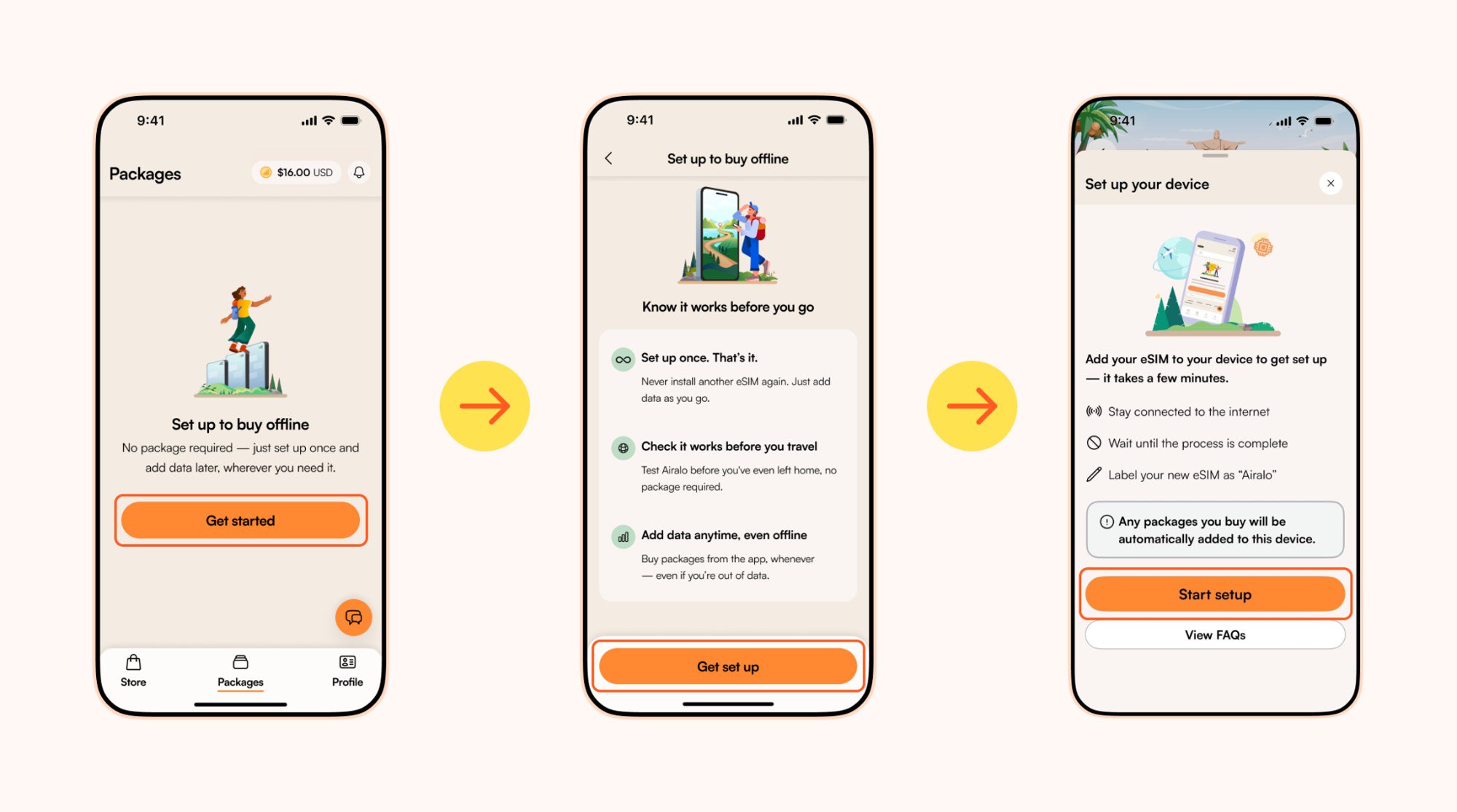
Setup can start from three places in the app: the Packages tab (when it is empty), a banner in the Store, or partway through checkout. Tap Get started or Set up device when prompted.
Compatibility check. The app checks whether the phone supports eSIM. If it does, you go straight on. If not, you see a screen listing supported devices, and you should stop there rather than buy a package the phone can't use.
System handoff. The app then passes the installation to iOS or Android, and the phone's own eSIM screens appear. Follow them, step by step, on iOS or Android. Don't switch apps, lock the screen or close the prompt partway through.
Return to the app. When the install finishes, you return to Airalo and see that the device is ready. Open Packages and check that the device is listed as set up. From then on, every package you buy for that device is added to the same eSIM automatically, and you don't reinstall anything between trips.

Step 2: Buy a package for your destination
Packages are bought in the Store: choose a destination, choose a package and pay.
- In the app you can buy at any time.
- On the web, if the device hasn't been set up yet, you'll be asked to finish setup in the app before the purchase completes. If you have several devices, checkout asks which one should get the package.
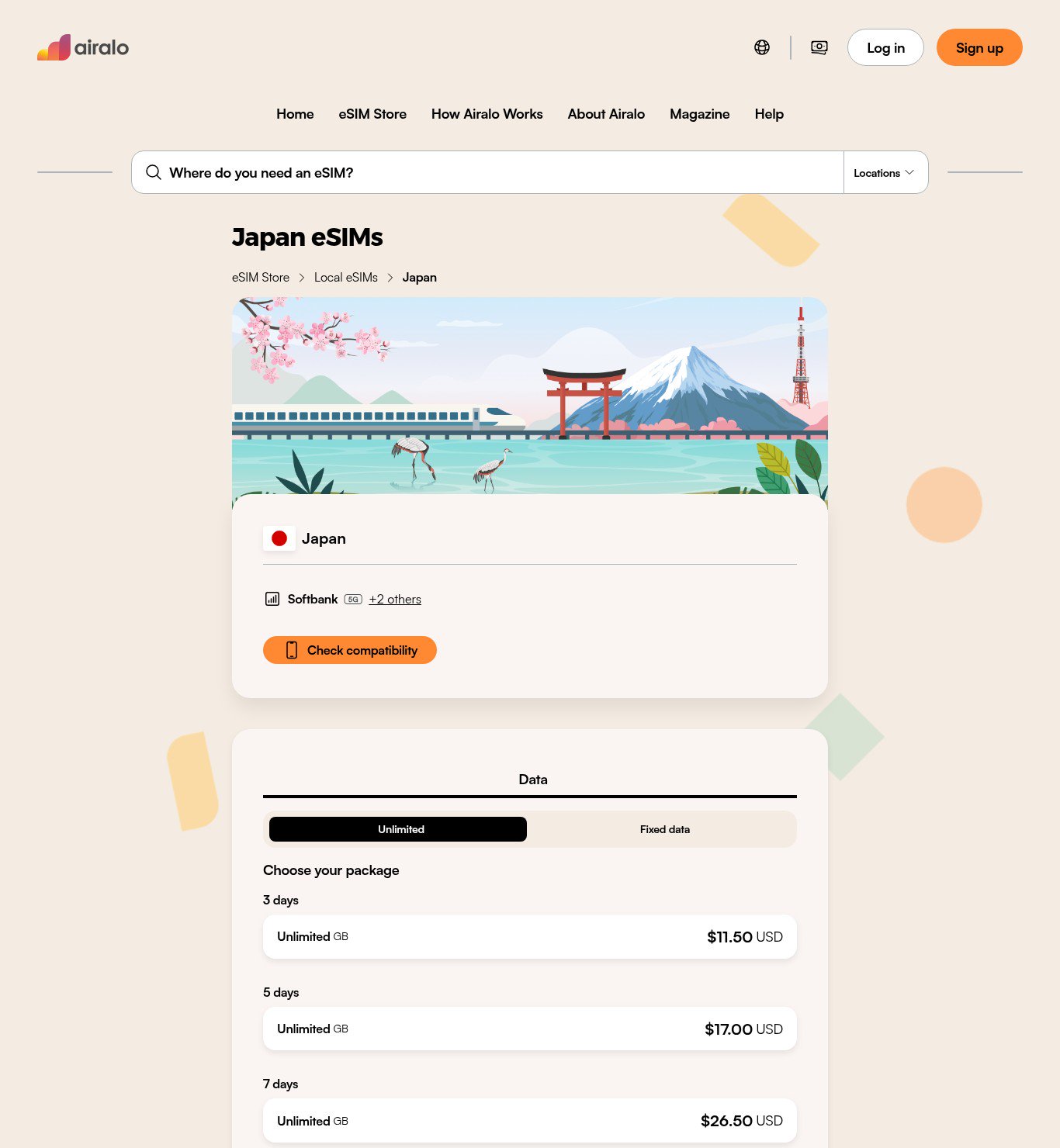
Airalo's sizing advice is simple. 1–5 GB covers short trips and basics like email and maps. 10 GB suits longer trips or heavy social posting. 20–50 GB is for extended trips or lots of video. Unlimited means you don't have to watch the meter. On November 9, 2026, Airalo's Japan page listed Unlimited packages at $11.50 for 3 days, $17.00 for 5 days, $26.50 for 7 days, $34.50 for 10 days, $48.00 for 15 days and $69.00 for 30 days.

How packages stack
The new Airalo lets one eSIM hold several packages. Airalo uses them in a fixed order:
- Local packages (one country, such as Japan or the United States)
- Regional packages (such as Europe, Asia or Latin America)
- Global packages
Within the same type, the oldest eligible package is used first. A package doesn't start counting until the device connects to a supported network in a place that package covers. So you can buy a Japan package and a regional Asia package before leaving, and the Japan one will be used while you're in Japan.
Reading package status
| Status | What it means |
|---|---|
| Set up needed | You bought the package, but the device isn't set up yet |
| Ready to use | The device is set up; the package is waiting to connect at the destination |
| In use / Active | The package is connected and data is being used |
| Used / Finished | The data ran out or the validity period ended |
Step 3: Get connected when you land
Activation happens automatically when the eSIM connects to a supported network at your destination. The help center lists these steps:
- Open Packages in the app and select your package.
- Follow Get connected.
- Turn the eSIM line on.
- Choose it for mobile/cellular data.
- Turn data roaming on for that line.
- Test by turning Wi-Fi off and loading a simple webpage.
The APN should be set automatically. If it isn't, Airalo's fallback APN is globalapn. If you keep your home SIM active for calls and texts, make sure the Airalo line, not your home line, is the one selected for data. Otherwise your home carrier's roaming charges can apply.
Test before you fly
The new Airalo lets you check the connection before departure. Use it to catch a failed install while you still have reliable Wi-Fi and time to contact support.
Using the app when your data has run out
One practical change is data-free access to the app. Even with no package left and no Wi-Fi, you can open Airalo, buy a package, reach support and see key troubleshooting prompts. Airalo is clear that this is not free browsing. It only gets you back to the store and support.
Common problems and fixes
I deleted the eSIM by mistake. The new Airalo supports unlimited reinstalls on the same device. Trigger it from the setup flow or from the Device Options menu with Retry device setup. Airalo still advises against deleting the eSIM unless you need to.
I got a new phone. Packages stay on the device they were added to and can't be moved. On the new phone, install Airalo, sign in, set up the device and buy a new package. On the web you can pick which registered device receives it.
I want to use it on two devices. One account can hold several devices, each set up separately with its own eSIM. A single eSIM can't be shared across devices.
Where's my ICCID? Open the Device Options menu in Packages. It can show the ICCID (your eSIM's identifying number), rename the device and retry setup.
The install failed or the eSIM won't connect. Start with Airalo's New Airalo troubleshooting article, then contact support through the in-app chat or WhatsApp. Refund rules depend on the reason. Airalo's help center says installation issues and eSIMs that don't work can be replaced or refunded. Wrong purchases and changed plans are refunded in Airmoney only, through the Request Refund button in the package's order details. Our Airalo shopping guide covers the refund windows in detail.
Quick checklist
- Confirm you see Packages, not My eSIMs
- Unlocked, eSIM-compatible phone, on stable Wi-Fi
- Set up the device once and let the system install finish
- Buy a package for the right device and destination
- Before leaving, test the connection; on arrival, turn the line on, select it for data and enable roaming
For background on the change itself, see our news story on Airalo's single-install eSIM rollout, and our Airalo review for prices and coverage.
References
- Airalo Help Center. "New Airalo — Setup Guide and FAQs." airalo.com. Accessed November 9, 2026.
- Airalo. "Airalo Rolls out a Single-Install eSIM Experience on Its Own Network." Business Wire, November 9, 2026.
- Airalo Help Center. "Can I Get an Airalo Refund? What to Do if You Bought the Wrong eSIM." airalo.com. Accessed November 9, 2026.
- Airalo. Japan eSIMs store page. airalo.com/japan-esim. Accessed November 9, 2026.
Meet your guide
Lipeiguan
author
What to read next
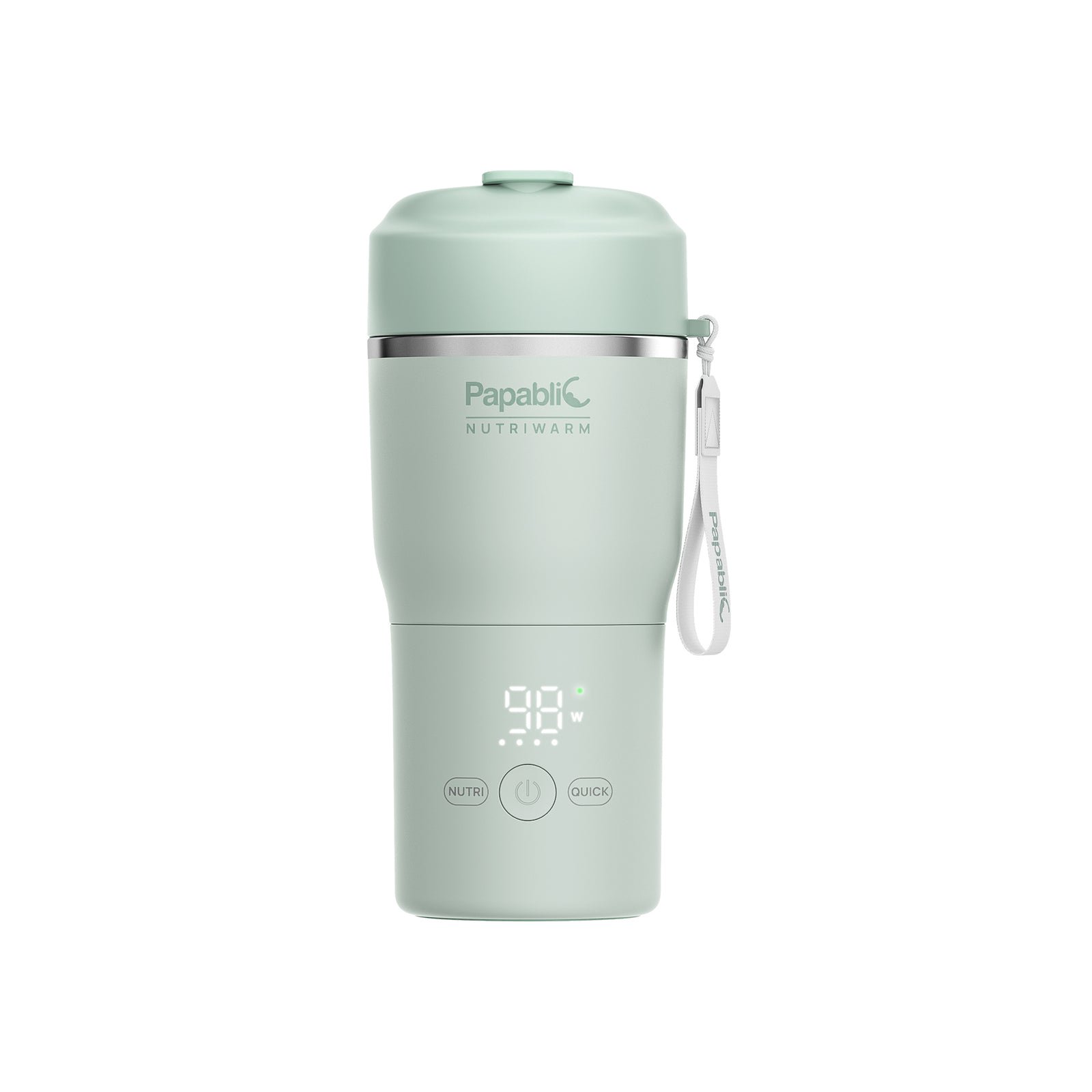 Best Papablic Portable Bottle Warmers and Breast Milk Coolers (2026) A research-based 2026 comparison of official Papablic NutriWarm, CapsuleChill, and On-the-Go Feeding Kit specs, November 19, 2026 listed prices, modes, capacity, and U.S. shipping...
 How to Choose an Airalo eSIM: Local vs Regional vs Global How to choose a local, regional, or global Airalo eSIM, with official US dollar example prices from Japan, Europe, Asia, and Global packages checked on November 16, 2026, plus cove...
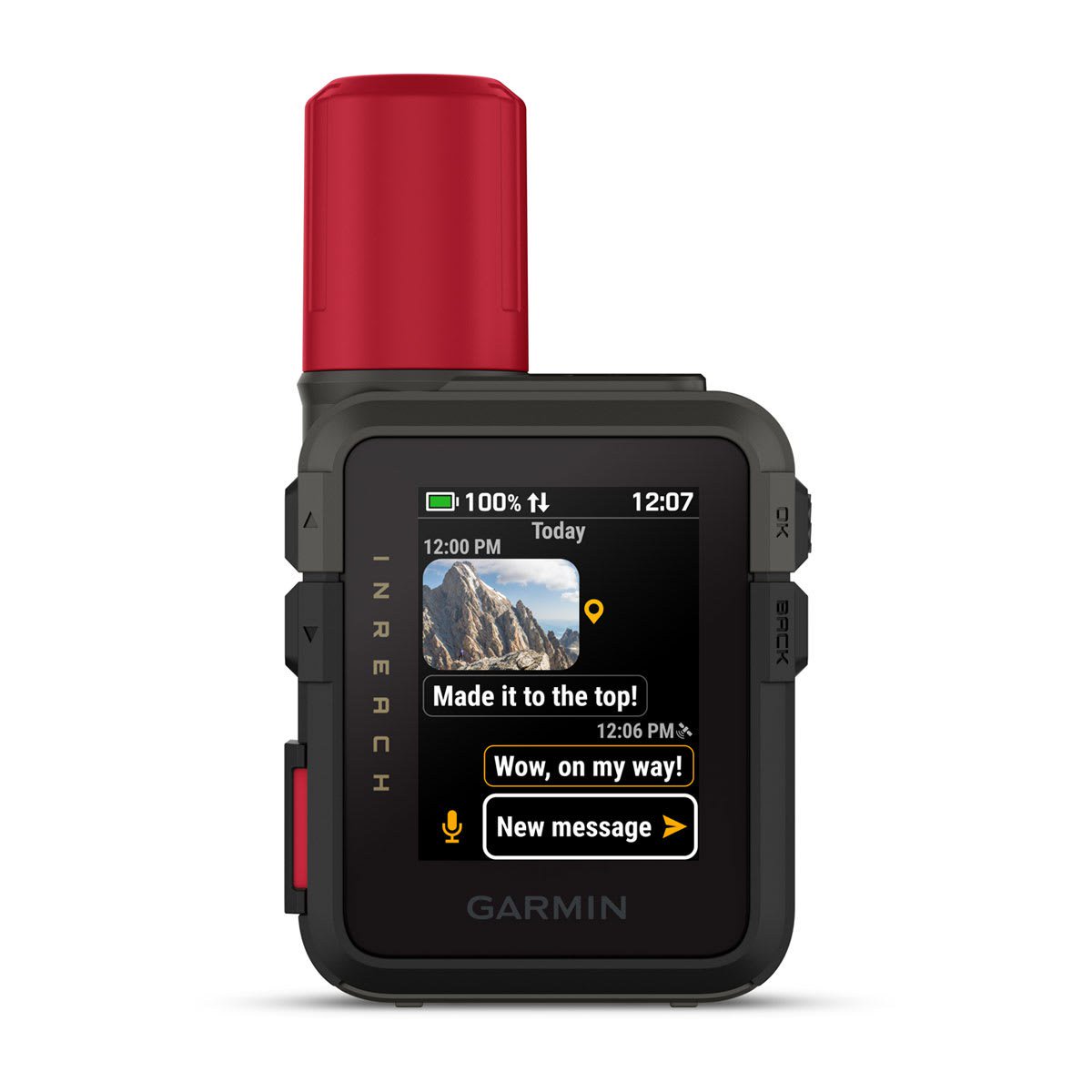 Garmin inReach for Travel: Messenger vs Messenger Plus vs Mini 3, and Which Plan to Choose How to choose a Garmin inReach satellite communicator for a trip beyond cell service: Messenger vs Mini 3, whether you need Plus for photos and voice, and what the Enabled, Essenti...