How to Connect XREAL Glasses to iPhone, Android, Laptops, Steam Deck, Switch and PS5
A device-by-device guide to connecting XREAL One series glasses: the DisplayPort rule, direct connections, Switch and Switch 2 workarounds, HDMI consoles and troubleshooting.
Disclosure: This page may contain affiliate links. They do not influence our editorial conclusions. Read the disclosure.
Our pick
- See price at XREAL
Top pick
XREAL
Maker of AR and XR display glasses, including the Android XR-based XREAL AURA.
What this guide covers
XREAL's display glasses work like a portable external monitor that sits in front of your eyes. Plug them into the right device and you get a large virtual screen for movies, games or work. Plug them into the wrong one and you get nothing, which is why "will it work with my phone or console?" is the most common question before and after buying a pair. This guide explains, device by device, how XREAL says its One series glasses connect, which devices plug straight in, which need an adapter, and what to do about power, based on XREAL's official tutorials and user guide as of November 2, 2026.

The one rule that decides compatibility
According to XREAL's tutorial site, a device can drive XREAL One series glasses directly only if its port supports DisplayPort (DP) video output and can provide 5V/1A of power. In practice that means a USB-C port with "DP Alt Mode," the same feature that lets a laptop or phone output to a USB-C monitor.
Two consequences follow:
- USB-C alone is not enough. Plenty of budget phones and tablets have USB-C ports that only charge and transfer data. If the port does not output video, the glasses will not show a picture. XREAL suggests checking with your device manufacturer's support if you are not sure.
- The glasses have no battery. XREAL notes that One series glasses take their power from the connected device, so unplugging the cable shuts them off and, during use, they draw on your phone's or handheld's battery.
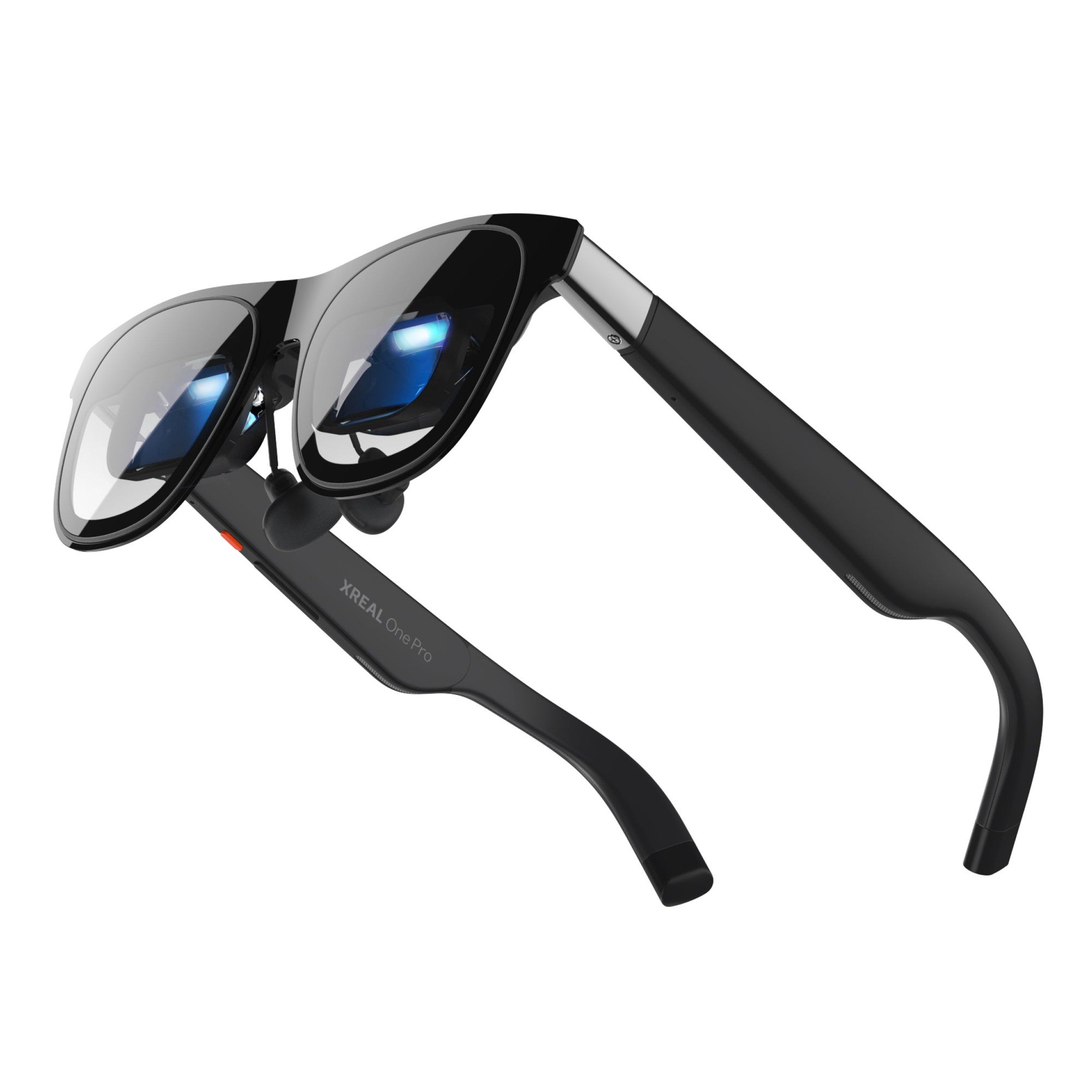
The XREAL US store currently lists several glasses in this family, including the XREAL One ($399), XREAL 1S ($399), XREAL One Pro ($539) and XREAL 1 Pro+ ($599), at prices shown on November 2, 2026. Check the product page for your exact model before buying accessories, since compatibility notes can differ between generations.
Devices that plug straight in
XREAL's tutorial lists these as direct-connection devices, using the USB-C cable that comes in the box:
| Device | Direct connection? | Notes from XREAL |
|---|---|---|
| iPhone 15, 16 and 17 series | Yes | The user guide excludes iPhone 16e; Lightning iPhones are not supported |
| Android phones with DP output (for example Galaxy S series) | Yes | Phone must support video output over USB-C |
| iPad with USB-C DP output (for example iPad Pro 4th gen) | Yes | |
| Windows laptops with USB-C DP, MacBook Pro | Yes | Some desktops such as Mac mini also work |
| Steam Deck and Steam Deck OLED | Yes | |
| ROG Ally and other Windows handhelds | Yes | |
| Nintendo Switch, Switch OLED, Switch 2 | No | Needs an adapter, see below |
| PlayStation and Xbox | No | Needs an HDMI-to-USB-C adapter |
| PCs with only HDMI out | No | Needs an HDMI-to-USB-C adapter |
iPhone
For iPhone 15 and later, connect the glasses' USB-C cable to the phone and the picture mirrors to the glasses. XREAL's user guide estimates 4 to 6 hours of viewing from a fully charged iPhone under normal conditions and recommends a hub for longer sessions so the phone can charge while you watch. Older iPhones with a Lightning port are not compatible.
Android phones and tablets
The same plug-in method applies, with the same 4 to 6 hour estimate from XREAL. Phones with a desktop mode, such as Samsung DeX, unlock more features: XREAL's compatibility table shows UltraWide Mode working on Android phones in desktop mode and on Android tablets, but not on iPhone or on Android phones without a desktop mode.
Laptops
A Windows laptop or MacBook with a USB-C port that supports DP output can connect directly, and the glasses act as an external display. Laptops, iPads and Windows handhelds also support UltraWide Mode according to XREAL's table. If you are weighing glasses against a portable monitor for travel work, our XREAL AURA vs portable monitor guide goes deeper on that trade-off.
Steam Deck and Windows handhelds
Steam Deck, Steam Deck OLED and ROG Ally connect directly. XREAL estimates 4 to 5 hours of typical gaming on a fully charged handheld and again suggests a hub if you want to charge while playing.
Devices that need an adapter

Nintendo Switch and Switch OLED
The original Switch cannot power the glasses directly. XREAL's user guide says that because of voltage limits on the Switch's USB-C port, you need the XREAL Hub plus a power supply or power bank. The Hub is a short USB-C adapter with an extra USB-C power port; XREAL's product page describes up to 45W charging passthrough and up to 120Hz passthrough, and notes that the Switch needs to stay connected to power while playing. The Hub listed at $39.99 on XREAL's US store but showed as unavailable when we checked, so look at the product page or authorized retailers for current stock.
Nintendo Switch 2
Switch 2 is a different story. XREAL's own FAQ (published on its Chinese site) says the XREAL Hub is not currently compatible with Switch 2 because of the dock's upgraded bandwidth, so the original Switch method does not apply. As a workaround, XREAL suggests connecting the Switch 2 dock to the glasses through an HDMI-to-USB-C converter. XREAL has also said it is developing an accessory called XREAL Neo to support Switch 2 output with built-in charging; check XREAL's site for its current availability.
PlayStation, Xbox and HDMI-only PCs
These consoles and computers output video over HDMI rather than USB-C, so XREAL says you need an HDMI-to-USB-C adapter (its user guide describes an HDMI adapter plus an HDMI-to-USB cable). Because the glasses take their power from the source, use an adapter that can supply power, and check XREAL's tutorials or community for converters it has confirmed to work.
What features work on each device
XREAL's compatibility table shows most features working everywhere: Anchor and Follow modes, electrochromic dimming, screen size and distance adjustment, 3D mode, the stabilizer, side view and color temperature adjustment are listed for every device type, from iPhone to PlayStation. The main exception is UltraWide Mode, which is listed for Android in desktop mode, iPad, Android tablets, Windows, MacBook, Windows handhelds and Steam Deck, but not for iPhone, Android phones without desktop mode, Switch, Xbox or PlayStation. XREAL adds that availability can vary with device model and system version.

Step-by-step: first connection
- Confirm DP output. Check your device's spec sheet for "DisplayPort Alt Mode" or "video output over USB-C."
- Charge the source device. The glasses run on its battery.
- Use the cable in the box. XREAL's tutorial lists direct connections "using the cable included in the package."
- Plug in and put the glasses on. The picture should appear without an app on supported devices.
- Adjust fit and screen. Use the nose pads in the box (XREAL One ships with small, medium and large pads) and the on-glasses menu to set screen size and distance.
- For long sessions, add a hub or power-passthrough adapter so the source can charge.
Troubleshooting a black screen
- Check the port, not just the cable. A charging-only USB-C port is the most common cause.
- Try a different source. If the glasses work with a laptop but not your phone, the phone likely lacks DP output.
- Check power on consoles. Switch and HDMI adapters need external power because the glasses draw their power from the source.
- Update software. XREAL notes that feature availability depends on device model and system version.
- Avoid unverified adapter chains. Stacking multiple adapters can create power problems; XREAL's Switch 2 FAQ warns about power on two-adapter setups.
Do you need extra accessories?
For many buyers the answer is no. An iPhone 15 or newer, a recent Android phone with DP output, a laptop, or a Steam Deck plugs straight in. You only need extra hardware if you:
- play on Switch, PlayStation or Xbox;
- want to charge while you watch or play;
- want 6DoF anchoring, which XREAL says requires pairing with its XREAL Eye camera accessory on supported glasses;
- wear prescription glasses, in which case XREAL sells model-specific prescription lens frames.
Where XREAL fits in your setup
Display glasses are best at private, big-screen viewing on the move: flights, commutes, hotel rooms and handheld gaming. XREAL's newest flagship, AURA, takes a different approach as an Android XR device; our XREAL AURA launch coverage explains how it differs. If you mainly game on a Switch-style controller, our EasySMX controller shopping guide covers controller options too.
References
- XREAL Tutorials. "Connect Devices" (XREAL One series). https://tutorials.xreal.com/docs/glasses/one-series/first-use/connect-device/
- XREAL US Shop. "User Guide_XREAL One Series." https://us.shop.xreal.com/blogs/buying-guide/user-guide_xreal-one-series
- XREAL. "XREAL One Pro." https://www.xreal.com/one-pro
- XREAL US Shop. "XREAL Hub" product page. https://us.shop.xreal.com/products/xreal-hub
- XREAL US Shop. Product pages for XREAL One, XREAL 1S, XREAL One Pro and XREAL 1 Pro+. https://us.shop.xreal.com/
- XREAL. "XREAL 产品使用常见问题(FAQ)|第 1 期" (product FAQ, Switch 2 connection). https://www.xreal.com/cn/blog/xreal-product-faq-01-cn
Meet your guide
Lipeiguan
author
What to read next
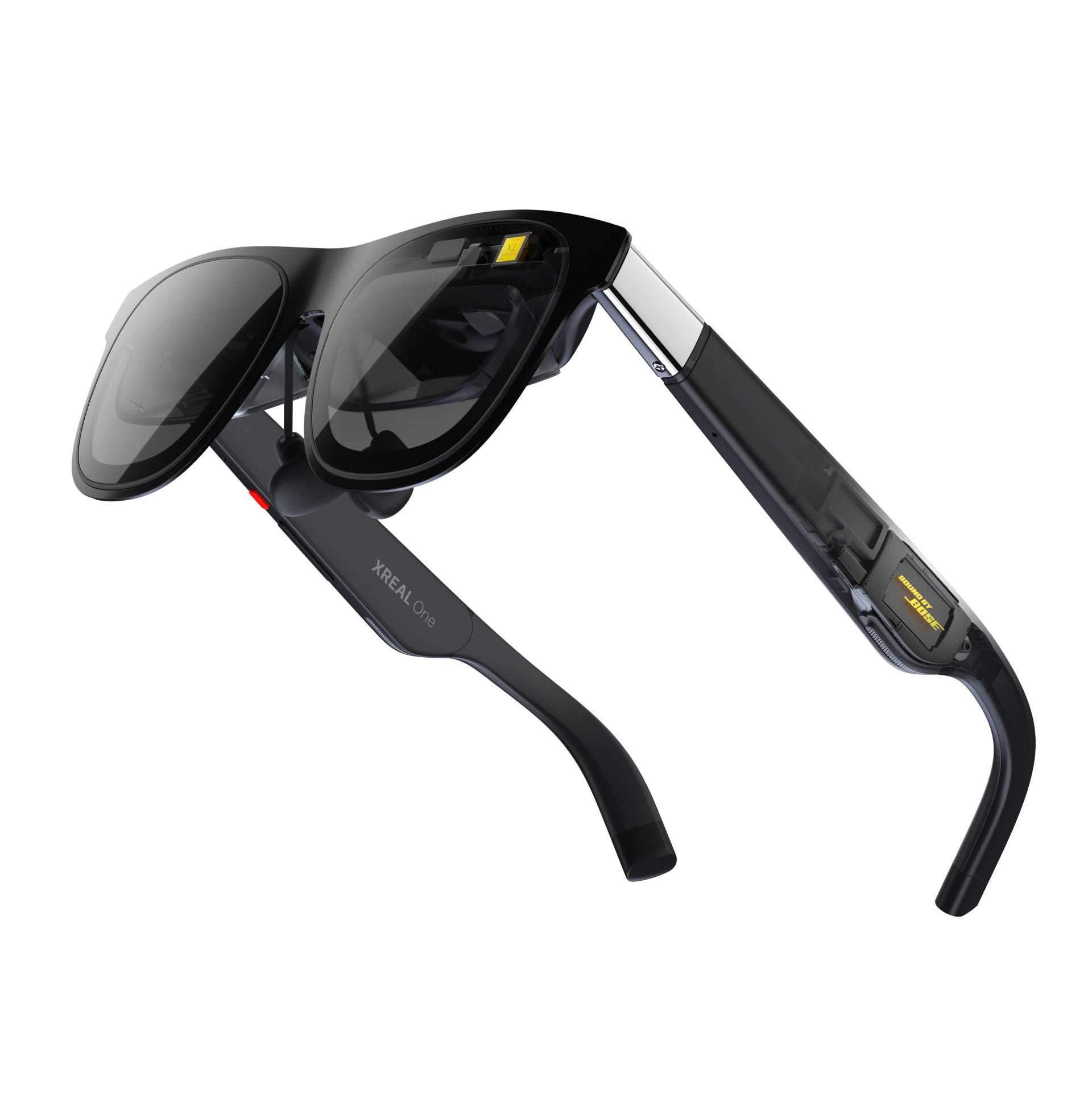 XREAL One vs One Pro vs 1S: Which XREAL Glasses Should You Buy? A spec-based buyer's FAQ comparing the XREAL One, XREAL 1S and XREAL One Pro: field of view, brightness, refresh rate, fit sizes, prices and who each model suits.
  Google Health Premium Review (Formerly Fitbit Premium): Price, Coach and What Changed A research-based review of Google Health Premium, the renamed Fitbit Premium: pricing, trial terms, what the coach adds over the free app, and what was removed.
  EasySMX Controller Shopping Guide: Which Model Fits Switch 2, PC or Your Phone A platform-first guide to the current EasySMX controller lineup with prices from easysmx.com, plus the store's shipping, return and warranty rules.