
Google Play Books Audiobooks Guide: Buy, Listen Offline, Share with Family and Refunds
How Google Play audiobooks work: buying on Android, iPhone and the web, offline downloads, export, Nest speaker voice commands, Family Library sharing rules and Google's audiobook refund policy.
Disclosure: This page may contain affiliate links. They do not influence our editorial conclusions. Read the disclosure.
Our pick
- See price at Google Store
Top pick
Google Store
Google's online store for Pixel phones, Fitbit wearables, Nest devices and accessories.
What this guide covers
Google Play Books lets you buy an audiobook once and listen on Android, iPhone, the web and Google smart speakers, and its help pages describe buying audiobooks one title at a time at the listed price. That makes it a good fit if you only buy a handful of audiobooks a year, or if you want to share them with your family.
It also has some rules that surprise people: you can't buy inside the iPhone app, audiobook sales are generally final, and only some purchases can be shared. This guide covers how to buy, listen offline, export, share and get help with Google Play audiobooks, using Google's own help pages, checked November 14, 2026.

The short version
- Where to listen: the Google Play Books app on Android and iPhone/iPad, play.google.com on a computer, and Google Home/Nest speakers and displays through Google Assistant.
- How you pay: each audiobook is bought at its listed price. Google says you can also pay with Play Balance.
- Sync: switching devices resumes "where you left off, at the closest natural stopping point."
- Sharing: eligible audiobooks can go into Google Play Family Library, shared with up to five family members.
- Refunds: Google's policy says audiobook sales are final, with narrow exceptions (see below).
How to buy an audiobook on each device
Android phone or tablet
- Open the Google Play Books app and search for the title.
- Tap the cover image to open the details page.
- Tap the price, then Buy Audiobook.
Computer
Go to your Play Books library on play.google.com, find the book, click the price and then Buy. You can click Play sample first to hear the narrator, which is worth doing for any long listen.
iPhone or iPad
This is the one that trips people up. In the iOS app you can find a title, but tapping Get audiobook sends you to the Google Play Books website (your device warns that you are leaving the app). You complete the purchase in the browser, and the audiobook then appears in your library in the app when you sign in with the same Google Account.

Check the version before you buy
Google's help page points out three types of audiobooks in its store:
- Unabridged: the full book, which Google says is "the vast majority" of its catalog.
- Abridged: a shortened version sold as a separate item. Double-check which one you are buying.
- AI-narrated: text-to-speech versions of ebooks read by a digital voice. Google warns you may hear mispronounced words, odd pauses, or a tone that doesn't match the content.
Since audiobook purchases are generally final, the version check and the free sample are your best protection against buying the wrong thing.
How to listen, including offline
On Android, open Play Books, tap Library, then the Audiobooks tab, and tap a title to start playing. On iPhone and iPad, open the app, sign in with the account you bought with, then go to Library. On a computer, open your Play Books library and use the Format filter to show audiobooks.
Download over Wi-Fi only
To avoid using mobile data, open Play Books, tap your profile picture, go to Play Books settings and turn on Download over Wi-Fi only (labeled "Download only over Wi-Fi" on iPhone).
Choose download quality
In the same settings, under Audiobook playback, tap Audio quality to pick standard or high quality. Google notes that high quality takes more storage and bandwidth, so standard quality is the practical choice on a phone with limited space.
Bookmarks
Open an audiobook and tap Bookmark at the top (on a computer, click Bookmark at the bottom of the player). Bookmarks are listed under Contents > Bookmarks, where you can delete them.
PDFs that come with an audiobook
Some audiobooks include charts, maps, visuals or appendices as a PDF. On mobile, open the audiobook from your library and choose More > Open accompanying PDF. On a computer, choose More > Download accompanying PDF.
Can you export Google Play audiobooks?
Sometimes. On a computer, open your Play Books library and choose More > Export on the audiobook. Google notes that some audiobooks can't be exported. To check before you buy, open the book's details page, scroll to Additional information and look at Export option.
This matters if you want to listen in an app other than Play Books. If export is not available, you are limited to Google's apps and devices for that title.
Listening on Google Nest and Home speakers
Audiobooks you buy on Google Play can play on Google Home and Nest speakers and displays. Make sure the speaker is linked to the same Google Account you used to buy, then use voice commands such as:
- "Hey Google, read my book" to continue your most recent audiobook
- "Read [audiobook title]" to start a specific book from your library
- "Skip [amount of time]" or "Go back [amount of time]"
- "Next chapter" or "Previous chapter"
- "Play at 2x speed" or "Play slower"
Google says guests or housemates can listen to audiobooks bought by the first person who set up Voice Match on the device. For everyone in the house to use their own voice and access shared books, set up Voice Match and Family Library.
If your speakers are Sonos rather than Google, see our guide to audiobooks and podcasts on Sonos for the services that work there.
Sharing audiobooks with Family Library
Family Library lets you share eligible purchased ebooks and audiobooks (as well as apps, games, movies and TV shows) with up to five family members, each listening on their own device with their own Google Account.

Requirements
- You need a Google family group. If you aren't in one, the person who signs up becomes the family manager, who must be 18 or older (or the appropriate age in their country) and have a valid credit or debit card as the family payment method.
- Family members must live in the same country as the manager and can't be in another Google family group.
- You can't create a family with a work, school or other organization account.
- Everyone in the family has to set up Family Library.
To sign up, open the Google Play app, tap your profile icon, then go to Settings > Family > Sign up for Family Library.
What can and can't be shared
- A book can be shared only if the publisher allows it; look for the Family Library icon on the details page.
- Free samples, public domain books, personal documents you uploaded, and rentals can't be added.
- Books bought with any payment method are eligible as long as there's a valid family credit card on file and family sharing is turned on.
- Eligible purchases are added automatically by default after you create or join a family group. You can also add a title by pressing and holding it in your Library and choosing Add to Family Library.
- Each book can be downloaded on up to six devices at the same time.
- If someone removes a book from Family Library or leaves the group, other members lose access to it.
Family members find shared books in Play Books under Library > Family. If there is no Family tab, nothing has been shared yet.
Refunds: what Google's policy says
Google's Play Books refund policy treats ebooks and audiobooks differently:
- Ebooks: you can request a refund within 7 days of purchase (rentals are final). If an ebook doesn't work, you can request one within 65 days.
- Audiobooks: "All sales are final," with an exception for South Korean customers, who can request a refund within 7 days if they haven't started listening.
- Ebook bundles: refunds are for the full bundle only, within 7 days, as long as you haven't downloaded or exported more than two books in it.
- Multi-quantity purchases (such as "Buy for groups"): Google may refund some within 14 days, depending on the publisher.
These policies apply to purchases made in the Play Books app or the Books tab of the Google Play Store. If an audiobook won't play, Google asks you to try its troubleshooting steps before requesting a refund, and notes that a refunded title may be removed from your library. EEA and UK customers have a separate refund policy page.
Tips to get more from Google Play audiobooks
- Sample before buying. Narration matters more than anything else in an audiobook, and sales are generally final.
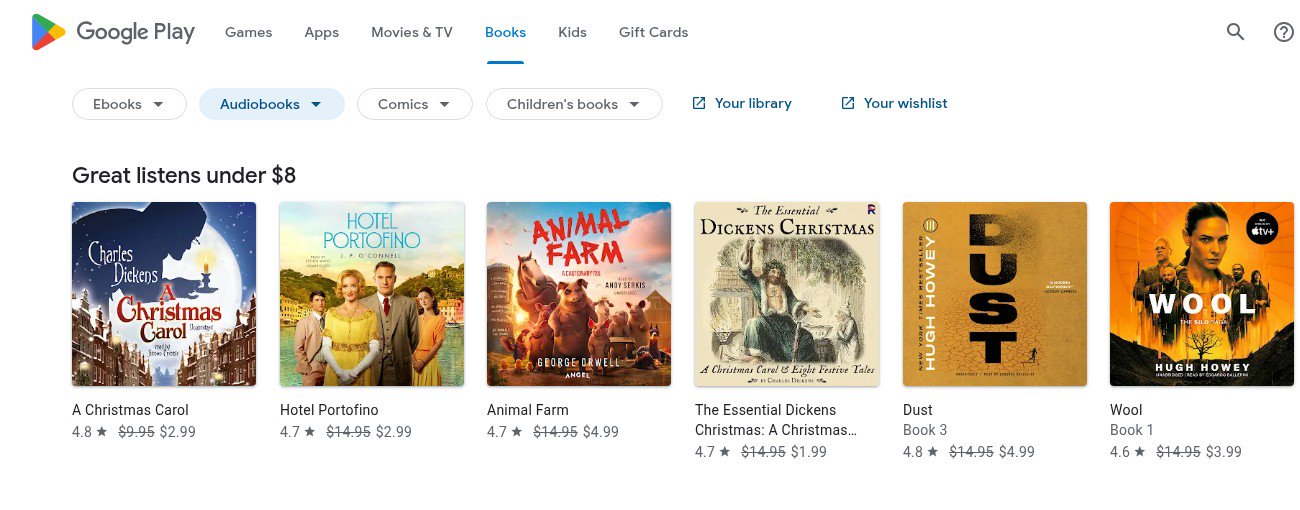
- Watch for sale rows. On November 14, 2026, the audiobooks storefront in the US showed a "Great listens under $8" row, with marked-down titles such as Animal Farm at $4.99 and A Christmas Carol at $2.99. Prices change often, so check the details page.
- Set Wi-Fi-only downloads before a trip, then download the book at home.
- Check the export option if you might move to another app later.
- Turn on Family Library before buying for kids or a partner, so eligible purchases are shared automatically.
References
- Google Play Help: How to buy & listen to audiobooks on Google Play (Computer, Android and iPhone & iPad versions)
- Google Play Help: Use Google Play Family Library
- Google Play Help: Google Play Books refund policies
- Google Play Books Partner Center Help: What is Google Play Family Library?
- Google Home and Nest Help: Listen to media on your Google smart speaker or display
- Google Play: Audiobooks storefront (viewed November 14, 2026)
Meet your guide
Lipeiguan
author
What to read next
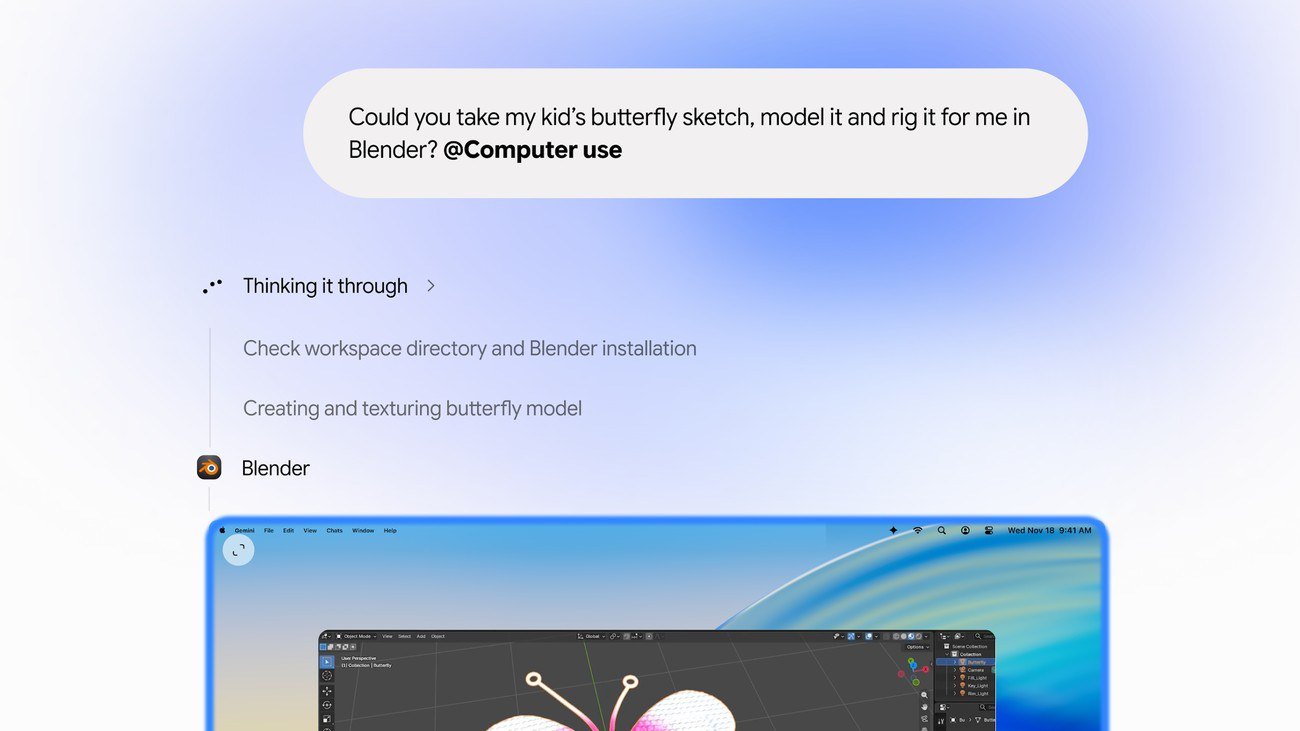 Google Adds Computer Use to the Gemini App for Mac in the U.S. On November 19, 2026, Google said computer use is available in the Gemini app for Mac, in English in the U.S. Official requirements include an Apple Silicon Mac on macOS Sequoia 15... How to Use Gemini Computer Use on a Mac: Official Requirements, Permissions and Examples Official Google requirements for computer use in the Gemini app for Mac: an Apple Silicon Mac on macOS Sequoia 15.0 or later, a personal Google account for people 18 or older, a Go...
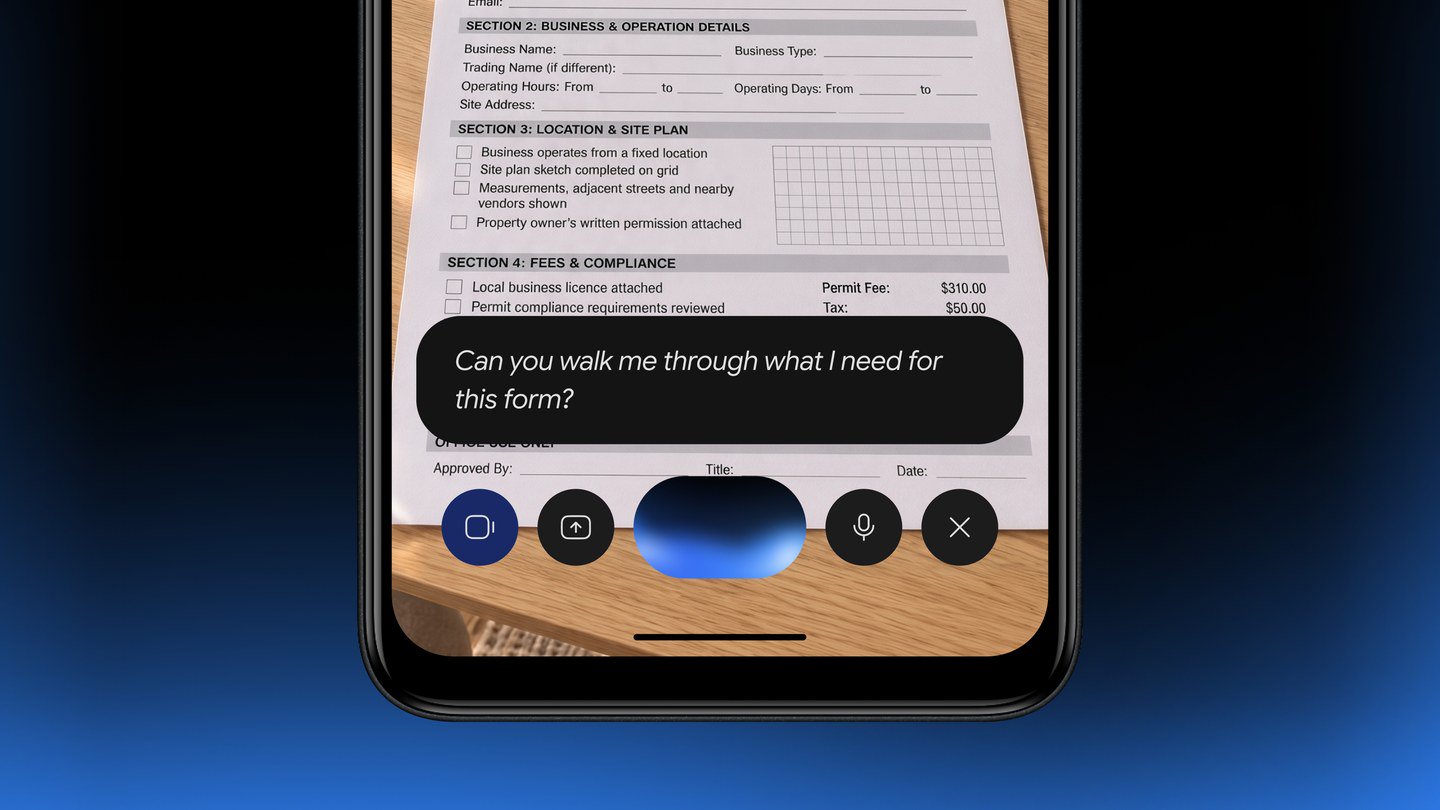 Google Brings the Gemini App to Eligible Android Go and Lower-Memory Phones On November 18, 2026, Google said the Gemini app is available on eligible Android (Go edition) devices after a re-architecture for lower-memory phones. Official help adds a 2GB RAM...