
How to Use Gemini Computer Use on a Mac: Official Requirements, Permissions and Examples
Official Google requirements for computer use in the Gemini app for Mac: an Apple Silicon Mac on macOS Sequoia 15.0 or later, a personal Google account for people 18 or older, a Google AI Plus, Pro or Ultra plan, and an English rollout in the U.S.
Disclosure: This page may contain affiliate links. They do not influence our editorial conclusions. Read the disclosure.
Our pick
- See price at Google Store
Top pick
Google Store
Google's online store for Pixel phones, Fitbit wearables, Nest devices and accessories.
Steps in this guide
Google’s November 19, 2026 Gemini app blog post introduces computer use in the Gemini app for Mac: you describe a multi-step task, and Gemini clicks, types, and moves through menus in an isolated window while you keep using your main screen. This guide restates the official requirements, the permission model, the download path, and the examples Google published. It does not report hands-on testing, and it does not add setup steps that Google did not document in that post.
The news item summarizes the announcement. This Mac feature is separate from the Gemini app on eligible Android Go phones and from the Gemini 4 Hydrogen explainer.

Official requirements
The blog post’s footnote is the eligibility list. Computer use in the Gemini app for Mac requires:
- An Apple Silicon Mac
- macOS Sequoia 15.0 or later
- A personal Google account
- Age 18 or older
- A Google AI Plus, Pro, or Ultra plan
- The English-language rollout in the United States
If any of those are missing, the official announcement does not say the feature is available. The post does not list Intel Macs, older macOS versions, Google Workspace-only accounts, users under 18, or free Gemini plans as part of this rollout. It also does not, in the text we reviewed, name a broader set of countries or languages for this Mac feature.
Google’s official download link, cited in the post, is gemini.google/mac. The post says computer use is rolling out “starting today” (November 19, 2026) in English in the U.S. in the Gemini app for Mac. If the app is already installed, the official text does not spell out a separate toggle name or a menu path beyond using computer use in the Gemini app, so look for the feature in the current Mac app rather than assuming a hidden setting from this guide.
How Google says you stay in control
The official post repeats a control model rather than a click-by-click tutorial. You choose which apps Gemini can access. You watch a live preview in the chat. You can pause at any time. You approve key actions before they happen. Gemini, Google says, operates in an isolated window, so your main screen and cursor stay free and you can keep typing, designing, or taking calls.
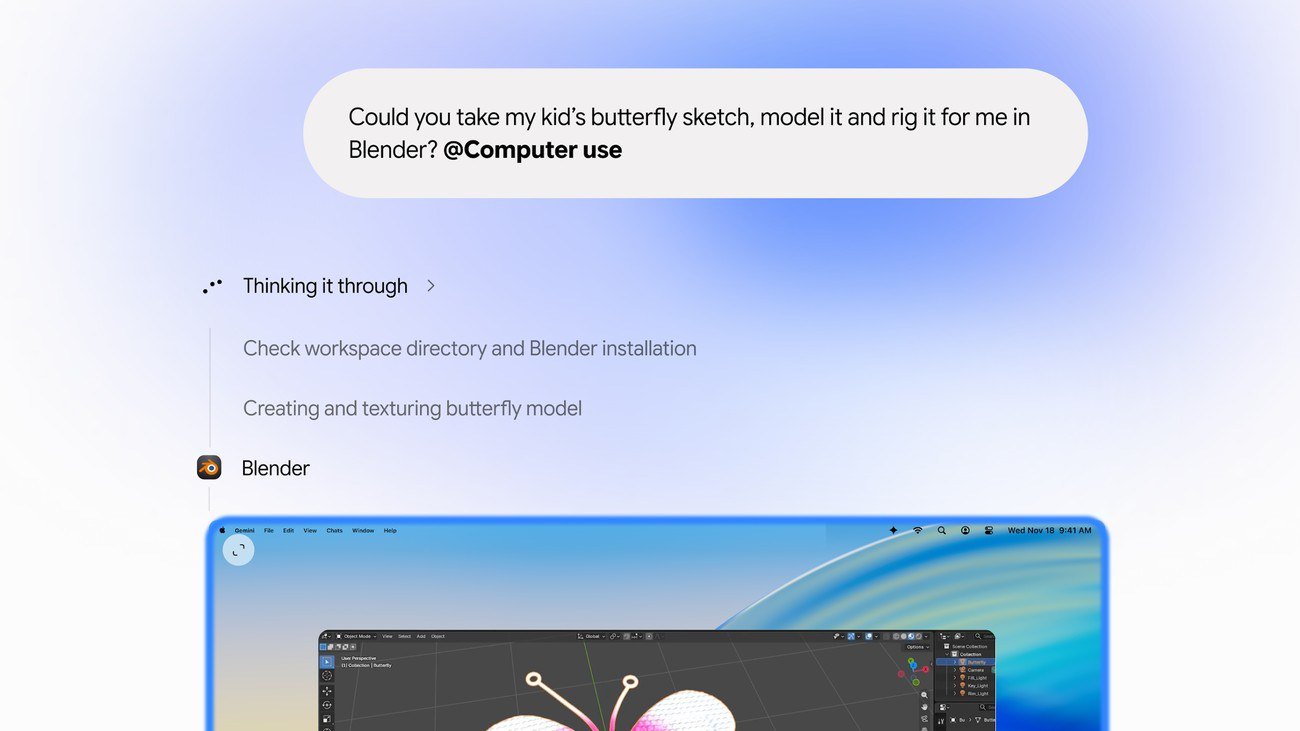
That isolation is the main official difference from a feature that would take over your whole display. The official hero image on the blog shows a chat prompt that uses “@Computer use” to ask Gemini to take a child’s butterfly sketch, model it, and rig it in Blender, with a “Thinking it through” list that includes checking the workspace directory and Blender installation, then creating and texturing the butterfly model, and a Blender window open on the butterfly. The menu bar in that official image shows “Wed Nov 18, 9:41 AM.” The image is an official illustration of the workflow, not a test we ran. An official video poster on the same blog post shows a hand starting a line on paper with a black pen, which matches the sketch-to-model example in the hero art.
Because approvals and app permissions are part of the official safety story, it is reasonable, based only on Google’s wording, to treat this as a feature you supervise rather than one you start and walk away from. The post does not publish a list of apps that are blocked, a list of actions that always require approval, or a log format. If those details appear in the Mac app or in a later help article, use those official sources.
Official examples of what you can ask it to do
Google lists four starting points in the November 19 post:
- Speed up creative workflows: batch color-grade photos in your favorite design software, or set up complex 3D scenes.
- Skip manual form entry: extract weights, dimensions, and addresses from local PDFs and fill out multi-box shipping quotes.
- Turn live data into ready-to-present decks: pull metrics and screenshots from live dashboards across multiple regions and build a presentation in Google Slides.
- Batch-list items for sale: analyze clothing photos from a local folder, research pricing, log item details, and stage listings on resale platforms.
The official hero art points to a fifth, related idea: using computer use with Blender on a local file. Together, the examples share a pattern. They cross at least one local resource (files, photos, a desktop app) and at least one set of clicks that would normally take time. They are Google’s examples, not a promise that every design app, shipping site, dashboard, or resale platform will work the same way.
If you try one of those tasks, stay inside Google’s official control model: limit app permissions to what the task needs, watch the live preview, and use the approval step before Gemini finishes a change you cannot easily undo, such as publishing a listing or submitting a form. That caution follows from the official wording about approvals; this guide does not add extra software advice.

How this compares with other official Gemini surfaces
Computer use on the Mac is not the same announcement as bringing the Gemini app to eligible Android (Go edition) phones, which Google described in a November 18, 2026 post and in a Gemini Apps Help article that requires 2GB of RAM or more and notes that “Hey Google” and “Ask about this screen” are not supported on Android Go. It is also not the same as Gemini 4 Hydrogen in Search and the Gemini app, or Gemini on Apple CarPlay, which have their own official setup rules.
The Mac feature is also distinct from simply chatting with Gemini in a browser. The official point of computer use is that the app can operate other apps and websites in an isolated window, not only generate text or images in the chat. The official examples all depend on that ability.
If you already use Gemini on an iPhone, an Android phone, or in Chrome, the November 19 Mac post does not say those other clients gained the same computer-use window. The requirements in the footnote are specific to the Gemini app for Mac on Apple Silicon.
Practical checks before you download
- Confirm the Mac is Apple Silicon, not Intel, and that System Settings shows macOS Sequoia 15.0 or later. The official footnote does not include older systems.
- Confirm you will sign in with a personal Google account, that you are 18 or older, and that the account has Google AI Plus, Pro, or Ultra. The official footnote does not list free accounts for this feature.
- Use the official download path cited in the post, gemini.google/mac, rather than an unofficial copy of the app.
- Plan to grant only the app permissions the task needs, and to stay with the live preview until you are comfortable with how approvals work.
- If you are outside the United States, or you need a language other than English, the official post describes this rollout as English in the U.S. and does not, in that text, expand the region or language list.
Google can change eligibility, pricing of Gemini plans, or the in-app steps after November 19. This guide reflects the official blog post as published that day, including the footnote on hardware, accounts, age, and plan requirements.
References
- Michael Friedman, "Let Gemini tackle repetitive chores on your Mac," The Keyword (Google), November 19, 2026: https://blog.google/innovation-and-ai/products/gemini-app/computer-use-mac/
- Google, Gemini app for Mac download page cited in that post, accessed November 20, 2026: https://gemini.google/mac
- Related official context: Angus Logan, "The Gemini app is now available on lower-memory Android devices," The Keyword (Google), November 18, 2026: https://blog.google/innovation-and-ai/products/gemini-app/gemini-lower-memory-devices/
Meet your guide
Lipeiguan
author
What to read next
Google Adds Computer Use to the Gemini App for Mac in the U.S. On November 19, 2026, Google said computer use is available in the Gemini app for Mac, in English in the U.S. Official requirements include an Apple Silicon Mac on macOS Sequoia 15...  How to Choose a SwitchBot Lock: Lock Pro vs Lock Ultra vs Lock Vision and Vision Pro A research-based guide to official SwitchBot Lock Pro, Lock Ultra, Lock Vision and Lock Vision Pro specs and November 20, 2026 U.S. prices, including batteries, hubs, keypads, comp...
 Best RayNeo Glasses (2026): Air 3s, Air 4 Pro, GT, GT Max, iO and X3 Pro A research-based 2026 best-of guide to official RayNeo Air, GT, iO and X3 Pro specs and November 20, 2026 U.S. sale prices, with a buyer FAQ on 3DoF, prescription lenses, bundles a...