
How to Use the Gemini App on Android Go and Other Lower-Memory Phones
Official Google steps for the Gemini app on eligible Android (Go edition) devices with 2GB of RAM or more: update Google Search or install Gemini from Play, start a chat with a long-press of Home or Power, and note that Hey Google and Ask about this screen are not supported on Android Go.
Disclosure: This page may contain affiliate links. They do not influence our editorial conclusions. Read the disclosure.
Our pick
- See price at Google Store
Top pick
Google Store
Google's online store for Pixel phones, Fitbit wearables, Nest devices and accessories.
Steps in this guide
- 01Confirm that your phone is an eligible Android Go device
- 02Update Google Search, or install the Gemini app
- 03Start a conversation with the official Android Go shortcuts
- 04What official docs say you can do on these devices
- 05Limits and troubleshooting, using only official rules
- 06A short official checklist
Google's November 18, 2026, blog post says the Gemini app now runs on eligible Android (Go edition) devices after the company re-architected it for phones with less memory. The official Gemini Apps Help article for those devices is the step-by-step source for who can use it, how to update the right app, how to start a conversation, and which Assistant-style shortcuts are not available. This guide follows that official help page and the blog post. It is not based on a hands-on test of a particular Android Go phone.
Confirm that your phone is an eligible Android Go device
The official help article states that the Gemini mobile app is available on Android (Go edition) devices with 2GB of RAM or more. That RAM floor is the only hardware number in the help article; Google does not, in the pages cited here, publish a complete model list. If your phone is not an Android Go edition device, or if it has less than 2GB of RAM, this official lower-memory guide does not apply. Regular Android phones have a separate Gemini app help path, and older general availability wording on other Google help pages can lag behind this dedicated article, so use the lower-memory article as the current official reference for Android Go.
You also need a signed-in Google Account that is allowed to use Gemini Apps. The help article accepts a personal account or a work or school account that has access to Gemini Apps. If you use a work or school account, it tells you to check whether your plan or license includes that access. If you manage an account with Family Link, you can turn off Gemini Apps access for users under 13, or the applicable age in your country, in Family Link settings. Availability is described as covering all languages and countries where Gemini is already available, not as a new country-by-country launch list in this article.
The November 18 blog post is consistent with that eligibility idea: it talks about eligible Android (Go edition) devices and about upcoming preloaded devices from partners such as Transsion, without naming every model.

Update Google Search, or install the Gemini app
On Android Go, the official help article says Gemini is available as part of the Google Search app. The official update path is:
- Open the Google Play app on the Android Go device.
- Search for “Google” or “Google Search.”
- On the Google Search app page, tap Update if that button is shown.
- If the button says Open, the help article says you already have the latest version.
The same article says you can also download the Gemini app from the Play Store, and that some newer devices may have Gemini included. The November 18 blog post likewise says to download the Gemini app on Google Play, or to look for it preloaded on upcoming Transsion devices. If Play shows an Install or Update button, use that official store listing rather than a sideloaded file. If Play does not offer the Gemini app or a Google Search update in your account's country, the official documents cited here do not provide a workaround.
After the update or install, stay signed in with the same eligible Google Account you intend to use for Gemini Apps.
Start a conversation with the official Android Go shortcuts
The help article lists two official ways to start chatting on Android (Go edition) devices: touch and hold the Home button, or press and hold the Power button on supported devices. The blog post also mentions pressing and holding the power button on supported phones. “Supported” matters: if a particular Go phone does not treat the power button as a Gemini shortcut, the official Home-button method is the one the help article lists first.
Two shortcuts that many people know from other Gemini or Assistant setups are officially unavailable here. The help article states that “Hey Google” and “Ask about this screen” are not supported on Android (Go edition) devices. If you are moving from a regular Android phone where those work, do not expect the same wake phrase or on-screen “ask about this” action on an eligible Go phone. The help article also says this experience replaces Assistant for Android (Go edition), so the older Assistant Go path is not the official ongoing setup.
If a long-press does nothing, the official first checks are whether the Google Search app is updated, whether you are signed in with an eligible account, and whether the device meets the 2GB Android Go requirement. The cited pages do not describe a hidden developer setting that turns Gemini on when those conditions are not met.

What official docs say you can do on these devices
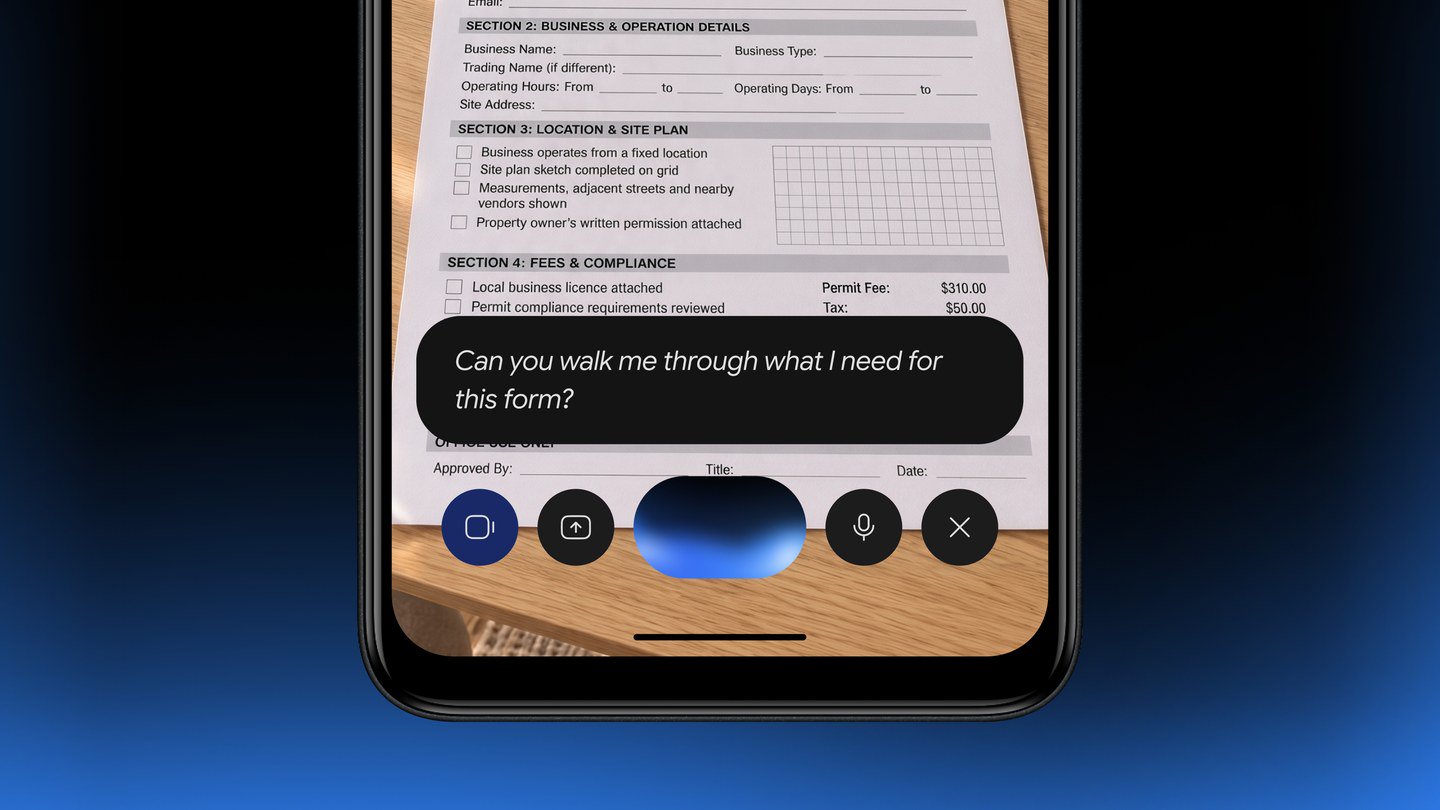
The November 18 blog post highlights three examples that match a lower-memory phone used for everyday tasks: talking things through or practicing for an interview with Gemini Live in more than 45 languages, pointing the camera at notes or forms to learn and translate, and creating custom images with Nano Banana, with a flyer for a weekend bakery sale given as an example. Those are official product examples, not a claim that every feature from the full-memory Gemini app is present on every Go device.
The official help article adds a longer, practical list of tasks for Android Go:
- Stay connected: ask Gemini to call or send text messages to your contacts.
- Get help with images: take a photo to translate text or get step-by-step help, and ask Gemini to create images.
- Brainstorm: talk with Gemini Live in a naturally flowing conversation, such as a practice interview.
- Find local info: check drive time, or ask a more specific local question. The help article's example is finding a ramen restaurant that is open for lunch on Tuesday and has an EV charger nearby.
- Plan your day: set an alarm or create a calendar event.
- Upload files: add docs, photos and other files for more context in a chat.
- Play media: ask Gemini to play music, including by mood or activity, with official example prompts such as “Play pop party jams!” or “Play quiet acoustic songs for a dinner party.”
If a feature you use on a Pixel or other regular Android phone is not in this official Android Go list — for example, “Hey Google,” “Ask about this screen,” or a connected-app workflow that is only documented for the standard Gemini app — this guide does not assume it is available on Go. Check the lower-memory help article and in-app availability on your device rather than copying a regular-Android tutorial.
Our earlier Gemini 4 Hydrogen explainer covers what that model change meant in the Gemini app and in Search for users on the broader Gemini products. This article is only about getting the app running on eligible Android Go phones, as described in the November 18 announcement.
Limits and troubleshooting, using only official rules
Keep the official limits in view before you change a child's account, a work profile, or a phone that barely meets the RAM floor.
Family Link administrators can turn Gemini Apps off for users under 13 or the applicable local age. Work and school accounts need a plan or license that includes Gemini Apps access; the help article tells those users to check with their administrator or plan details. The lower-memory article does not, in the text we cited, add a separate work-profile exception, but other official Gemini help pages have said the Gemini mobile app cannot be used in an Android Work Profile. If you are on a work-managed Go phone, confirm with official work-account documentation and your administrator rather than assuming this consumer setup will apply.
There is no official “Gemini will use this much storage” number in the blog post or the lower-memory help article, only the statement that the experience is designed to be efficient on devices with lower storage and that the app was re-architected for less memory. There is also no official claim in those two pages that every Gemini Live language, image tool or file type from the standard app is present on every Go device. The documented language figure in the blog post is “more than 45 languages” for Gemini Live, and the help article ties country and language eligibility to where Gemini is already available.
If Gemini does not appear after you update Google Search, official next steps are to confirm Android Go plus 2GB of RAM, sign in with an eligible account, and, where the Play Store offers it, install or open the Gemini app itself. Upcoming Transsion devices, the blog says, may ship with Gemini preloaded; that is an official partner note, not a list of current Transsion model numbers.

A short official checklist
Use this only as a restatement of the official steps. First, confirm you have an Android (Go edition) phone with 2GB of RAM or more and a signed-in account that can use Gemini Apps. Second, update the Google Search app from Google Play, or install the Gemini app from Play if it is offered, unless the phone already includes Gemini. Third, start a chat by touching and holding Home, or by holding Power on a supported device. Fourth, use the in-app camera, Gemini Live, calling, calendar and other tasks that the official help article lists, and do not rely on “Hey Google” or “Ask about this screen,” which official documentation says are not supported on Android Go.
Those are the current official instructions as of the November 18, 2026, blog post and the Gemini Apps Help article we accessed on November 19, 2026. If Google updates the help article, follow the live official page.
References
- Angus Logan, "The Gemini app is now available on lower-memory Android devices," The Keyword (Google), November 18, 2026: https://blog.google/innovation-and-ai/products/gemini-app/gemini-lower-memory-devices/
- Google, "Get Started with the Gemini mobile app on lower-memory Android devices," Gemini Apps Help, accessed November 19, 2026: https://support.google.com/gemini/answer/17079170?hl=en
Meet your guide
Lipeiguan
author
What to read next
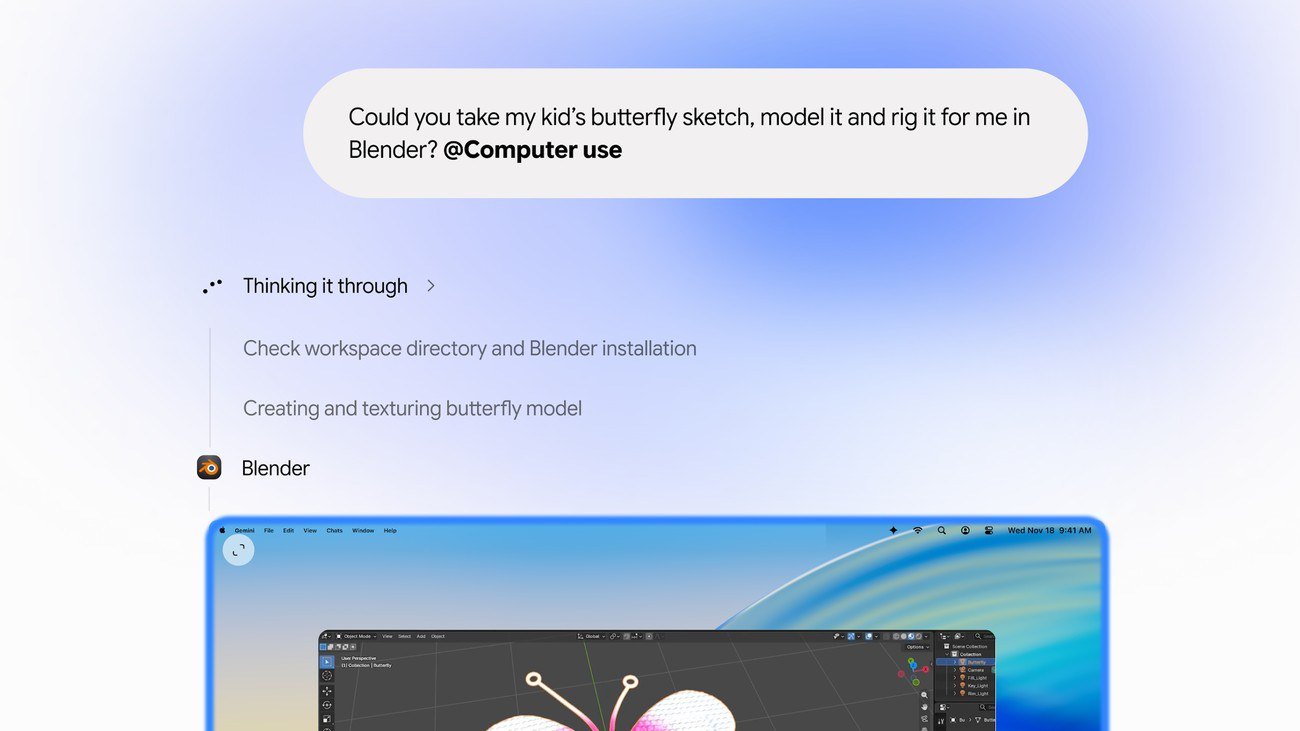 Google Adds Computer Use to the Gemini App for Mac in the U.S. On November 19, 2026, Google said computer use is available in the Gemini app for Mac, in English in the U.S. Official requirements include an Apple Silicon Mac on macOS Sequoia 15... How to Use Gemini Computer Use on a Mac: Official Requirements, Permissions and Examples Official Google requirements for computer use in the Gemini app for Mac: an Apple Silicon Mac on macOS Sequoia 15.0 or later, a personal Google account for people 18 or older, a Go...
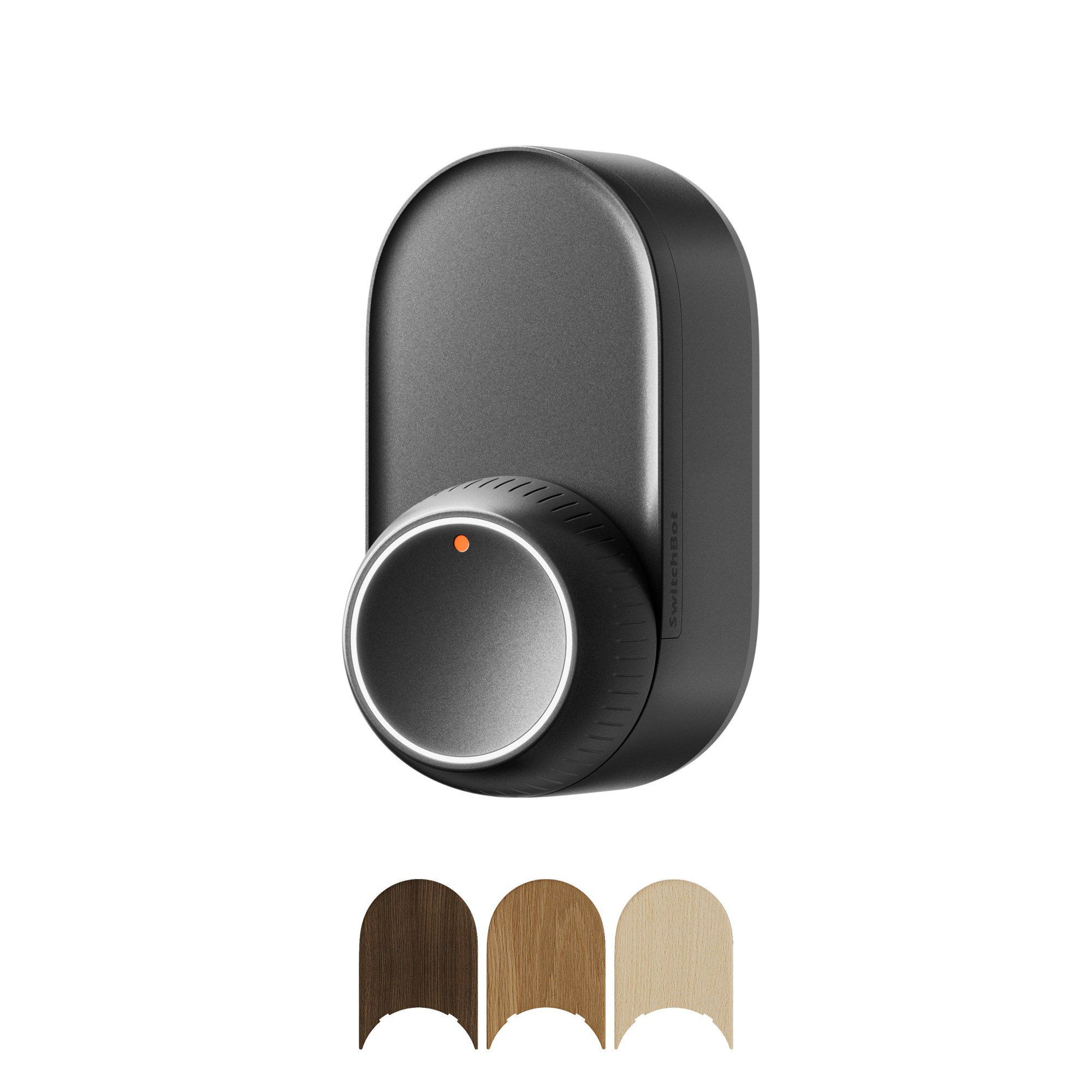 How to Choose a SwitchBot Lock: Lock Pro vs Lock Ultra vs Lock Vision and Vision Pro A research-based guide to official SwitchBot Lock Pro, Lock Ultra, Lock Vision and Lock Vision Pro specs and November 20, 2026 U.S. prices, including batteries, hubs, keypads, comp...