
How to Connect a Keychron Keyboard to Mac, Windows and iPad
A research-based Keychron connection how-to as of November 18, 2026: official Bluetooth, 2.4 GHz and wired steps for the K10 HE, Q6 Ultra 8K and K3 Max on Mac, Windows and iOS or Android, including FileVault and Keychron Launcher.
Disclosure: This page may contain affiliate links. They do not influence our editorial conclusions. Read the disclosure.
Our pick
- See price at Keychron
Top pick
Keychron
Keychron makes mechanical and magnetic-switch keyboards, wireless mice and trackballs such as the Nape Pro and T1 HE. Keychron UK (keychron.uk) is its UK store,...
Steps in this guide
Most Keychron wireless keyboards can talk to a computer in three ways: Bluetooth, a 2.4 GHz USB receiver, and a USB cable. This is a research-based setup guide, not a hands-on test. The connection steps below follow Keychron's official November 5, 2026 Mac troubleshooting article for the K10 HE, Q6 Ultra 8K and K3 Max, plus Keychron's compatibility notes, PC connection guide and Help Center pairing instructions. Other models can use different key combos — keep that model's user manual open. For buying, layout and UK delivery, see the Keychron UK shopping guide, the 2026 UK keyboard picks and the HE actuation and Rapid Trigger how-to.

Check both toggles before you pair
Keychron's Mac guide starts with two slide switches, because either one in the wrong place can look like a dead keyboard.
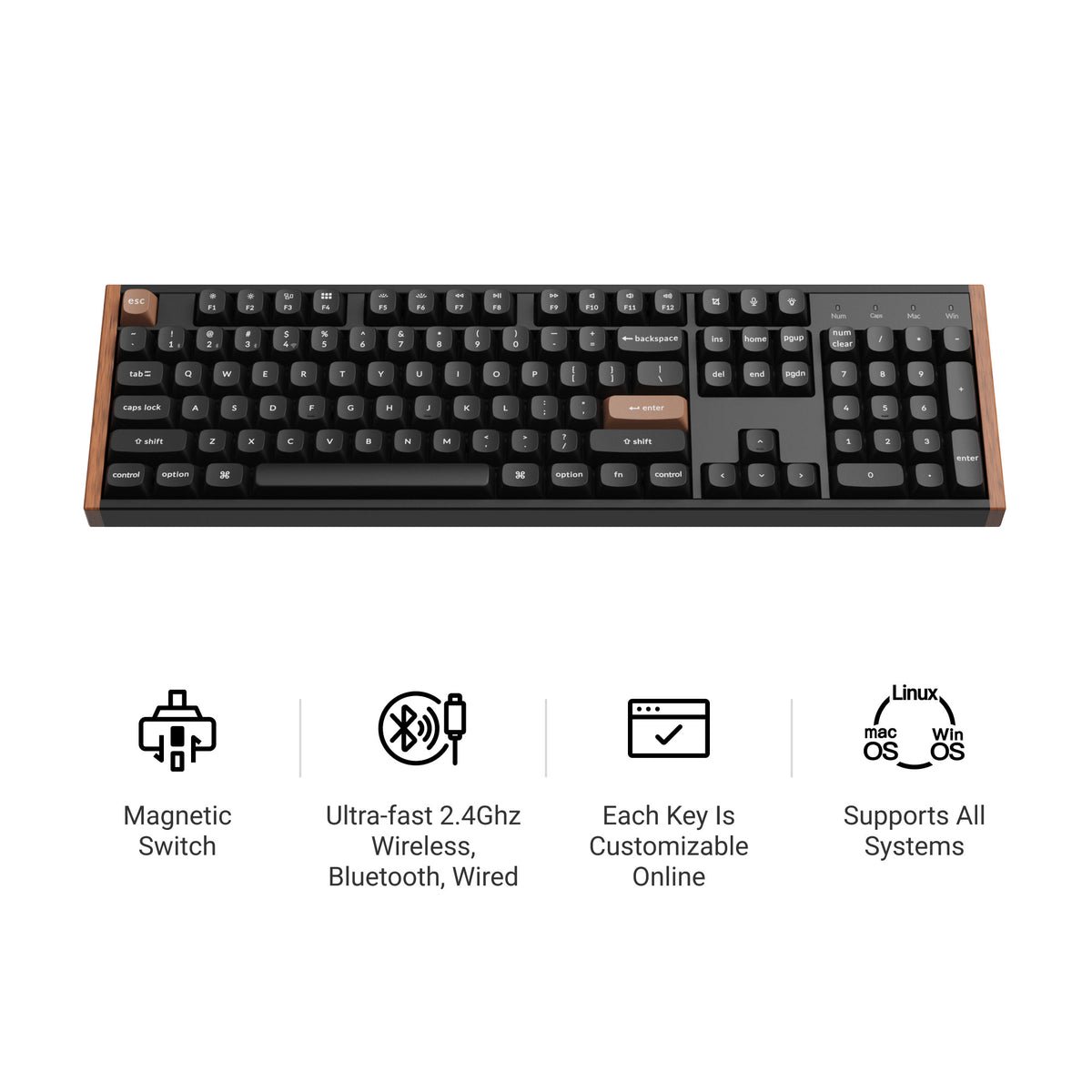
The mode toggle picks the connection. On the K10 HE and Q6 Ultra 8K, its positions are G for 2.4 GHz, a cable position, and BT for Bluetooth. On the K3 Max, the labels are 2.4 GHz, cable and Bluetooth.
The system toggle picks the layout. Slide it to Mac when you are on a Mac, or to Windows when you are on a Windows PC. On the K10 HE it sits at the top left; on the Q6 Ultra 8K it sits at the top right. Keychron's compatibility page says Keychron keyboards are compatible with macOS, Windows, iOS and Android, and that the system toggle lets you change system mode in about a second.
Then use the section for your mode. Bluetooth uses the computer or tablet's Bluetooth radio. 2.4 GHz uses the Type-A receiver in the box. Wired uses the USB cable, and it is also the mode Keychron Launcher needs.

Bluetooth: Mac, Windows, iPad and Android
Keychron's Help Center pairing steps are the same core sequence on any Bluetooth host: slide the mode toggle to Bluetooth, hold the pairing shortcut until the Bluetooth indicator flashes, then add the keyboard in the device's Bluetooth list. On the K10 HE, Q6 Ultra 8K and K3 Max, that shortcut is fn + 1 (the number 1, not F1), held for 4 seconds. Some other models use fn1 + Q instead; Keychron also notes that K6 and K12 use fn1 + W or fn1 + E for additional slots. Check the manual if your board is not one of those three.
On a Mac, Keychron's November 5, 2026 guide says to pair it fresh from both sides, because an old pairing can make a new computer show a "connection rejected" message:
- Open Apple menu > System Settings > Bluetooth. If the keyboard is listed, Control-click its name and click Forget (on older macOS, use Forget This Device).
- Slide the mode toggle to Bluetooth.
- Hold fn + 1 for 4 seconds. The K10 HE waits up to 3 minutes for pairing.
- In the Bluetooth list, hold the pointer over the keyboard's name — Keychron K10 HE, Keychron Q6 Ultra 8K or Keychron K3 Max — and click Connect.
- If the Mac asks, click Accept, or type the numbers it shows and press Enter.
Each of those keyboards stores up to three Bluetooth devices on fn + 1, fn + 2 and fn + 3. A short press switches between saved devices. If slot 1 keeps failing, hold fn + 2 for 4 seconds and pair the Mac there. If it still will not pair, Keychron suggests restarting the Mac, sliding the keyboard to the cable position with the cable unplugged, then back to Bluetooth, and trying a macOS update. The K10 HE, Keychron says, disconnects after 30 minutes without a key press in Bluetooth or 2.4 GHz mode; pressing the Space Bar wakes it and it reconnects on its own.
On a Windows PC, Keychron's official PC connection guide says to charge and turn the keyboard on, switch the mode toggle to Bluetooth until the light blinks, open Bluetooth settings, choose Add a device, and select the Keychron in the list. Flip the system toggle to Windows before you pair. If the board later drops or delays, a Keychron Help Center note on Windows disconnects points to Device Manager: open the Bluetooth adapter's properties and turn off "Allow the computer to turn off this device to save power," which Keychron describes as a Windows power-saving setting rather than a keyboard defect.
On iPad, iPhone or Android, use the same Bluetooth pairing sequence, then add the keyboard in that device's Bluetooth settings. Keychron states iOS and Android compatibility on its compatibility page; it does not publish a separate iPad Settings walkthrough in the sources used here, so follow the tablet or phone's Bluetooth list after the indicator is flashing.

The K3 Max is a useful compact example: Keychron's product page lists 2.4 GHz, Bluetooth to up to three devices, and wired USB-C, with a regular price of $109.99 as of November 18, 2026, and software support for macOS, Windows and Linux. The full-size K10 HE lists the same three connection types, with a regular price of $144.99 on that date.
2.4 GHz and wired connections
The 2.4 GHz receiver in the box is Type-A. On a Windows PC, Keychron's PC guide says to plug that dongle into any open USB-A port, switch the keyboard to 2.4 GHz, and let the PC pick it up. Skip PS/2 ports; Keychron does not use them.
On a Mac, the official Mac guide adds three checks. If the MacBook has USB-C ports only, use a Type-A to Type-C adapter; the Q6 Ultra 8K box includes one. On a Mac laptop with Apple silicon, macOS may ask you to allow a new USB accessory — click Allow. If you previously clicked Don't Allow, unplug the receiver or cable, plug it back in, and click Allow after the Mac is unlocked. Then pair again:
- K10 HE: slide the toggle to G, hold fn + 4 for 3 seconds, then plug in the receiver.
- Q6 Ultra 8K: slide the toggle to G and hold fn + 4 for 4 seconds, then plug in the receiver.
- K3 Max: plug in the receiver, then slide the toggle to 2.4 GHz.
If the receiver still gets nothing, Keychron's force-pair step is the same on all three: with the toggle on 2.4 GHz, remove the receiver, hold fn + 4 for 4 seconds, and plug it back in with the keyboard within 20 cm. A MacBook on a stand can put the receiver too far away; Keychron suggests using the receiver extension adapter from the box and placing the receiver on the desk. The official K3 Max package graphic lists a Type-A to Type-C cable, an extension adapter for the receiver, and a Type-A 2.4 GHz receiver in the fully assembled version.
For a wired connection, slide the mode toggle to the cable position and plug the USB cable into a port on the computer. Keychron's PC guide says any standard USB-A port works, and that leaving the cable plugged in also charges the board. On the Q6 Ultra 8K, the cable position only works when a USB cable is actually plugged in. On a Mac, connect directly rather than through a hub or dock, use a Type-A to Type-C adapter if the cable and ports do not match, and click Allow if the accessory alert appears. If the keyboard charges on a MacBook but types nothing, Keychron says to check that alert first. Keychron Launcher also needs wired mode; open it in the latest Chrome, Opera or Edge with the cable plugged in. The Help Center likewise notes that Launcher will not detect the keyboard over Bluetooth or 2.4 GHz.
Wrong keys, the login screen, and a reset
A keyboard can be connected and still type the wrong thing. Keychron's Mac guide lists three causes. First, macOS Keyboard Setup Assistant may open for a keyboard the system does not recognize; follow the prompts and pick ANSI, ISO or JIS to match your layout. Second, if the system toggle is on Windows, the board is running its Windows layers — slide it to Mac. Third, in Keychron Launcher, layers 0 and 1 are for Mac and layers 2 and 3 are for Windows; with the toggle on Mac, edit layer 0.
At a Mac login screen with FileVault on, Keychron says the K10 HE, Q6 Ultra 8K and K3 Max — like other Keychron keyboards — work in wired mode only. Slide the toggle to the cable position and type your password. After you are logged in, you can return to Bluetooth. On an Apple silicon Mac laptop, connect the cable once while the Mac is unlocked and click Allow so the accessory prompt is already handled.
Reset the board only after the steps for your mode. On the K10 HE, Q6 Ultra 8K and K3 Max, Keychron's factory reset is: turn the keyboard on, hold fn + J + Z for 4 seconds, and wait for the backlight to flash quickly for 3 seconds. Then pair again. Other models can use different keys, so check the manual. If a reset does not help, Keychron says to update firmware in Launcher with the keyboard in cable mode, using the Firmware Update tab.
The short version: set both toggles first, pair Bluetooth with a long-press of the correct slot key, use an adapter and the Allow prompt for a Type-A 2.4 GHz receiver on a USB-C Mac, and plug in the cable for FileVault, first-time accessory approval and Keychron Launcher.
References
- Keychron, "Keychron Not Connecting to Mac? How to Fix Each Mode," November 5, 2026. https://www.keychron.com/blogs/news/keychron-not-connecting-to-mac
- Keychron, "Where to Plug in Your Keychron Keyboard and Mouse on PC." https://www.keychron.com/blogs/news/where-to-plug-in-keyboard-and-mouse-on-pc
- Keychron, "Keychron Compatibility." https://www.keychron.com/blogs/news/compatibility
- Keychron Help Center, search results for Bluetooth and related articles including "How to connect the keyboard via Bluetooth?" and Windows disconnect notes (accessed November 18, 2026). https://help-center.keychron.com/en-us/search?q=bluetooth
- Keychron, "K10 HE Wireless Magnetic Switch Custom Keyboard." https://www.keychron.com/products/keychron-k10-he-wireless-magnetic-switch-keyboard
- Keychron, "K3 Max QMK/VIA Wireless Custom Mechanical Keyboard." https://www.keychron.com/products/keychron-k3-max-qmk-via-wireless-custom-mechanical-keyboard
Meet your guide
Lipeiguan
author
What to read next
 Google Adds Computer Use to the Gemini App for Mac in the U.S. On November 19, 2026, Google said computer use is available in the Gemini app for Mac, in English in the U.S. Official requirements include an Apple Silicon Mac on macOS Sequoia 15... How to Use Gemini Computer Use on a Mac: Official Requirements, Permissions and Examples Official Google requirements for computer use in the Gemini app for Mac: an Apple Silicon Mac on macOS Sequoia 15.0 or later, a personal Google account for people 18 or older, a Go...
 How to Choose an LG Monitor in 2026: UltraGear, UltraFine, UltraWide and Smart Models A research-based 2026 guide to choosing an LG monitor, using official LG.com specs and listed U.S. prices as of November 19, 2026, for UltraFine and UltraWide work displays, webOS...