
How to Set Actuation Point and Rapid Trigger on Keychron HE Keyboards (Launcher Guide)
Step-by-step guide to Keychron Launcher's HE Mode: connect a K2 HE, K10 HE or Q1 HE, set per-key actuation from 0.2 to 3.8 mm, enable Rapid Trigger in Basic or Advanced mode, and test with Trigger Demo.
Disclosure: This page may contain affiliate links. They do not influence our editorial conclusions. Read the disclosure.
Our pick
- See price at Keychron
Top pick
Keychron
Keychron makes mechanical and magnetic-switch keyboards, wireless mice and trackballs such as the Nape Pro and T1 HE. Keychron UK (keychron.uk) is its UK store,...
Steps in this guide
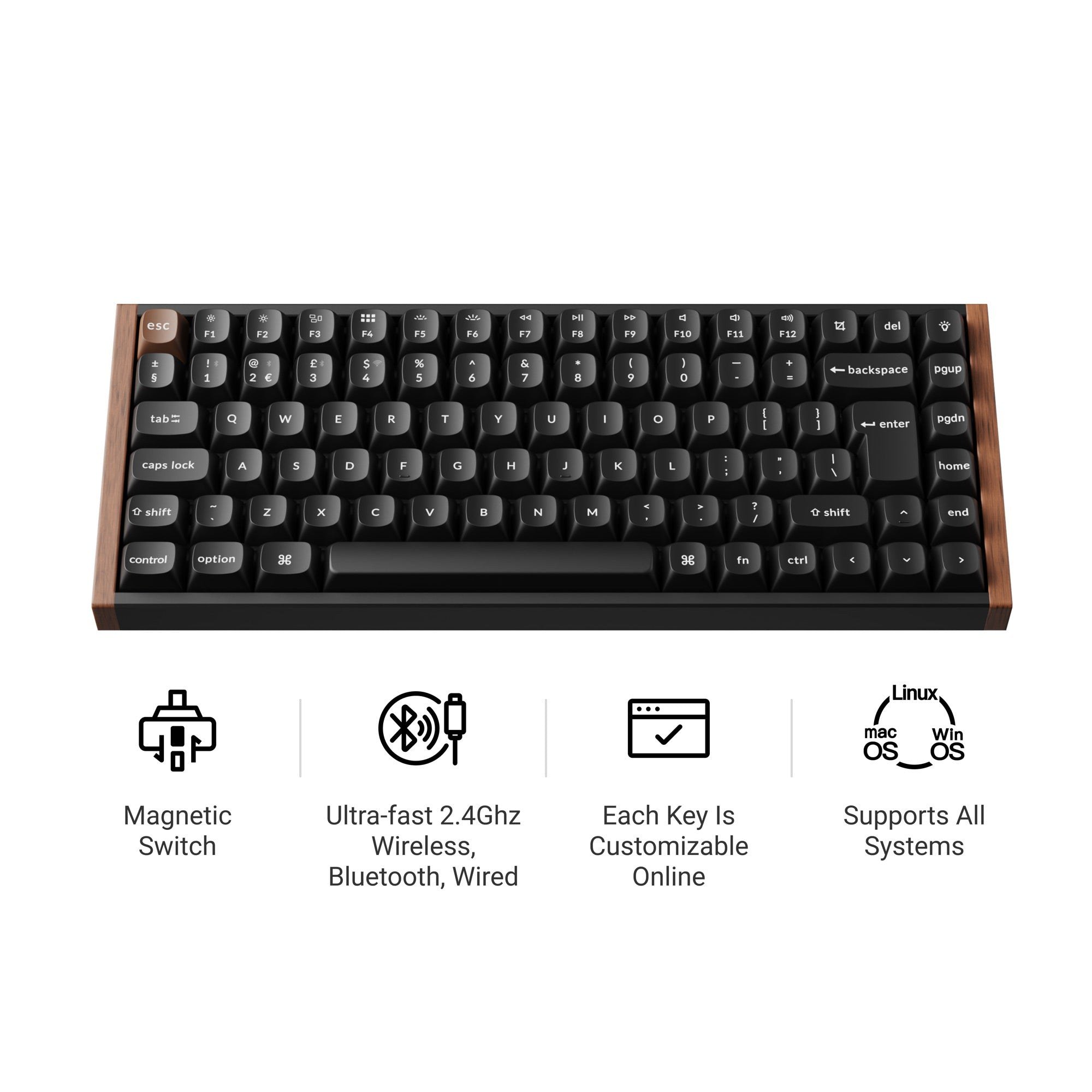
Keychron's HE keyboards, such as the K2 HE, K10 HE and Q1 HE, use magnetic switches instead of traditional mechanical contacts. That lets you decide how far each key must travel before it registers, and turn on Rapid Trigger, which resets a key as soon as you start to lift it. None of this is set with keyboard shortcuts. It is done in Keychron Launcher, a web app that runs in your browser. This guide explains the steps, based on Keychron UK's official "How to use HE mode on Keychron Launcher" guide and HE product pages as of November 15, 2026.

What you need before you start
- An HE keyboard. Keychron UK sells ISO-layout versions of the K2 HE (from £129.99), K10 HE (£139.99), K4 HE (£144.99) and Q1 HE (£229.99), among others. All use Gateron double-rail magnetic switches.
- A supported browser. Keychron's guide says to use the latest version of Chrome, Opera or Edge. Launcher relies on browser features that not every browser supports.
- A wired or 2.4 GHz connection. The guide says to connect using Keychron's cable or the 2.4 GHz receiver before opening Launcher, and notes that some models support configuration over a wired connection only. Bluetooth is not listed as a setup method, so plug in or use the receiver.
If you are still choosing a board, our best Keychron keyboards UK guide compares the main lines, and our Keychron UK shopping guide covers delivery, returns and warranty.
Step 1: Open Launcher and connect the keyboard
- Connect the keyboard with the cable or plug in its 2.4 GHz receiver, and set the keyboard to the matching mode.
- Open Keychron Launcher at launcher.keychron.com in Chrome, Opera or Edge.
- Click Connect. Your browser shows a list of devices. Select your Keychron keyboard and allow the connection.
- Once connected, open the HE Mode section, which is where the magnetic switch settings live.

Step 2: Understand actuation distance
Actuation distance, also called the actuation point, is how far you must press a key before it sends a signal. On Keychron's HE boards, the product pages list an adjustable range of 0.2 to 3.8 mm with 0.1 mm sensitivity.
A short distance makes keys respond to a light touch. That suits fast gaming but can cause accidental presses if you rest your fingers on the keys. A longer distance needs a deeper, more deliberate press, which some typists prefer because it reduces typos. Because each key can be set separately, you can mix both, for example with light movement keys and deeper settings for keys you only want to press on purpose.
Step 3: Set the actuation distance for your keys
Keychron's guide describes the process like this:
- Select keys. In HE Mode, either press the physical keys on your keyboard or click them on the virtual keyboard. Selected keys turn reddish brown. You can select several at once.
- Check current values. The numbers shown under the virtual keyboard keys are each key's current actuation distance.
- Set the distance. In the "Set Actuation Distance" section, drag the slider or type a value directly.
- Done. Keychron says new values are saved automatically once you make the change. There is no separate save button to remember.
Use Select All to apply one value to every key, and Clear to deselect everything before you start on a new group.

Step 4: Turn on Rapid Trigger
Rapid Trigger changes when a key resets. On a normal switch, a key must rise back above a fixed point before it can register again. With Rapid Trigger, the key resets as soon as it starts to come back up by a set amount, and registers again as soon as you press back down by a set amount. Keychron's product pages describe it as activating or deactivating keys based on how far they travel rather than at fixed points.
In Launcher, Rapid Trigger has a global switch, and Keychron's guide gives two ways to enable it:
- For some keys: select the keys, then click Turn On.
- For all keys: toggle the global switch without selecting any keys.
Once it is on, select the keys you want to tune. In the Rapid Trigger view, each key shows two numbers:
- Top-left number: the press actuation distance, meaning how far you must press to trigger the key again.
- Bottom-right number: the release reset distance, meaning how far you must let the key rise for it to reset.
Step 5: Choose Basic or Advanced mode
Keychron splits Rapid Trigger into two modes:
- Basic Mode uses the same distance for pressing (triggering) and releasing (resetting). It is the simplest place to start.
- Advanced Mode lets you set different press and release distances, for example a very small reset distance with a slightly larger trigger distance.
As with actuation distance, you can drag the slider or type a value, and changes save automatically.

Step 6: Test with Trigger Demo and Test Keys
Keychron includes two tools to check your settings before you play or type:
- Trigger Demo simulates how one selected key's actuation changes as it moves, using colors to show when it is active.
- Test Keys gives real-time feedback on the keys you are currently pressing, supports several at once, and shows the results at the bottom of the screen.
Keychron recommends using both together. Its guide walks through a Rapid Trigger example on the N key: pressing fully down activates the key at the trigger point, letting it rise to the preset Rapid Trigger height deactivates it, pressing again activates it once more, and letting it rise fully above the trigger point turns it off.
Other HE features you can enable
The HE product pages list a few more magnetic-switch features that are set up in Launcher and, for some, disabled by default:
- Last Key Priority (LKP): when two opposing keys are held, the last one pressed takes priority, which Keychron says helps with quick direction changes in games such as Valorant.
- Snap Click: when two keys are hit at once, the deeper press takes precedence and the shallower one is reset.
- Dynamic Keystrokes (DKS): up to four actions on one key depending on press depth and release, listed as "4-in-1 action keys". Keychron's example is a light press to walk, a deeper press to run, and a release for another command.
Keychron says LKP and Snap Click are off by default and can be turned on in Launcher when needed.
Suggested starting points
Keychron does not publish recommended values, so treat these as general guidance rather than official settings:
- For typing: start with a moderate actuation distance and Rapid Trigger off, then shorten the distance gradually if keys feel heavy.
- For fast games: turn Rapid Trigger on only for movement and action keys, start in Basic Mode, then try Advanced Mode if you want a quicker reset.
- To avoid accidental presses: if resting fingers trigger keys, increase the actuation distance for those keys.
Change one thing at a time and use Test Keys after each change. If a setting feels wrong, select the keys again and enter a new value.
Which Keychron HE keyboard has what
| Model (UK ISO) | Price | Size | Battery life (Keychron figure) | Polling rate |
|---|---|---|---|---|
| K2 HE | £129.99 | 75% | Up to 110 hours | 1000 Hz wired and 2.4 GHz, 125 Hz Bluetooth |
| K10 HE Special Edition | £139.99 | Full size | Up to 120 hours | 1000 Hz wired and 2.4 GHz, 125 Hz Bluetooth |
| Q1 HE | £229.99 | 75%, aluminum | Up to 100 hours | 1000 Hz wired and 2.4 GHz, 90 Hz Bluetooth |
All three list the 0.2 to 3.8 mm actuation range, 0.1 mm sensitivity, Rapid Trigger and a 4,000 mAh battery. Keychron also notes that its HE boards are hot-swappable only with Gateron double-rail magnetic switches, not other magnetic switches such as Gateron Magnetic Jade or KS-20. Prices and figures come from Keychron UK's product pages on November 15, 2026.

Troubleshooting
- Launcher does not see the keyboard: reconnect it by cable, confirm you are using a current version of Chrome, Opera or Edge, and click Connect again.
- Settings do not seem to apply: use Test Keys to check what the keyboard is reporting. Keychron's product user guide pages also link to factory reset instructions if a board behaves unexpectedly.
- Only some keys respond the way you expect: check whether those keys are selected in the Rapid Trigger view, since Rapid Trigger can be on for some keys and off for others.
For Keychron's other input devices, see our Nape Pro review, our T1 HE vs Nape Pro comparison and the T1 HE trackball launch news. If you are weighing a different brand, our guide on how to choose a Razer keyboard covers the alternatives.
References
- Keychron UK, "How to use HE mode on Keychron Launcher": https://www.keychron.uk/pages/how-to-use-he-mode-on-keychron-launcher
- Keychron UK, K2 HE ISO product page (specifications, LKP, Snap Click, DKS): https://www.keychron.uk/products/keychron-k2-he-wireless-magnetic-switch-keyboard
- Keychron UK, K10 HE ISO product page: https://www.keychron.uk/products/keychron-k10-he-wireless-magnetic-switch-custom-keyboard-iso-layout-collection
- Keychron UK, Q1 HE ISO product page: https://www.keychron.uk/products/keychron-q1-he-qmk-wireless-custom-keyboard-iso-layout-collection
- Keychron UK, K2 HE user guide: https://www.keychron.uk/pages/keychron-k2-he-user-guide
- Keychron Launcher web app: https://launcher.keychron.com
Meet your guide
Lipeiguan
author
What to read next
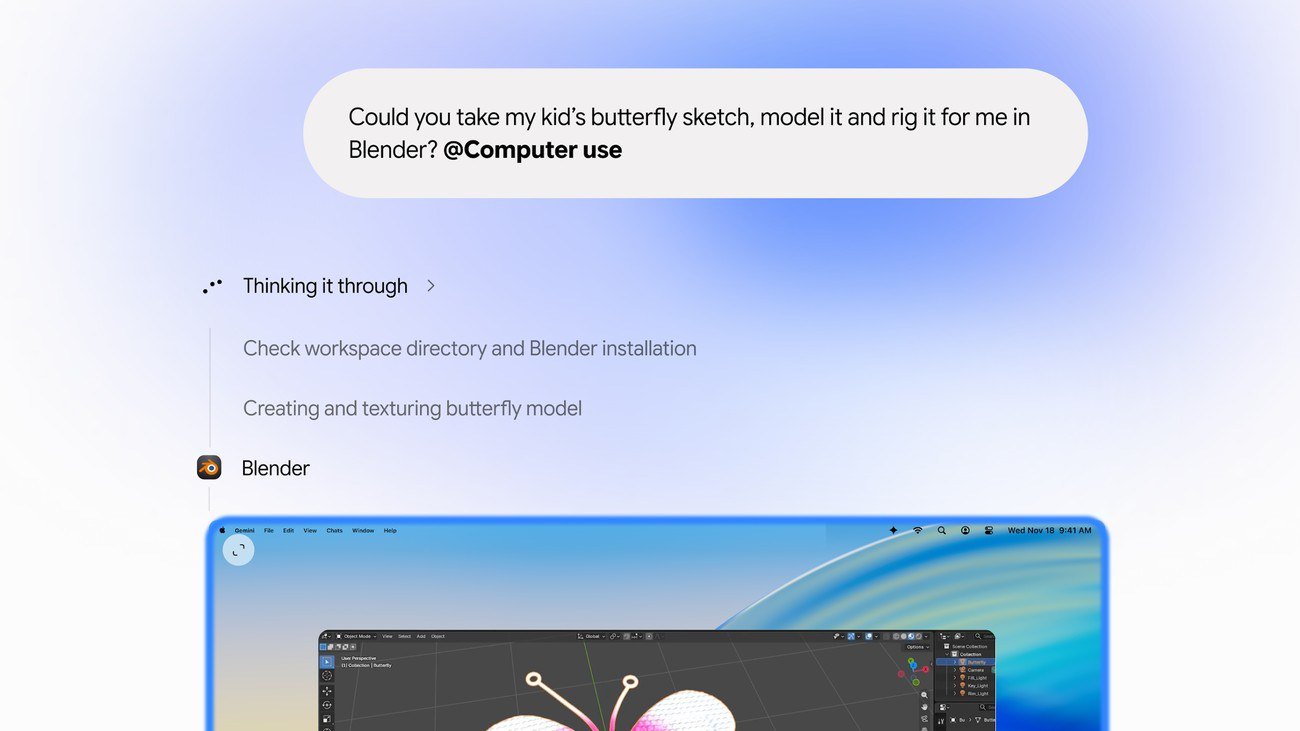 Google Adds Computer Use to the Gemini App for Mac in the U.S. On November 19, 2026, Google said computer use is available in the Gemini app for Mac, in English in the U.S. Official requirements include an Apple Silicon Mac on macOS Sequoia 15... How to Use Gemini Computer Use on a Mac: Official Requirements, Permissions and Examples Official Google requirements for computer use in the Gemini app for Mac: an Apple Silicon Mac on macOS Sequoia 15.0 or later, a personal Google account for people 18 or older, a Go...
 How to Choose an LG Monitor in 2026: UltraGear, UltraFine, UltraWide and Smart Models A research-based 2026 guide to choosing an LG monitor, using official LG.com specs and listed U.S. prices as of November 19, 2026, for UltraFine and UltraWide work displays, webOS...