
How to Connect EasySMX S10 and S10 Lite to Switch 2, PC and Phones
A research-based setup guide for EasySMX's S10 and S10 Lite: official Switch 2, Switch, PC and Bluetooth pairing steps, firmware updates, charging lights and calibration, as of November 18, 2026.
Disclosure: This page may contain affiliate links. They do not influence our editorial conclusions. Read the disclosure.
Our pick
- See price at EasySMX
Top pick
EasySMX
Budget gaming accessory maker known for controllers for Switch, PC and mobile.
Steps in this guide
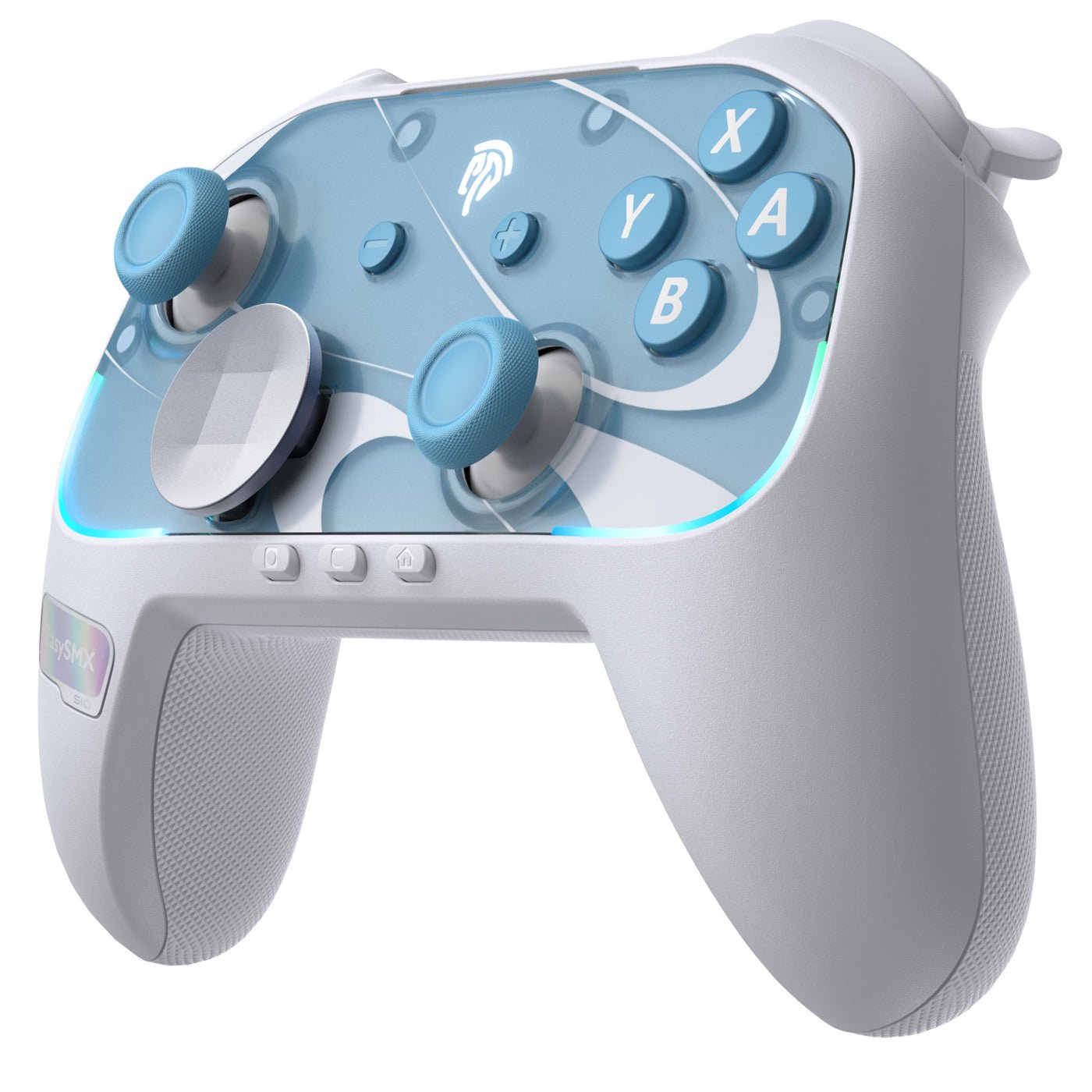
EasySMX's S10 and S10 Lite are third-party controllers aimed at Nintendo Switch 2, with official support for Switch (including Switch Lite and OLED on the S10 product page), Windows, Android and iOS. The two pads do not share identical pairing steps, especially the Home-button hold time and the first-time Switch 2 wake-up process. This is a research-based how-to drawn from EasySMX's official support pages and product listings as of November 18, 2026, not a hands-on pairing test. For choosing a model, see the EasySMX shopping guide and the 2026 best-of roundup. For stick technology, see TMR vs Hall Effect.
On that date the official store listed the S10 at $59.99 and the S10 Lite at $39.99. Confirm the live listing before you buy.

S10 vs S10 Lite: what official pages say you are pairing
Both controllers connect by Bluetooth or a wired Type-C connection. The S10 product page lists compatibility with Switch 2, Switch 1, Switch Lite, Switch OLED, Windows 7/8/8.1/10/11, Android and iOS. It uses TMR sticks, lists a 1200mAh battery, 6-axis motion control, built-in NFC for amiibo, a dedicated C button for in-game chat, two programmable back buttons, swappable circular and cross-shaped D-pads, HD rumble with ALPS linear motors, and customizable RGB lighting. Official polling figures on the S10 support page are 1000Hz in wired Xinput mode and 125Hz over Bluetooth. The box includes the S10 gamepad, two magnetic faceplates, both D-pads, a Type-C data cable, two DIY stickers and an instruction manual.
The S10 Lite is listed at $39.99 with Hall Effect sticks, a 9-axis gyroscope, a 1000mAh battery, 4-level vibration, a 244g weight, and compatibility with Switch 2, Switch, Windows 7/8/8.1/10/11, Android and iOS. Official marketing describes native Switch 2 protocol support, one-key wake-up, and a C button for voice chat. The official support box list is smaller: the S10 Lite gamepad, a Type-C data cable and an instruction manual. For a closer look at that model, including a faceplate caveat discussed earlier on gypsyi, see the S10 Lite vs Switch 2 Pro vs 8BitDo comparison and the S10 Lite news item.
Other EasySMX pads, including the Dune 8K, have their own support pages and connection menus. Use the steps below only for the S10 or S10 Lite, and check the matching official support page if your controller is a different model.
Connect the S10 to Switch 2, Switch, PC or a phone
The mode switch on the back of the S10 is the first decision. "S" is Switch mode. "X" is the Xbox-style Bluetooth mode used for phones, tablets and PC.
To pair the S10 with a Switch 2, set the rear switch to S, then hold the Home button for 3 seconds until the LED flashes rapidly. On the console, open Controllers, then Change Grip/Order. When the LED turns solid and the pad gives a short vibration, the official support page adds a first-time step: within 20 seconds after pairing, remove the Joy-Con controllers from the console and reattach them. EasySMX says that action activates wireless wake-up and is required only during the first connection. If the console still will not wake, the S10 product page tells you to update the controller firmware (steps are below).
To pair the S10 with a Switch 1 system, set the toggle to S, then hold Home for 5 seconds to power on and enter pairing. On the Switch, open Controllers > Change Grip/Order. A steady LED and a short vibration confirm the pair. To reconnect later, keep the toggle in S and short-press Home.
For a wired Switch connection with the S10, official support says to open Settings, then Controllers and Sensors, and turn on the Wired Connection option. With the controller powered off, connect it to the USB port on the Switch dock with a Type-C data cable, or connect it to the Switch charging port. Then press Home briefly to connect.
To pair the S10 with a phone, tablet or PC over Bluetooth, set the rear switch to X, hold Home for 3 seconds until the light flashes, and select "Xbox Wireless Controller" in the device's Bluetooth list. A solid light and a short vibration mean it worked. If the first attempt fails, EasySMX says to delete the pairing entry on the phone and try again. There is a second Bluetooth path for PC in Switch mode: set the switch to S, hold Home for 3 seconds, and pair the name "Pro Controller."
Connect the S10 Lite — the hold times are different
Do not reuse the S10's 3-second Home press on the S10 Lite. Official S10 Lite support uses a 5-second Home hold for Switch 2 and for Bluetooth.

To connect the S10 Lite to a Switch 2, set the rear switch to S, hold Home for 5 seconds until the LED flashes rapidly, then on the console go to Controllers > Change Grip/Order and wait for a solid LED and a short vibration. The official S10 Lite support page does not repeat the S10's Joy-Con remove-and-reattach wake-up step. The product page still markets one-key Switch 2 wake-up; if pairing fails, check the firmware note below.
To connect the S10 Lite to a Switch 1 system, set the toggle to S, then press and hold Home and Y together for 5 seconds. That two-button combination is another point of difference from the S10. Open Controllers > Change Grip/Order on the Switch, and wait for a steady LED and a short vibration. Reconnect later with the toggle in S and a short press of Home.
To connect the S10 Lite to a PC or phone over Bluetooth, set the toggle to X, hold Home for 5 seconds, and pair the device named "Xbox Wireless Controller." A steady LED and a short vibration confirm the pair. Official support also says you can power the S10 Lite off by holding Home for 5 seconds, or it will shut down after 10 minutes of inactivity.
Firmware, charging, calibration and a quick test
If a Switch 2 will not wake after the S10's documented first-time steps, the official S10 product page says to update the controller firmware. Download the S10 update from the drivers and manuals page, keep the controller powered off, press and hold the left stick (L3), and, while still holding L3, connect the pad to a PC with a USB cable. When the upgrade tool recognizes the controller, click Upgrade and wait until the progress bar finishes. The same L3-and-cable method appears on the S10 and S10 Lite support pages.
The download page also lists an S10 Lite firmware file dated March 23, 2026, V1.09, which EasySMX says added a macro-loop time interval and "resolved the issue that the switch 2 could not connect to the S10 lite." If an older S10 Lite will not pair with Switch 2, that official update is the first thing to try. The S10 product page separately describes firmware V1.19, which adds macro-loop controls (short-press M + GL + GR to enable or disable looping) aimed at players using macros, including Pokémon shiny hunting.
On the S10, official charging notes say the indicator flashes red slowly when the pad is charging in sleep mode, and a green light stays on when it is full. While the controller is connected, a quickly flashing red light means the battery is low. The S10 Lite uses a similar pattern: red flashing while charging when it is off, green when full, and a rapid red flash on both indicator LEDs as a low-battery warning when it is connected.
Calibration is worth doing if a stick drifts or a trigger feels off. On the S10 Lite, with the controller powered on, hold "+", "-" and B for 3 seconds until the LEDs flash red, rotate each joystick three full turns, hold the controller horizontally for 3 seconds, then short-press B to exit. The S10 support page documents that same "+", "-" and B method (two full turns, then horizontal for 3 seconds, then B) and a separate button-function calibration: while powered on, press X, "-" and "+" together so lights 1 and 2 flash, turn each stick clockwise three times, press each trigger three times, and press "+" to exit. A factory reset on both models, while connected, is hold "+", "-" and Home for 5 seconds.
EasySMX officially recommends testing a pad in a browser at hardwaretester.com/gamepad on PC or iOS, or with Game Controller Tester from Google Play on Android. Those tools confirm that a connection is live; they are not a substitute for in-game setup.

Store-wide, EasySMX markets global shipping, a 30-day money-back period and 24/7 support. Warranty language is not identical on every official page: the store homepage and the S10 Lite product page say 18 months, while the S10 product page's after-sale line says 1-year warranty. Confirm the term that applies to your order, and use the shopping guide for returns and shipping detail.
References
- EasySMX, "Support about EasySMX S10 Controller" (accessed November 18, 2026). https://www.easysmx.com/pages/support-about-easysmx-s10-controller
- EasySMX, "Support about EasySMX S10Lite Controller" (accessed November 18, 2026). https://www.easysmx.com/pages/support-about-easysmx-s10lite-controller
- EasySMX, "EASYSMX S10 Gaming Controller for Switch 2: Wake up, TMR Sticks, HD Rumble - White" (accessed November 18, 2026). https://www.easysmx.com/products/easysmx-s10-gaming-controller-for-switch-2-wake-up-tmr-sticks-hd-rumble
- EasySMX, "EasySMX S10 Lite Switch 2 Controller with Back Buttons" (accessed November 18, 2026). https://www.easysmx.com/products/easysmx-s10lite-switch2-controller
- EasySMX, "Download the EasySMX Drivers and Manuals" (accessed November 18, 2026). https://www.easysmx.com/pages/download-driver
Meet your guide
Lipeiguan
author
What to read next
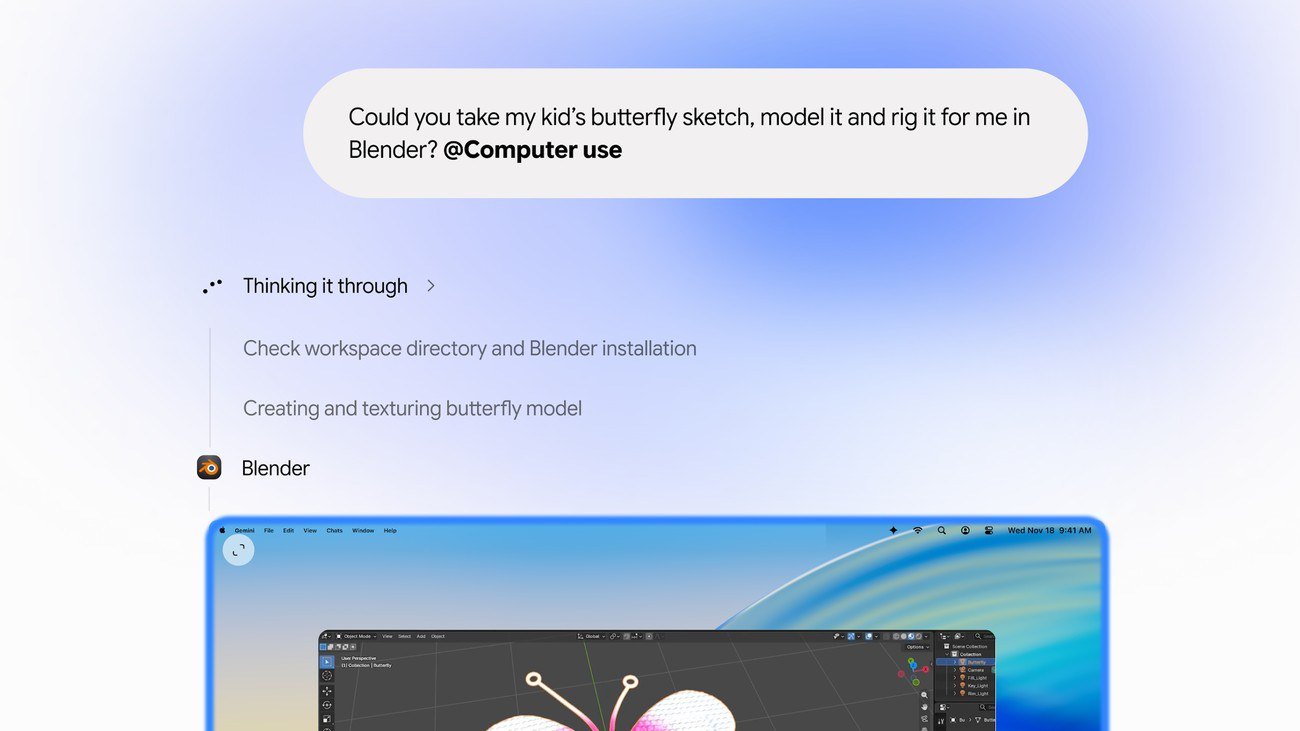 Google Adds Computer Use to the Gemini App for Mac in the U.S. On November 19, 2026, Google said computer use is available in the Gemini app for Mac, in English in the U.S. Official requirements include an Apple Silicon Mac on macOS Sequoia 15... How to Use Gemini Computer Use on a Mac: Official Requirements, Permissions and Examples Official Google requirements for computer use in the Gemini app for Mac: an Apple Silicon Mac on macOS Sequoia 15.0 or later, a personal Google account for people 18 or older, a Go...
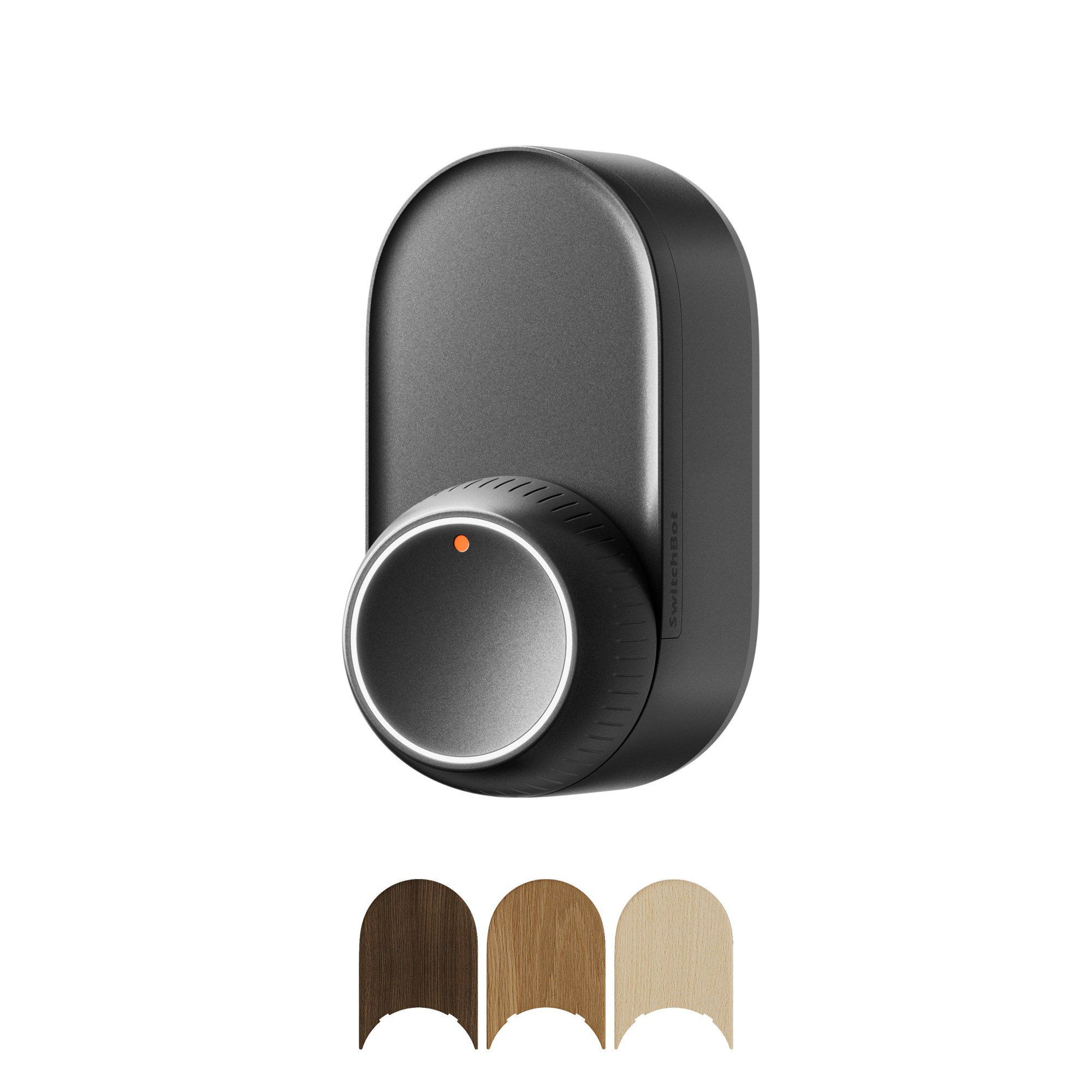 How to Choose a SwitchBot Lock: Lock Pro vs Lock Ultra vs Lock Vision and Vision Pro A research-based guide to official SwitchBot Lock Pro, Lock Ultra, Lock Vision and Lock Vision Pro specs and November 20, 2026 U.S. prices, including batteries, hubs, keypads, comp...