
How to Connect Google Wallet to Gemini: Setup, Prompts, Privacy and Plaid
Gemini can now read Google Wallet data for US users to chart spending, find subscriptions and plan budgets. Here is how to turn it on, what to ask, what data is shared and how to turn it off.
Disclosure: This page may contain affiliate links. They do not influence our editorial conclusions. Read the disclosure.
Our pick
- See price at Google Store
Top pick
Google Store
Google's online store for Pixel phones, Fitbit wearables, Nest devices and accessories.
What this guide covers
Google now lets Gemini app users in the US connect Google Wallet to Gemini, so the assistant can answer questions about their own spending, subscriptions and budgets. The feature started rolling out on November 13, 2026, on the web and in the Gemini apps for Android and iOS. It is optional, it is off until you turn it on, and Google says Gemini can only read your Wallet information, not move or manage money.
This guide explains who can use it, how to turn it on, what to ask, what data Gemini sees, and how to turn it off again. Everything here comes from Google's announcement and its Gemini Apps Help pages.

What the feature does
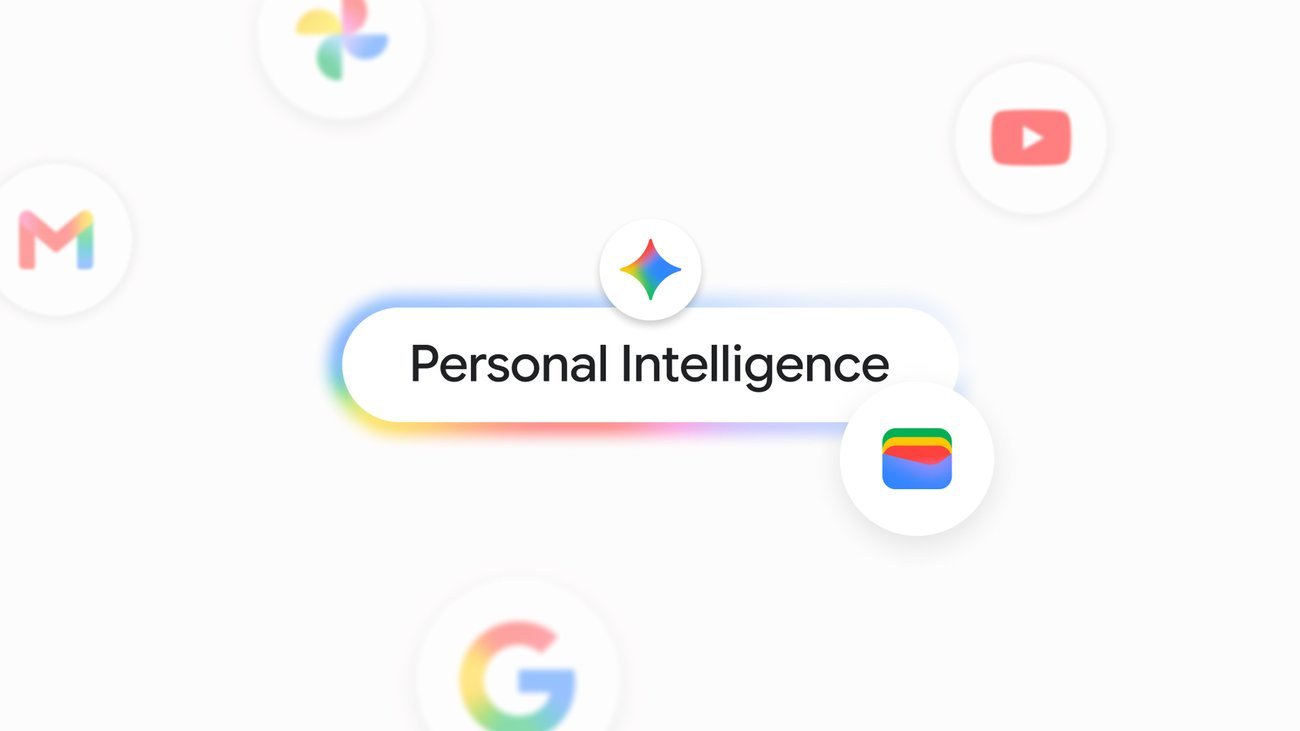
Google Wallet joins the list of Connected Apps in Personal Intelligence, the Gemini setting that lets the assistant use data from Google apps such as Gmail, Photos, YouTube and Search. Once Wallet is connected, Gemini can use your Wallet information to answer personal finance questions.
You can also link credit card and bank accounts to Google Wallet through Plaid, a service that connects financial accounts to apps. Google says this unlocks "deeper insights," because Gemini can then look at transactions from those linked accounts rather than only what is stored in Wallet.
Google gives three examples of what it can do:
- Visualize spending. Ask Gemini to review last quarter's spending and help you save a set amount, and it can build charts tracking cash flow, asset allocation and budgets inside the chat.
- Find forgotten subscriptions. Ask which subscriptions you still pay for and whether any went up in price this year, and Gemini looks for recurring charges across your linked accounts and flags increases.
- Plan a holiday budget. Ask how much you spent on gifts and travel last year and to use that to set this year's budget, and Gemini reviews the past year of transactions and suggests a budget.

Who can use it
According to Google:
- It is rolling out to all Gemini app users in the US.
- It works on the web and on mobile, for Gemini app users on both Android and iOS.
- You need access to Personal Intelligence, since Wallet is connected from the Connected Apps section of the Personal Intelligence settings.
Because it is a rollout, the option may not show up for everyone on day one. If you do not see Google Wallet under Connected Apps yet, check again over the following days.
How to connect Google Wallet to Gemini
Google's announcement points to the Personal Intelligence settings. The general path is:
- Open the Gemini app or go to gemini.google.com and sign in with your Google Account.
- Open Settings, then Personal Intelligence.
- Under Connected Apps, find Google Wallet and turn it on.
- Optional: in Google Wallet, link your credit card and bank accounts through Plaid if you want Gemini to see transactions from those accounts.
After that, start a chat and tag @Google Wallet in your prompt so Gemini knows to use your Wallet data. Google's own suggestion is to "jump into Gemini and tag @Google Wallet to ask questions around personal finance, budgeting and more."
Prompts to try
Google's examples are a good place to start. You can adapt them:
- "@Google Wallet, can we review my spending from last quarter so I can save $1,000 over the next three months?"
- "@Google Wallet, what subscriptions am I still paying for, and did any of them go up in price this year?"
- "@Google Wallet, how much did I spend on gifts and travel last year? Use that to help me set a holiday budget for this year."
Other questions in the same spirit include asking for your largest spending categories last month, or comparing this month's dining spending with the previous month. How detailed the answer is depends on what Wallet holds and whether you linked accounts through Plaid.

What Gemini can and cannot do with your money
Google is clear on one limit: when Wallet is connected, Gemini "can only read information from your accounts; it can't move, manage, or invest your money." That means it cannot pay bills, transfer funds or cancel a subscription for you. It can point out a subscription, but cancelling is still up to you with the provider.
Google's Connected Apps help page also says not to rely on Gemini's output for financial advice and to consult a professional. Treat its budgets and charts as a starting point, and double-check figures against your bank or card statements before acting on them.
What data is shared
Google's help page on Connected Apps lists the Wallet information that can be shared with Gemini: payment methods, data from Google services saved in Wallet, and financial account info linked with services such as Plaid. Like other Connected Apps data, Google says this can be used to:
- personalize your Gemini experience with insights about you,
- do things for you, like making recommendations, and
- improve Google services, including training generative AI models.
On training, Google says Gemini does not train generative AI models directly on your Google Wallet and payments services data. However, summaries, excerpts and inferences from your transactions that are used to answer your prompts may be used for training if your Keep Activity setting is on.
On human review, Google says a subset of Connected Apps data, including interactions, summaries, excerpts and inferences from your Google Wallet and payments information, is reviewed by human reviewers, including trained service providers. Google says it disconnects these interactions from your account and reduces personal information first. Its advice is direct: do not connect apps that contain confidential information you would not want a reviewer to see.

How to turn it off
You can turn the Wallet connection on or off at any time in Personal Intelligence settings, under Connected Apps. A few details from Google's help pages are worth knowing:
- Disconnecting an app does not delete data already saved in your Gemini Apps Activity. You need to delete that activity separately if you want it gone.
- Deleting Gemini Apps Activity does not delete data in Google Wallet itself.
- Turning off Keep Activity stops your future Gemini chats from being used to improve Google AI.
Memory Summary, the other change
In the same announcement, Google added Memory Summary, a readable page that shows the preferences, interests and goals Gemini has saved about you. You can review, edit or remove details. On the web, it is under Settings, then Personal Intelligence, then Memory summary. Google's help page says it requires a personal account, age 18 or older, Keep Activity on and Memory turned on, and that it is not currently available in the EEA, Nigeria, Switzerland or the UK.
If you connect Wallet, it is a good idea to check Memory Summary afterward so you know what Gemini has saved about your habits.
Should you connect Wallet?
It suits people who already keep cards in Google Wallet, want a quick view of where their money goes, and are comfortable with Google's data terms. It is less suited to anyone who wants financial data kept away from AI training and human review, or who needs actual financial advice. A middle path is to connect Wallet without linking bank accounts through Plaid, which limits what Gemini can see.
For more on Gemini's newest features, see our explainer on Gemini 4 Hydrogen in the Gemini app and Google Search, and the launch news on Google Wallet coming to Gemini.
References
- Google, "Connect Google Wallet to Gemini for personal finance insights," The Keyword, November 13, 2026: https://blog.google/innovation-and-ai/products/gemini-app/google-wallet-gemini-app/
- Gemini Apps Help, "About personalization with Connected Apps": https://support.google.com/gemini/answer/16836988
- Gemini Apps Help, "View & manage your memory summary in Gemini Apps": https://support.google.com/gemini/answer/18617127
Meet your guide
Lipeiguan
author
What to read next
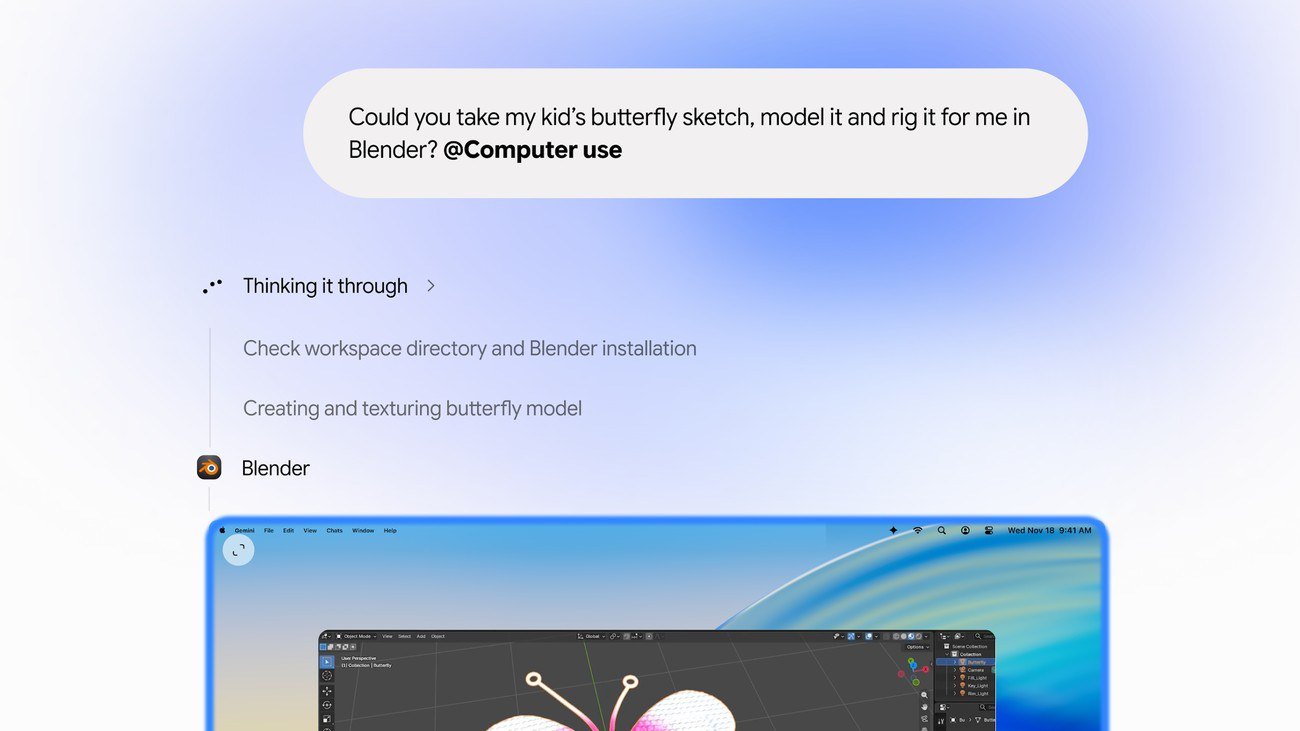 Google Adds Computer Use to the Gemini App for Mac in the U.S. On November 19, 2026, Google said computer use is available in the Gemini app for Mac, in English in the U.S. Official requirements include an Apple Silicon Mac on macOS Sequoia 15... How to Use Gemini Computer Use on a Mac: Official Requirements, Permissions and Examples Official Google requirements for computer use in the Gemini app for Mac: an Apple Silicon Mac on macOS Sequoia 15.0 or later, a personal Google account for people 18 or older, a Go...
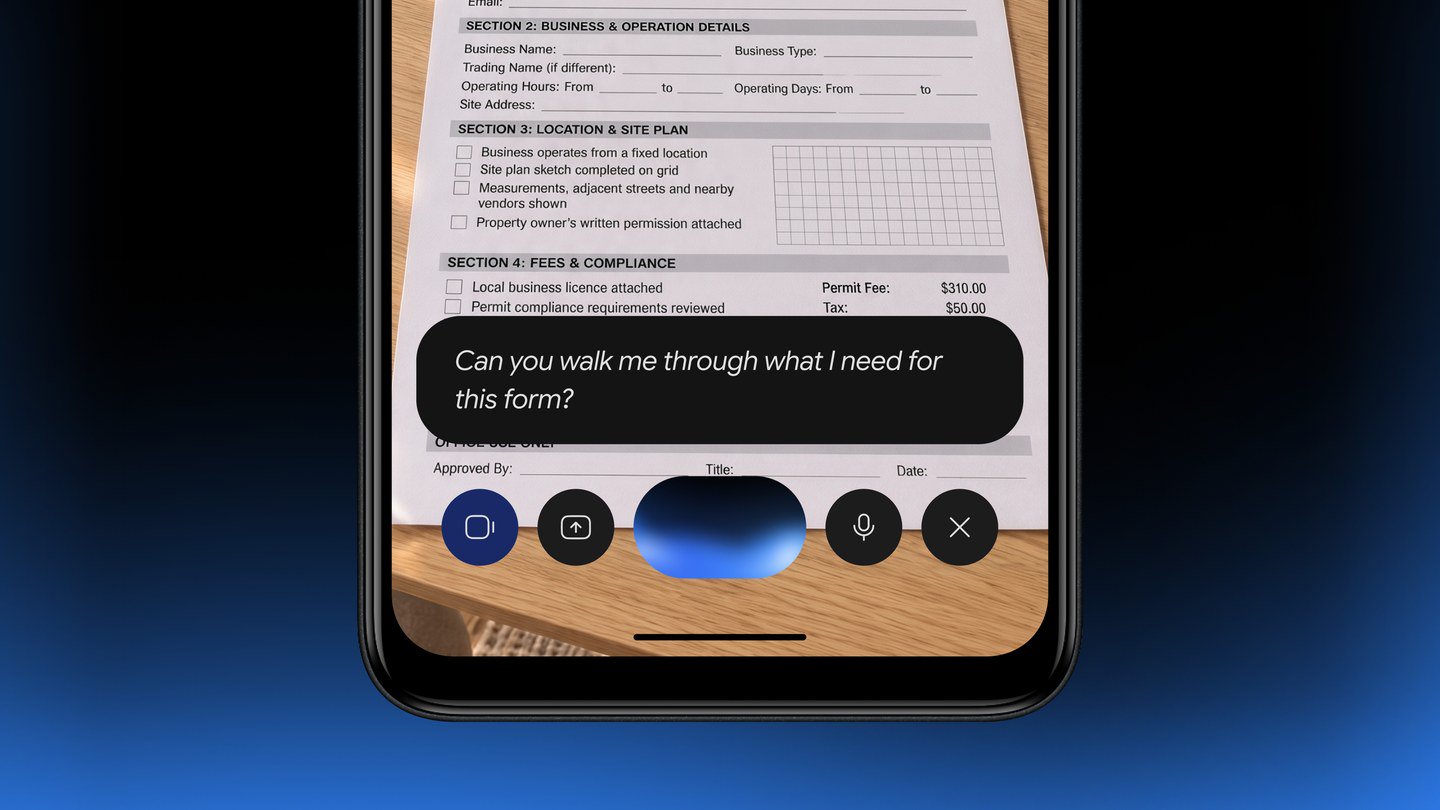 Google Brings the Gemini App to Eligible Android Go and Lower-Memory Phones On November 18, 2026, Google said the Gemini app is available on eligible Android (Go edition) devices after a re-architecture for lower-memory phones. Official help adds a 2GB RAM...