
How to Set Up and Use the Xfinity Stream App
A research-based guide to the Xfinity Stream app: sign-in, in-home versus TV Go, Cloud DVR, downloads, stream limits and device requirements, from official support pages as of November 18, 2026.
Disclosure: This page may contain affiliate links. They do not influence our editorial conclusions. Read the disclosure.
Our pick
- See price at Xfinity
Top pick
Xfinity
Comcast's U.S. consumer brand for home internet, TV, streaming and Xfinity Mobile, selling no-contract internet plans with a 5-Year Price Guarantee for new memb...
Steps in this guide
The Xfinity Stream app turns a compatible phone, tablet, computer or connected TV into a place to watch live TV, On Demand titles, and DVR recordings. Xfinity says the app is included at no additional charge with Xfinity service. This is a research-based how-to drawn from official Xfinity support pages as of November 18, 2026, not a hands-on test of the app. Plans, the 5-year price guarantee, equipment returns and moving rules are in the Xfinity shopping guide. For internet plans, see the Xfinity Internet review.

Who can use it, and what you get in and out of the home
All Xfinity customers can download the app or visit xfinity.com/stream and sign in with an Xfinity ID and password. Features then depend on the services on the account and on whether the device is on the in-home Xfinity network.
Xfinity TV customers can, according to the official overview, watch their full TV subscription on a compatible device at home, stream more than 250 live TV Go channels when they are away, manage DVR recordings, browse thousands of Xfinity On Demand titles, download selected shows for offline viewing, and rent or buy movies and shows on select compatible devices. Pay-per-view events are not available in the Stream app or portal.
Xfinity customers who do not have a video subscription can still use Stream. The official overview says they get more than 100 free live streaming channels and thousands of free Xfinity On Demand shows and movies.
In-home live TV and On Demand on Stream is described as a cable service delivered over Xfinity's managed cable network, not over the internet, so it does not count toward an Xfinity Internet monthly data usage plan. TV Go, NOW TV and other streaming content delivered over an internet or mobile connection does count. Xfinity also notes that streaming can keep using data even after you turn a device off, and it tells customers to log out of the app or portal when they are finished if they want to stop that use. Cellular networks may add wireless-provider data charges.
You cannot stream Xfinity TV or NOW TV content outside the United States. Programs already downloaded to a mobile device can be watched offline in other countries.
Sign in and register a device
The official first-time setup is straightforward. Install the Xfinity Stream app from the Apple App Store, Google Play or the Amazon Appstore, or open the web portal at xfinity.com/stream in Safari, Google Chrome, Firefox or Microsoft Edge. Sign in with your Xfinity ID and password.
The first time you open the mobile app on a specific device, Xfinity says you need to register that device on your account: enter your Xfinity ID and password, then tap Continue. You only register the device once. If you stay signed in, later visits should recognize it. If you forget the ID or password, the sign-in screen provides recovery links.
Students with Xfinity On Campus service follow a different path: tap Sign in as a Student, choose the school from the drop-down list, sign in with school credentials, and tap Yes to accept the terms of activation.
The Xfinity Stream app is not the same as the free Xfinity app used for billing, plan details and outage updates. Official support pages point people to that separate Xfinity app for account management; this guide covers the Stream video app and portal.

Find shows: Home, Guide, Library, Sports and Search
When you open the app, the Home screen is the starting point. Official navigation options include Guide, Library, Sports, Search, Household Profiles and Settings.
In the Guide, tap All Channels to see listings, or use genre filters such as Free to Me Channels and TV Go Channels — the channels that can be watched when you are not at home. On the in-home Xfinity network, you can stream all the channels in your subscription. Away from home, the official get-started guide says you can still browse Guide listings, watch TV Go live and On Demand content, watch Xfinity On Demand purchases, and, if you have Cloud DVR, record and watch completed recordings and download recordings plus selected On Demand titles.
Inside the Guide you can pick a date and time, apply a genre filter, and swipe to move the time frame. Select a channel or listing to watch live, and use the player icon for subtitles and audio description. A long press on a listing opens more information, Watchlist and Record options. Program details can record one episode or a full series, play what is currently airing, list On Demand seasons or future airings, and include More like this and Parents' guide information. Movie pages also include Cast & crew and a Ratings tab.
Library holds the Watchlist, Latest Recordings, Purchased and Rented Movies, and Downloads. Sports browses On Demand and live sports. Search uses an on-screen keyboard for movies, shows, people, sports or teams.
The Household Profiles icon in the top-right corner opens Continue Watching, Recent Channels, Settings and profile switching. Official profile choices include Household, Kids and Teens; a PIN must be created before Kids or Teen profiles can be used. Settings cover viewing preferences, device information, and PIN and parental controls. Movie ratings, TV ratings and unrated content can all be blocked, and PIN controls can also be enabled for purchases. To set those controls, tap the Household account icon, then choose Pin & parental in Settings.
Cloud DVR, downloads and stream limits
Cloud DVR is not automatic for every DVR box. Official get-started notes say completed cloud-based DVR recordings can be used in or out of the home if the account has Xfinity X1, TV Core, NOW TV, NOW TV Latino or Xfinity On Campus service, or a customer-owned TV Box as the primary outlet. DVR customers with non-X1 TV Boxes do not have access to Cloud DVR. The official partner-device FAQ adds that if you return a legacy (non-X1) DVR box, recordings stored on that box are lost; an X1 DVR customer can keep some recordings in the cloud and still reach them in Stream.
Downloads are available only on mobile devices. After a recording or selected On Demand title is downloaded, you can watch it without an internet connection. Xfinity On Demand itself is not offered in every area; if your TV Box does not include On Demand, the official overview says you will not have access to that library through Stream either. Previously purchased movies and shows remain viewable in Library > Purchases, including after a rented TV Box is returned.
Most Xfinity TV customers can stream video on up to five devices at once while in the home. Out of the home, or with NOW TV and streaming, the official limit is three devices at once. Xfinity On Campus customers are limited to one stream.
Compatible devices and what the Stream app cannot do
Xfinity Stream is officially available on the web at xfinity.com/stream, on iOS and Android phones and tablets, and on Amazon Fire TV, Apple TV, LG TV, Roku, Samsung Smart TV, Xumo TV, the Xumo Stream Box from Xfinity and Xfinity Flex streaming TV Boxes. You can also cast to a TV that supports Google Chromecast or Apple AirPlay. The official requirements page lists Chromecast first, second, third and fourth generation (Chromecast with Google TV) and Chromecast Ultra / Google Nest Hub. For AirPlay, that requirements page states that iOS 15.0 or later is required. The same page notes that Apple TV, LG TV, Roku, Samsung Smart TV and Xumo TV access is in-home only for Xfinity TV customers who also have internet, and that LG TVs are not eligible to stream NOW TV content.
Minimum versions, as listed on November 18, 2026, include Android 7.0 or later, with app version 7.4.1 or later to watch all content; iOS 17.0 or later, with app version 7.8.0 or later to watch all content; Fire OS 6 or later, with app 7.4.1 or later for all content and 8.6 or later for 4K; and tvOS 18 or later on supported Apple TV hardware (Apple TV 4K from 2017 or 2021, and Apple TV HD from 2015), with app 1.10.0 or later for 4K. LG and Samsung TVs from 2018 through 2026 are listed, with app 2.2.5 or later for 4K and more than 2 GB of available memory for high video quality; 2018 Samsung sets also have specific minimum firmware versions. Roku devices need OS 11.0 or later, and Xfinity stopped updating the app on 2017 Roku devices in October 2022. Xumo TV needs app 2.1.0 or later for all content and 2.3.0 or later for 4K.
Unsupported devices listed by Xfinity include Android TV, Windows tablets and phones, Nook devices, Apple Watch, Xi5 streaming TV Boxes for Xfinity Flex, and Chromebooks, plus other devices not specifically mentioned.
The Stream app on a partner TV is not a full X1 replacement. Official partner-device FAQs say it does not support an Xfinity Voice Remote, pay-per-view event rentals, X1 apps such as Voicemail and xFi, the Sports companion experience, or apps such as Pandora, YouTube and Netflix (those may still be available on the partner device's own platform). Xfinity describes X1 as the best way to watch Xfinity TV, and the Xumo Stream Box from Xfinity as the best way to watch NOW TV, NOW TV Latino or NOW StreamSaver.
You do not have to rent an Xfinity TV Box for Stream to work on a supported partner device. New customers can often order TV service without a box at xfinity.com. If you already rent a box and want to stop, official pages say you must return it; you can also keep a rented box as the primary outlet and still use partner devices. Partner devices are set up by the customer, not by an Xfinity technician. LG, Roku and Samsung sets cannot stream live and On Demand content until TV service is installed and activated; Amazon Fire TV can be used with Stream before that activation, according to the partner-device FAQ.
If the app will not activate, official advice is to confirm that installation is complete, sign out and reinstall after a move, check that the device model and firmware meet the minimums, and confirm the device is on Xfinity Internet. Households with more than one Xfinity login can still use Stream on a supported TV; Xfinity points to error code TVAPP-00101 when activation fails in that situation.
Internet speed still matters on WiFi or when you are watching TV Go and NOW content. If you are sizing a plan, use the speed guide or the Xfinity vs AT&T Fiber comparison. Xfinity has also run limited-time internet speed boosts tied to game launches; see the November 2026 GTA VI speed-boost news and the how-to for claiming that boost.
References
- Xfinity, "What's the Xfinity Stream app?" (accessed November 18, 2026). https://www.xfinity.com/support/articles/tv-app-overview
- Xfinity, "Get started with the Xfinity Stream app" (accessed November 18, 2026). https://www.xfinity.com/support/articles/getting-started-xfinity-tv-mobile-app
- Xfinity, "Xfinity Stream app minimum system requirements" (accessed November 18, 2026). https://www.xfinity.com/support/articles/xfinity-tv-app-requirements
- Xfinity, "Xfinity Stream app on Xfinity TV partner devices FAQs" (accessed November 18, 2026). https://www.xfinity.com/support/articles/xfinity-stream-app-faqs
- Xfinity, "Xfinity Stream app first-time setup" (accessed November 18, 2026). https://www.xfinity.com/support/articles/x1-xfinity-tv-app
- Xfinity, "Xfinity TV and Streaming" (accessed November 18, 2026). https://www.xfinity.com/learn/digital-cable-tv
Meet your guide
Lipeiguan
author
What to read next
 Apple TV Will Be the Exclusive U.S. Home of F1 Academy Beginning in 2027 On November 19, 2026, Apple said F1 Academy will stream on Apple TV in the United States beginning in 2027, with every qualifying session and race included for U.S. Apple TV subscr... How to Watch F1 Academy on Apple TV in 2027: Official Calendar and Subscription Note Apple said U.S. Apple TV subscribers will get every F1 Academy qualifying session and race beginning in 2027. This guide records the official seven-round 2027 calendar graphic and...
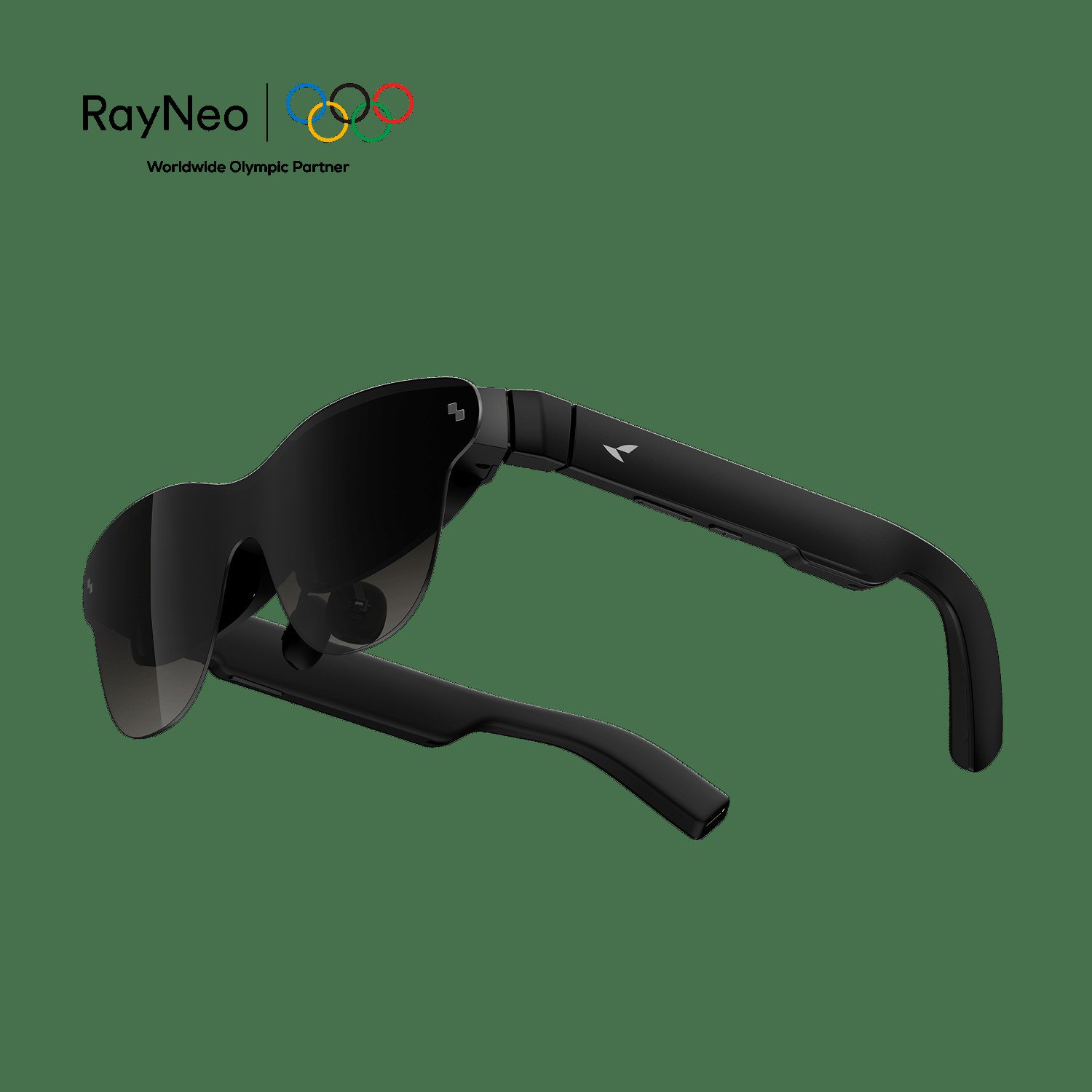 Best RayNeo Glasses (2026): Air 3s, Air 4 Pro, GT, GT Max, iO and X3 Pro A research-based 2026 best-of guide to official RayNeo Air, GT, iO and X3 Pro specs and November 20, 2026 U.S. sale prices, with a buyer FAQ on 3DoF, prescription lenses, bundles a...