
How to Use Gemini on Apple CarPlay: Requirements, Setup, Prompts and Limits
What you need to run Gemini Live on Apple CarPlay, how to connect and place the Gemini icon, Google's example prompts for calendar, email and places, the age and region limits, and how it compares with Gemini on Android Auto.
Disclosure: This page may contain affiliate links. They do not influence our editorial conclusions. Read the disclosure.
Our pick
- See price at Google Store
Top pick
Google Store
Google's online store for Pixel phones, Fitbit wearables, Nest devices and accessories.
What this guide covers
Google's Gemini app now runs on Apple CarPlay, which means iPhone owners can hold a spoken back-and-forth with Gemini Live from the car's display instead of reaching for the phone. Google announced the feature on November 11, 2026 and said it is rolling out globally to all Gemini users on iOS, in every language that Gemini Live supports.
This guide collects what Google and Apple have published about the feature: what you need before your first drive, how to get Gemini onto the CarPlay screen, what kinds of requests it is designed for, which features carry age and region limits, and how it compares with Gemini on Android Auto. It is based on official documentation rather than a hands-on trial, so where Google has not said something, we say so.

What you need before your first drive
Google's own checklist is short. Before you connect to the car, you should:
- Update the Gemini app on your iPhone to the latest version from the App Store.
- Allow microphone access for the Gemini app.
- Use Gemini Live on the phone at least once. Google lists this as a setup step, so open the app, start a Live conversation and end it before you head out.
Beyond those steps, the basics apply:
- An iPhone on a recent iOS version. The Gemini App Store listing says the app requires iOS 18.2 or later. The app itself is free, with optional paid Google AI plans sold as in-app purchases.
- A car or head unit that supports CarPlay. Apple says you should confirm that both your country or region and your car support CarPlay, and to ask the vehicle maker if you are unsure.
- A Google account signed in to Gemini. To ask about email and meetings, Gemini needs access to Google apps such as Gmail and Google Calendar.
How to connect CarPlay
If CarPlay is already working in your car, skip ahead. Otherwise, Apple's support page describes three ways to connect:
- Wired CarPlay: start the car, make sure Siri is on, and plug your iPhone into the car's USB port. Apple notes the port may be marked with a CarPlay or smartphone icon.
- Cars that support both wired and wireless: plug in first. Your iPhone will then offer to connect wirelessly on later drives.
- Wireless-only cars: press and hold the voice command button on the steering wheel, put the stereo in wireless or Bluetooth mode, make sure Wi-Fi is on, then go to Settings > General > CarPlay on the iPhone and select your car.
Your car's manual covers any steps that are specific to the vehicle.
Put Gemini where you can reach it
Google says you open Gemini by tapping its icon on the CarPlay screen or in the side rail. To move the icon somewhere easy to reach, use the app arrangement settings Apple describes for CarPlay:
- On your iPhone, go to Settings > General > CarPlay.
- Select your car, then tap Customize.
- Use the add and remove buttons to show or hide apps, and drag Gemini toward the front.
Apple says the new order shows up the next time the iPhone connects. Do this while parked, not while driving.
Starting and managing a conversation
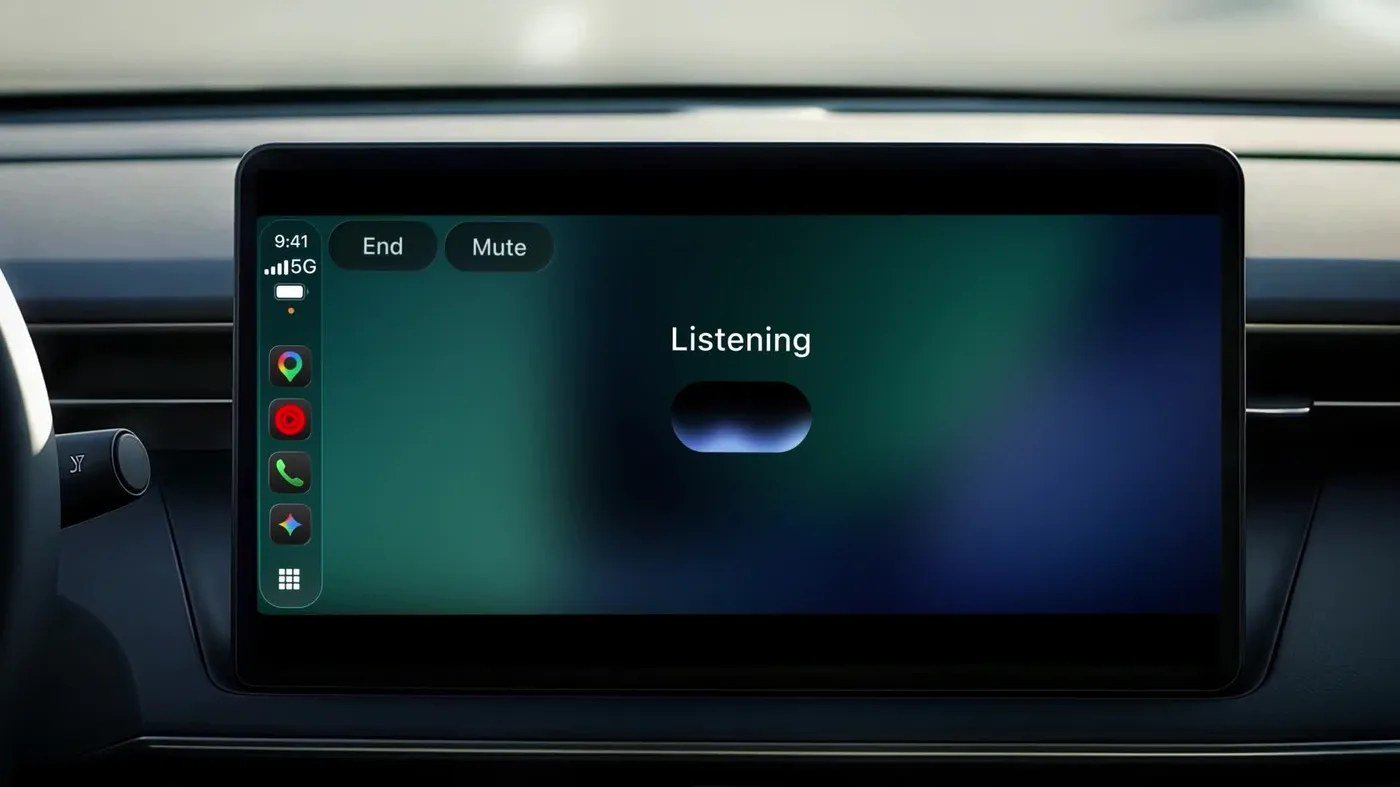
Once you tap the Gemini icon, Google says you can either pick up a recent chat or start a new conversation. The CarPlay screen shows simple controls. Google's own images show an End button, a Mute button and a "Listening" indicator while Gemini Live is active.

Gemini Live is meant to feel like a conversation, not a string of separate commands. Google says you can talk at your own pace, interrupt to add a detail, change the subject, or pause when you need to focus on an exit. Everything syncs back to the Gemini app on your iPhone, so summaries, notes and brainstorms appear in your chat history once you park.
What to ask: Google's examples
Google grouped its suggestions into four areas. The quoted prompts below are Google's own examples.
Get ready for the day
Ask what is on your calendar, when you need to leave for your next appointment, or talk through what you want to say before a meeting.
- "What does my day look like?"
- "Help me prep for my 10am with the design team."
Talk through your inbox
Because Gemini connects with Google Workspace apps such as Gmail and Google Calendar, Google says you can ask for your daily brief, catch up on unread email, get summaries of long threads and talk through a quick reply using your voice.
- "Give me my daily brief for today."
- "Catch me up on my unread emails and summarize Sarah's Q4 budget thread."
Find places along the way
Ask for nearby recommendations, from a quick lunch stop to the story behind a local landmark.
- "What's a quick lunch spot in downtown Austin that's easy to get in and out of?"
Brainstorm, rehearse and learn
Google pitches a quiet car as a good place to think out loud. You can rehearse a presentation, prepare for a difficult conversation or have a topic explained.
- "Let's roleplay my Q4 pitch — act as a skeptical VP and challenge my strategy."
- "Break down how solid-state EV batteries work in simple terms."
Limits and fine print
A few caveats are worth knowing before you rely on Gemini in the car:
- Daily brief must be turned on first. Google says the daily brief is a feature you enable before you can ask for it.
- Age and region limits. Google says certain personalization features, including the daily brief, are not available to users under 18 or in the European Economic Area and Nigeria.
- It does not replace Siri for phone actions. The Gemini App Store listing says the app does not currently support iOS device actions such as setting alarms or sending SMS messages directly. Calls, texts and Apple Maps directions still go through Siri and CarPlay's built-in apps.
- Gradual rollout. Google describes the launch as rolling out starting November 11, 2026. If you don't see the icon yet, update the app and check again later.
- Safety first. Google frames Gemini on CarPlay as hands-free, with your eyes on the road. Change settings and connect apps before you set off, not at a red light.
Gemini on CarPlay vs. Gemini on Android Auto
Google brought Gemini to Android Auto and cars with Google built-in before CarPlay. In an October 20, 2026 post, it said Gemini is available globally on both. It also began rolling out Personal Intelligence on Android Auto, with cars with Google built-in to follow in the coming months.

With your permission, Personal Intelligence links information from Google apps you already use, including Gmail, Google Calendar, Google Photos, Google Maps, YouTube and Search. Google's Android Auto examples include asking for your flight gate and whether the flight is on time, or asking Gemini to find a car wash from a photo you took last week and navigate there. Google says Personal Intelligence is rolling out to eligible personal Google accounts aged 18 and older. It is not available to Workspace business, enterprise or education users, and it excludes the European Economic Area, Switzerland, the United Kingdom and Nigeria.
Google's CarPlay announcement does not mention Personal Intelligence. On the iPhone, it highlights Gemini Live conversations, the Gmail and Calendar connection and syncing back to the phone. If deep personal lookups like those Android Auto examples matter most to you, Android Auto currently has the more fully described feature set. If you drive with an iPhone, CarPlay now gets you Gemini Live and its everyday productivity uses.
Who will get the most out of it
- Commuters who live in Gmail and Google Calendar. Daily briefs, inbox catch-ups and meeting prep are the core use cases Google describes.
- People who think out loud. Rehearsing pitches or talking through a problem on the drive, with the transcript waiting on your phone afterward.
- Road-trippers who want quick local suggestions without typing.
If you mainly use the car for music, calls and directions, Siri and CarPlay's built-in apps already cover that, and Gemini adds less.
Quick troubleshooting checklist
Google has not published a CarPlay-specific troubleshooting page. Its setup requirements suggest checking these if the Gemini icon doesn't appear or won't start:
- Make sure the Gemini app is on the latest version.
- Make sure microphone access is allowed for Gemini.
- Open Gemini Live on the phone once, then reconnect to the car.
- Check the CarPlay app list under Settings > General > CarPlay > your car > Customize.
- Remember the rollout is gradual, so the feature may reach your account later.
Related reading
- Gemini arrives on Apple CarPlay: our news summary of the launch.
- Google Store shopping guide: returns, price match, trade-in and financing if you are buying Google hardware.
References
- Google, "Talk it through with Gemini, now on Apple CarPlay," Nov 11, 2026: https://blog.google/innovation-and-ai/products/gemini-app/gemini-on-apple-carplay/
- Google, "Get hands-free personalized help on the road with Gemini," Oct 20, 2026: https://blog.google/products-and-platforms/platforms/android/android-auto-cars-with-google-built-in-gemini-personal-intelligence/
- Apple Support, "Use CarPlay with your iPhone": https://support.apple.com/en-us/108415
- Apple App Store, Google Gemini app listing: https://apps.apple.com/us/app/google-gemini/id6477489729
Meet your guide
Lipeiguan
author
What to read next
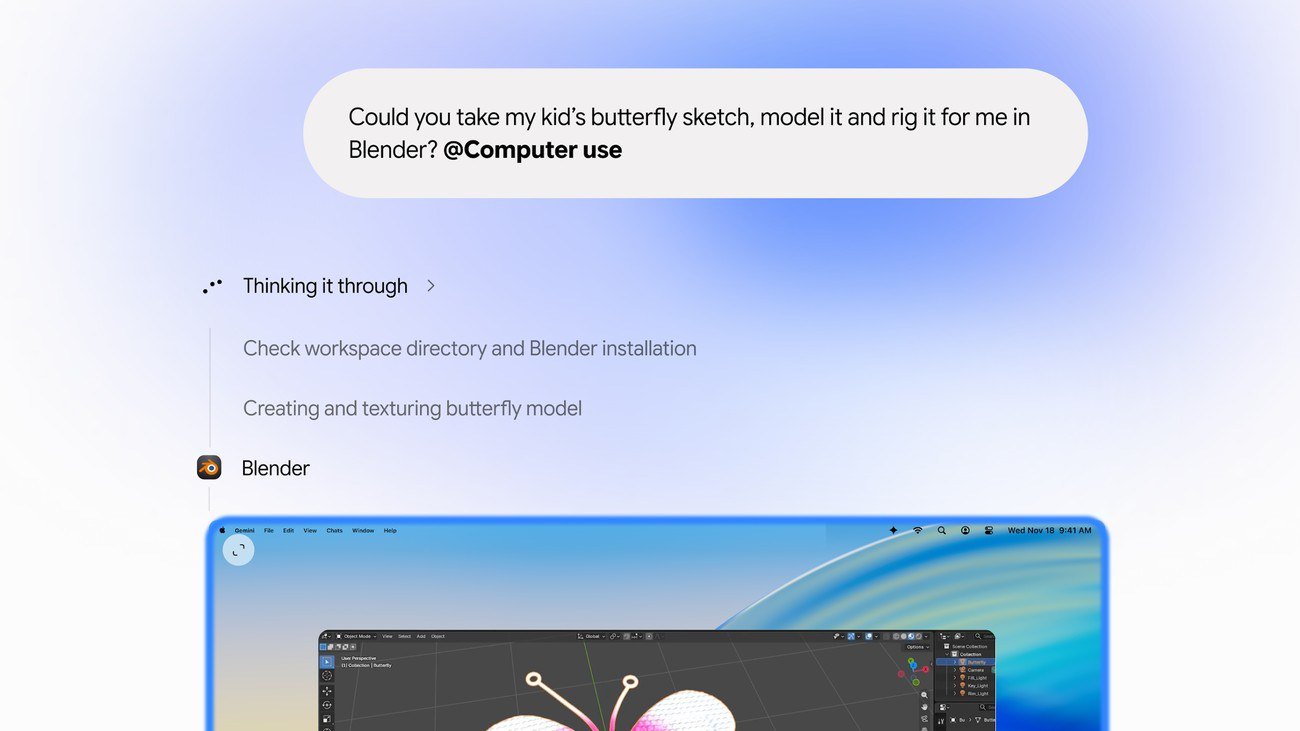 Google Adds Computer Use to the Gemini App for Mac in the U.S. On November 19, 2026, Google said computer use is available in the Gemini app for Mac, in English in the U.S. Official requirements include an Apple Silicon Mac on macOS Sequoia 15... How to Use Gemini Computer Use on a Mac: Official Requirements, Permissions and Examples Official Google requirements for computer use in the Gemini app for Mac: an Apple Silicon Mac on macOS Sequoia 15.0 or later, a personal Google account for people 18 or older, a Go...
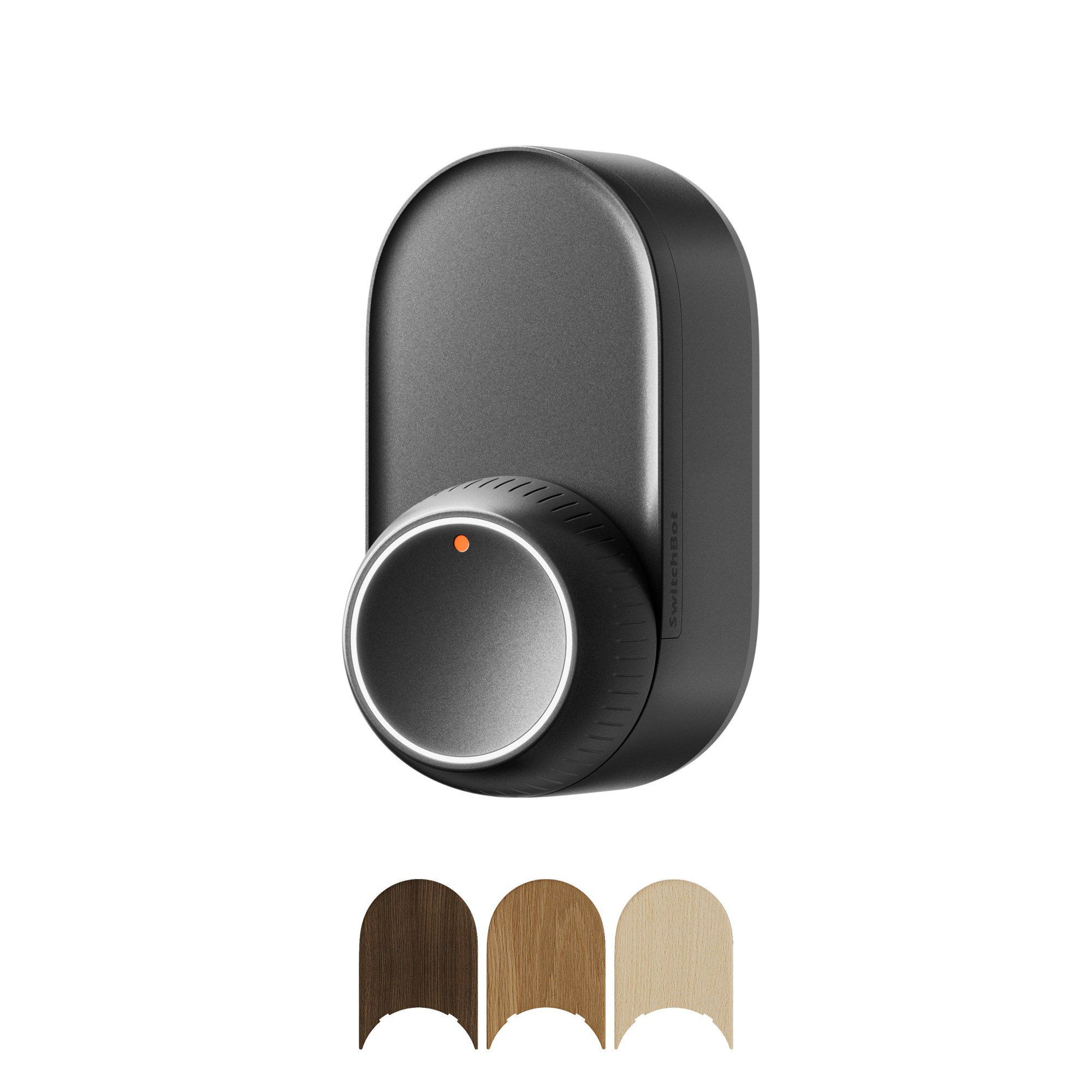 How to Choose a SwitchBot Lock: Lock Pro vs Lock Ultra vs Lock Vision and Vision Pro A research-based guide to official SwitchBot Lock Pro, Lock Ultra, Lock Vision and Lock Vision Pro specs and November 20, 2026 U.S. prices, including batteries, hubs, keypads, comp...