
CleanMyMac vs DaisyDisk: Mac Cleaner or Disk Space Analyzer?
CleanMyMac is an all-in-one cleaner, anti-malware and maintenance suite sold mostly by subscription; DaisyDisk is a $9.99 one-time disk space analyzer. Here is how their storage maps, deletion, cloud support, pricing and App Store editions compare.
Disclosure: This page may contain affiliate links. They do not influence our editorial conclusions. Read the disclosure.
Our pick
- See price at MacPaw
Top pick
MacPaw
MacPaw is a Mac software company founded in Kyiv, Ukraine, best known for CleanMyMac, its Mac cleaning, protection and maintenance app, along with apps such as...
CleanMyMac and DaisyDisk both promise to get disk space back on a Mac, but they come at the problem from opposite ends. MacPaw's CleanMyMac is an all-in-one maintenance suite that finds junk automatically, removes malware, uninstalls apps and maps your storage. DaisyDisk, from Software Ambience Corp., does one job: it draws a map of your disk and lets you decide what to delete. This comparison uses each developer's own product pages, store listings and support documentation as of November 2026, so you can choose the tool that fits how you actually run out of space.

The short answer
- Choose CleanMyMac if you want one subscription app that handles routine cleanup, malware scanning, app uninstalls and updates, and cloud storage tidying, and you are happy to let it suggest what to remove.
- Choose DaisyDisk if your problem is simply a full drive, you want to find the biggest files yourself, and you prefer a one-time $9.99 license to a subscription.
Many people who keep a Mac for years could use both: DaisyDisk to find the 50 GB video project they forgot about, and CleanMyMac for maintenance and protection.
Side-by-side
| CleanMyMac (MacPaw) | DaisyDisk (Software Ambience) | |
|---|---|---|
| What it is | Cleaner, maintenance and anti-malware suite | Disk space analyzer |
| Price (developer store) | $39.95/year or $9.95/month for one Mac; $119.95 one-time | $9.99 one-time, lifetime license |
| Macs covered | Plans for 1, 2 or 5 Macs | Up to 5 personal Macs |
| Free trial | 7 days, full features | Yes, but deleting files is locked |
| Refund window | 14 days (monthly plans) or 30 days (other plans), initial purchase only | 30-day money-back guarantee |
| Minimum macOS | macOS 11 | macOS 10.13 |
| Storage map | Space Lens (bubble map) | Sunburst disk map |
| Automatic junk cleanup | Yes (Smart Care, Cleanup) | No, by design |
| Malware removal | Yes (Moonlock Engine) | No |
| App uninstaller and updater | Yes | No |
| Cloud storage | iCloud Drive, Google Drive, OneDrive, Dropbox | Dropbox, Google Drive, OneDrive, Box |
| Upgrades | Subscriptions include major versions; one-time buyers pay to upgrade | Minor updates included with the license |
Prices are the US list prices shown on each developer's store when we checked in November 2026. Both can change, and taxes vary by country.
Two philosophies of cleaning
The biggest difference is not a feature but an attitude.
CleanMyMac is built around automation. Its Smart Care routine runs five tasks at once: deep cleaning, a threat scan, performance tasks, software updates and storage decluttering. MacPaw says the app relies on a Safety Database it has maintained since 2008, a set of rules and exceptions that tells it what is safe to remove on different macOS versions and apps. By default, MacPaw says, CleanMyMac only offers to remove data generated automatically by the system or apps, and does not remove personal files unless you choose them.
DaisyDisk takes the opposite view and says so on its homepage. It argues that macOS cleans itself well, that "cleaner" apps typically recover a few gigabytes of caches that soon reappear, and that the real fix for a full disk is to find and delete large files you no longer need. That is DaisyDisk's own framing of a competing category, and it compares its typical results (10 to 100 GB or more) with cleaner apps (1 to 5 GB). Treat both numbers as marketing claims rather than measurements. How much space you recover depends entirely on what is on your Mac.
There is truth on both sides. Caches and logs do rebuild over time, so clearing them is not a permanent fix. But CleanMyMac is not only a cache cleaner: it also has its own visual map, a large-files finder and an uninstaller, which overlap with what DaisyDisk does.

Finding what fills your drive
DaisyDisk shows a disk or folder as a colorful sunburst. You click into segments to drill down, press Space to preview a file, and drag anything you want gone into a "Collector" at the bottom of the window. Nothing is removed until you click Delete, and DaisyDisk then gives you five seconds to cancel. The app refuses to accept protected locations such as /System, /Library or your home folder in the Collector. DaisyDisk can also scan as administrator to see restricted folders, break down the "System Data" category, and list local APFS snapshots with estimated sizes so you can delete them. Its homepage cites a 15-second scan, compared with minutes for the Finder.
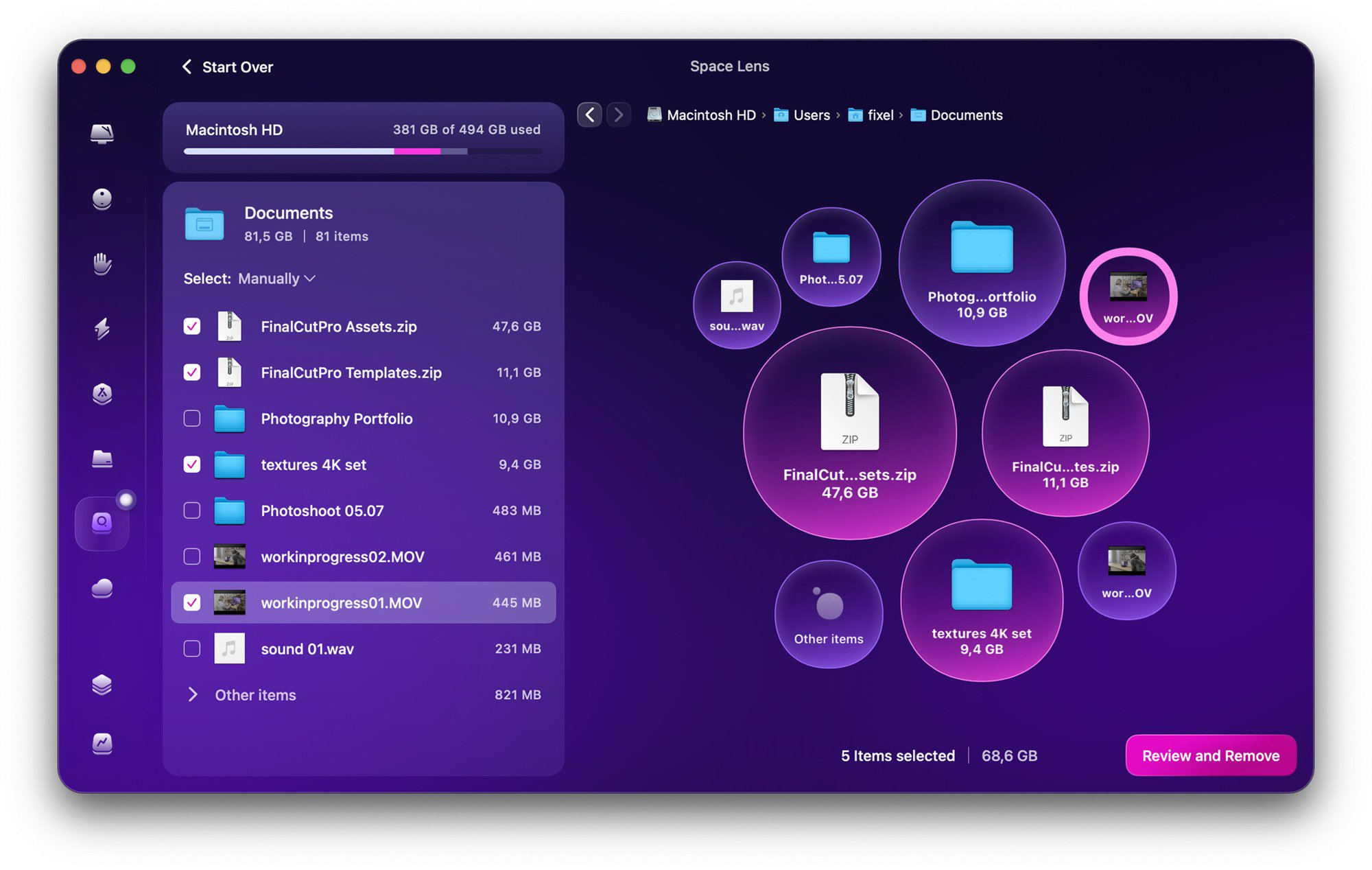
CleanMyMac has Space Lens, which draws folders and files as bubbles of different sizes. MacPaw says it can analyze your main drive, external drives or a single folder. You select items, click Review and Remove, check the list (you can reveal each item in Finder or deselect it), then click Remove. CleanMyMac's My Clutter module adds a Large & Old Files view that only shows files of at least 50 MB and groups them by kind, size and last access date. For Time Machine snapshots, MacPaw's support site points you to a task in the Performance module.
In practice the two maps do the same job. DaisyDisk's sunburst is the more focused tool, and it is the app's whole reason to exist. Space Lens is one module among many inside a larger app.
Deletion: both skip the Trash
This is the detail most worth knowing before you click anything. DaisyDisk's user guide says it deletes files and folders permanently rather than moving them to the Trash, so the space is actually recovered, and the files cannot simply be restored from the Trash. MacPaw's support article on large and old files says the same of CleanMyMac's My Clutter removal: files are deleted permanently, bypassing the Trash.
Both developers therefore lean on review before removal. DaisyDisk's advice is to delete only files you recognize as your own (videos, games, downloads) and to keep Time Machine running so you can roll back a mistake. That is good advice for CleanMyMac users too.
DaisyDisk also explains a common surprise: deleting files may not immediately increase free space if Time Machine local snapshots still hold copies. That space shows up as "purgeable" and macOS reclaims it when needed.
Cloud storage
Both apps reach beyond your local drive, with different service lists.
- CleanMyMac Cloud Cleanup works with iCloud Drive, Google Drive, OneDrive and Dropbox. MacPaw says you can delete cloud-only files, remove synced files from both the Mac and the cloud in one action, or unsync files to free local space while keeping the originals online. iCloud Drive must already be set up on the Mac, and you can connect one iCloud Drive at a time.
- DaisyDisk scans Dropbox, Google Drive, Microsoft OneDrive and Box directly in the cloud, without downloading a local copy, and lets you connect several accounts for the same service. It cannot scan iCloud storage directly. DaisyDisk says Apple sandboxes iCloud access, so the workaround is to scan the local iCloud Drive folder.
If iCloud Drive is where your clutter lives, CleanMyMac has the edge. If you use Box or several Dropbox accounts, DaisyDisk does.

What only CleanMyMac does
DaisyDisk is a storage tool, full stop. CleanMyMac adds several things it does not attempt:
- Malware removal and real-time monitoring, powered by MacPaw's Moonlock Engine.
- A complete app uninstaller that removes leftover support files, plus an updater for installed apps.
- Privacy cleanup for browser history, cookies and recent-items lists.
- Maintenance tasks such as flushing the DNS cache and managing login and background items.
- Email Cleanup for Gmail and Browser Care for Chrome, both added in autumn 2026.
If you would otherwise buy separate tools for these jobs, CleanMyMac's subscription starts to look like better value. Our CleanMyMac review covers each module in more depth.
Pricing and licensing
DaisyDisk's model is simple. Its site sells a lifetime license for $9.99 as a one-time purchase, with no recurring payments, minor updates and bug fixes included, use on up to five personal Macs, and a 30-day money-back guarantee. The free trial lets you scan, browse the map and preview files, but you cannot delete files, show them in Finder, scan as administrator or scan cloud storage until you buy a license.
CleanMyMac costs more and is mostly sold as a subscription. The MacPaw Store listed $39.95 a year or $9.95 a month for one Mac, and $119.95 for a one-time purchase that covers the current major version only. Every marketplace offers a full-featured seven-day trial. Refunds are available within 14 days for monthly plans and 30 days for other plans, for the initial purchase only, not renewals. Our CleanMyMac buying guide walks through every plan.

Watch the App Store editions
Both apps are on Apple's Mac App Store, and both App Store versions are limited by Apple's sandboxing rules.
- DaisyDisk's App Store edition cannot delete "stuck" files, scan as administrator or purge purgeable space, and it only detects hidden space rather than revealing it. Snapshot size estimates are not available there either. It also has no free trial, because it uses Apple's DRM. DaisyDisk says App Store customers can get the stand-alone license free.
- CleanMyMac's App Store edition lacks several system-level tools, including system cache and log cleanup, language-file removal, Flush DNS Cache and Free Up Purgeable Space, according to MacPaw's feature table. It also cannot use the privileged CleanMyMac Agent.
For either app, the developer's own store is the way to get the full feature set.
Privacy
DaisyDisk says all your data stays with you and that the app does not collect or transmit anything or track you. MacPaw says CleanMyMac does not transfer personal files, documents or emails beyond your Mac, collects analytics data to improve the app, never sells personal data, and handles data under GDPR. Our CleanMyMac safety and permissions FAQ explains why it asks for Full Disk Access and what its background items do.
Which should you buy?
- Your drive is full and you want to know why: DaisyDisk. It is cheap, fast to learn and built for exactly this.
- You want hands-off maintenance plus malware protection: CleanMyMac.
- Your clutter is in iCloud Drive: CleanMyMac's Cloud Cleanup supports it; DaisyDisk can only scan the local copy.
- You use Box or several Dropbox accounts: DaisyDisk.
- You dislike subscriptions: DaisyDisk's $9.99 license, or CleanMyMac's one-time purchase if you need its extra tools.
Whichever you choose, start with the free trial, review every item before you remove it, and keep a current Time Machine backup, since both apps delete without using the Trash.
References
- MacPaw, CleanMyMac product page: https://macpaw.com/cleanmymac
- MacPaw Store, CleanMyMac plans and system requirements: https://macpaw.com/store/cleanmymac
- MacPaw Support, Space Lens: https://macpaw.com/support/cleanmymac/knowledgebase/space-lens
- MacPaw Support, Clean up with Space Lens: https://macpaw.com/support/cleanmymac/knowledgebase/space-lens-cleanup
- MacPaw Support, Large and old files: https://macpaw.com/support/cleanmymac/knowledgebase/large-and-old
- MacPaw Support, Cloud Cleanup: https://macpaw.com/support/cleanmymac/knowledgebase/cloud-cleanup
- MacPaw Support, Safety Database: https://macpaw.com/support/cleanmymac/knowledgebase/safety-database
- MacPaw Support, Feature availability and differences: https://macpaw.com/support/cleanmymac/knowledgebase/missing-features
- MacPaw, Refund Policy: https://macpaw.com/legal/refund-policy
- DaisyDisk homepage, features, pricing and system requirements: https://daisydiskapp.com/
- DaisyDisk User Guide, Deleting files: https://daisydiskapp.com/guide/4/en/DeletingFiles/
- DaisyDisk User Guide, What is safe to delete?: https://daisydiskapp.com/guide/4/en/WhatToDelete/
- DaisyDisk User Guide, Scanning cloud storage: https://daisydiskapp.com/guide/4/en/CloudScan/
- DaisyDisk User Guide, Editions and license migration: https://daisydiskapp.com/guide/4/en/Editions/
- DaisyDisk User Guide, Benefits of buying a license: https://daisydiskapp.com/guide/4/en/ReasonsToBuy/
- DaisyDisk User Guide, Local APFS snapshots: https://daisydiskapp.com/guide/4/en/Snapshots/
Meet your guide
Lipeiguan
author
What to read next
 Google Adds Computer Use to the Gemini App for Mac in the U.S. On November 19, 2026, Google said computer use is available in the Gemini app for Mac, in English in the U.S. Official requirements include an Apple Silicon Mac on macOS Sequoia 15... How to Use Gemini Computer Use on a Mac: Official Requirements, Permissions and Examples Official Google requirements for computer use in the Gemini app for Mac: an Apple Silicon Mac on macOS Sequoia 15.0 or later, a personal Google account for people 18 or older, a Go...
 How to Choose an LG Monitor in 2026: UltraGear, UltraFine, UltraWide and Smart Models A research-based 2026 guide to choosing an LG monitor, using official LG.com specs and listed U.S. prices as of November 19, 2026, for UltraFine and UltraWide work displays, webOS...