
How to Set Up and Use MacPaw Moonlock: Scans, VPN and Scam Detector
A research-based setup guide to MacPaw's Moonlock Mac security app, checked on November 17, 2026, covering official modules (malware scanner, VPN, Network Inspector, Scam Detector and System Protection), the 7-day trial, and the listed starting price of $54 per year.
Disclosure: This page may contain affiliate links. They do not influence our editorial conclusions. Read the disclosure.
Our pick
- See price at MacPaw
Top pick
MacPaw
MacPaw is a Mac software company founded in Kyiv, Ukraine, best known for CleanMyMac, its Mac cleaning, protection and maintenance app, along with apps such as...
Steps in this guide
Moonlock is MacPaw's standalone Mac security app: an antivirus with a built-in VPN, a connection filter, an AI-powered scam checker and a guided pass through macOS security settings. This how-to is a research-based reading of the official Moonlock and MacPaw product pages as of November 17, 2026. It is not a hands-on test, and it does not claim that any particular scan result will appear on your Mac. For how Moonlock sits next to CleanMyMac, Gemini 2 and CleanMyPhone, see our MacPaw apps roundup. For CleanMyMac itself, use the review, the buying guide and the safety FAQ.

What you need before you install
The official Moonlock product page on MacPaw.com lists system requirements as macOS 13.0 or later, 515 MB of space and a minimum display of 1200×800 pixels. The same page shows the latest version as 1.0.21. If your Mac is still on macOS 12 or earlier, Moonlock is not the official fit; stop here and check Apple's software update options first.
MacPaw presents a 7-day free trial and a buy path from that product page. The MacPaw listing says pricing starts at $54. The Moonlock.com homepage is more specific: "7 days free, then starting at $54/year." This guide uses those product-page figures, checked November 17, 2026. Device-count and monthly-cycle tables live on MacPaw's store checkout, which did not return a usable page in this check, so this article does not invent a monthly or multi-Mac price. Confirm the live plan on MacPaw's checkout before you pay.
MacPaw also states that Moonlock is notarized by Apple, and that AV-TEST has independently verified the antivirus against real malware in a lab. Those are third-party marks published by the company, not a substitute for keeping macOS itself up to date.
Start with the home screen, then run a scan
After you install Moonlock from the official site, the marketing screens on Moonlock.com show a Home view titled "Protected Mac," with separate cards for Real-Time Protection, the malware database, detection history and a scan planner. Official copy on the same pages says you can schedule scans, choose how deep a scan goes, and keep a log of removed malware rather than deleting items silently. Threats can be held in Quarantine "until you decide to remove" them. The scanner is described as covering system files, ZIP archives, USB drives and Mail attachments.
A practical order, based on those official controls, is:
- Open Moonlock and read the Home recommendations. The official Home screenshot highlights system settings that "need your attention" and a Security Advisor entry point. Deal with those prompts before you assume the Mac is fully hardened.
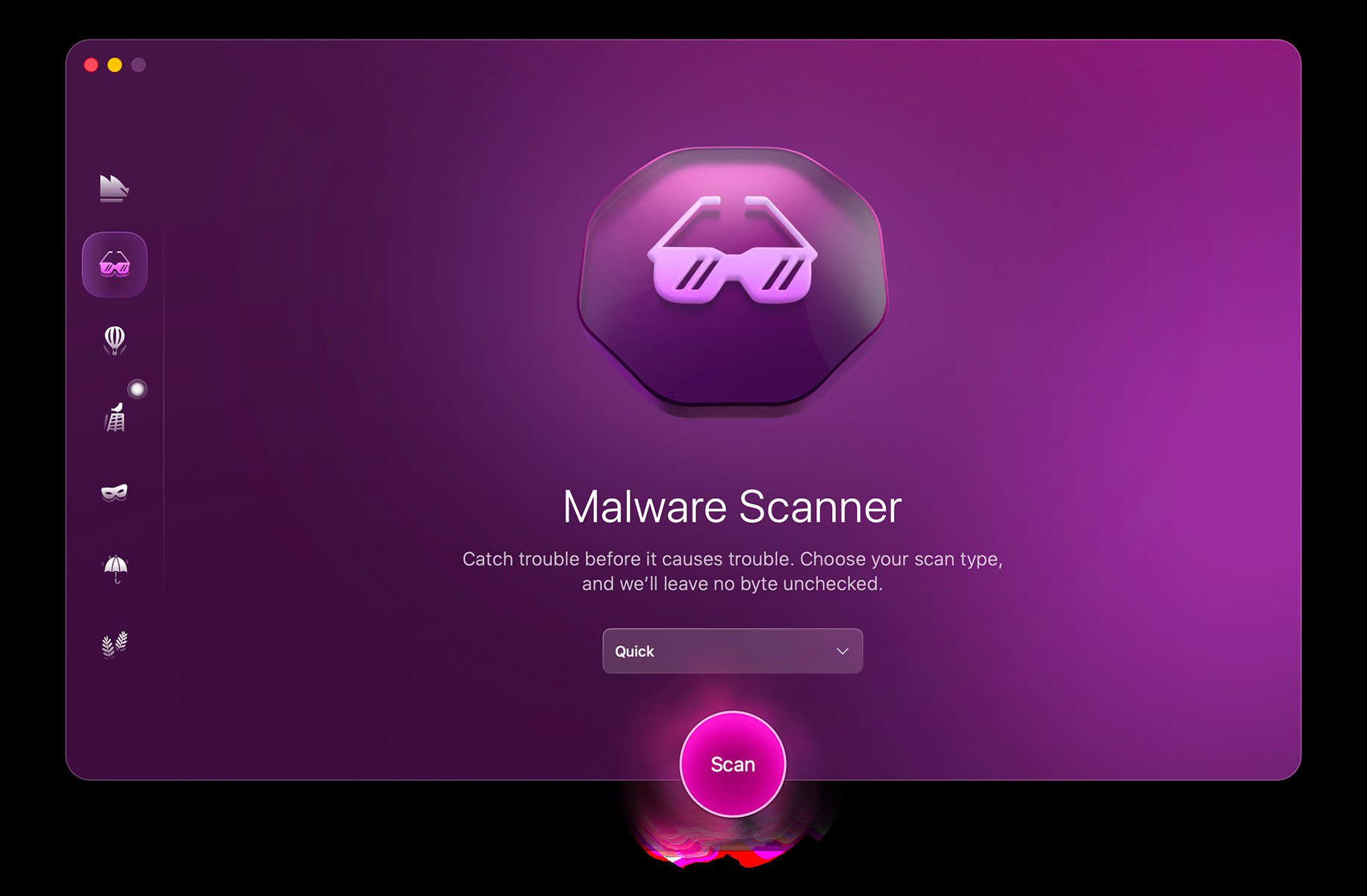
- Open the Malware Scanner. Official interface copy offers a scan-type menu, including a Quick option, and a Scan button. If you only want a first pass, start there. If you are checking a drive or a downloaded archive, use the deeper option the product page describes as checking "every byte," and give the scan time to finish.
- If the scanner flags an item, use Quarantine rather than guessing. Official copy says Moonlock logs removed malware and does not remove items "on a whim." That is the point of a quarantine: you can read the log before you delete.
- Turn on a scheduled scan if you want the check to recur. The product page's pitch is that "security shouldn't be in the way of your productivity." A daily or off-hours schedule is the official way to do that, and the Home screen's Scan Planner card is where the company shows that control.

If you already pay for CleanMyMac, remember the relationship described on Moonlock's own site and in our apps roundup: Moonlock's anti-malware technology also powers Protection inside CleanMyMac. Moonlock is the standalone app with the extra VPN, Network Inspector, Scam Detector and security-manual features. Buying both is optional, not required, if your only goal is a Mac malware scan.
Use the VPN and Network Inspector as separate tools
Moonlock's VPN is described as a privacy tool for browsing. Official feature notes include an "optimal location" that picks a server for you, a country picker that shows which option is faster, and a kill switch that cuts off the internet if the connection is not encrypted. The official product screenshot shows a connected state with a chosen city, a displayed IP address and a running timer, plus a Stop button.
Use the VPN when you want the traffic itself to leave through another location. Use Network Inspector when the question is which apps are calling which countries. Official copy calls Network Inspector a "spy detector": some apps and sites "quietly send your information to servers overseas," and if you block a country, Moonlock "will cut off apps that tried to send your info there." The official interface shows a status line, a region being blocked, counts of found or blocked connections, and a Manage Regions control.
Those two modules are easy to mix up. The VPN changes the path of your own browsing. Network Inspector is a filter on outbound connections to regions you choose to block. Turning one on does not automatically configure the other.


Check suspicious messages with Scam Detector, then tighten system settings
Scam Detector is listed as an AI-powered phishing checker. Official instructions are simple: paste a message, and Moonlock "will check it for phishing patterns and tell you if something's off." The official product screenshot shows a sample result with a phishing-match score, a "Likely a scam" label and short reasons such as a domain mismatch or an urgent password-reset request, plus buttons to check another message or see what to do next. Treat that screen as a guide to the interface, not as a verdict on any message in your inbox. If a message looks like a bank, payroll or account reset, the safer habit is still to open the institution's site yourself rather than following a link in the email, even after a scan.

System Protection is the module for macOS settings rather than for scanning files. Official sub-points are access and permissions, system integrity (encrypt and back up), safe sharing and automatic updates. The product screenshot presents a Start button and the line, "Each security setting on your Mac adds a barrier between your files and a hacker." Security Advisor, described separately, is a checklist of habits outside the antivirus itself: logging out of shared devices, storing passwords securely, blocking browser pop-ups, setting up 2FA or MFA, avoiding public Wi-Fi and limiting app permissions.

Work through System Protection first if the Home screen says settings need attention, then keep Security Advisor as a recurring checklist. Moonlock is not a replacement for FileVault, strong account passwords or Apple's own updates; the company's own copy presents it as a guide to those settings.
What this setup does not replace
Moonlock Lab's public research is cited on the official site, including write-ups of Mac stealers reported by outlets such as the Objective-See Foundation, the SANS Institute and BleepingComputer. That is useful context for why MacPaw sells a Mac-first antivirus, but it is not a promise that your Mac has the same threat. Keep macOS current, be careful with downloaded apps, and use official download links only.
The honest buying question is narrower. If you want a dedicated Mac antivirus with a VPN, a region filter and a paste-in scam checker, Moonlock is the official MacPaw app for that job, with a published 7-day trial and a listed starting price of $54 a year. If you mainly want junk cleaning and already have CleanMyMac, read the Protection notes in the apps roundup before you pay twice for the same malware engine.
References
- MacPaw, "Moonlock" product page (features, starting price of $54, macOS 13.0+ requirements, 515 MB, 1200×800 display, version 1.0.21, 7-day trial, AV-TEST and Apple notarization, accessed November 17, 2026). https://macpaw.com/moonlock
- Moonlock, official homepage (trial and "starting at $54/year," module descriptions, product interface images and research citations, accessed November 17, 2026). https://moonlock.com/
Meet your guide
Lipeiguan
author
What to read next
 Google Adds Computer Use to the Gemini App for Mac in the U.S. On November 19, 2026, Google said computer use is available in the Gemini app for Mac, in English in the U.S. Official requirements include an Apple Silicon Mac on macOS Sequoia 15... How to Use Gemini Computer Use on a Mac: Official Requirements, Permissions and Examples Official Google requirements for computer use in the Gemini app for Mac: an Apple Silicon Mac on macOS Sequoia 15.0 or later, a personal Google account for people 18 or older, a Go...
 MacPaw Brings Moonlock to iPhone With Scam Detect and a Security Score On November 18, 2026, MacPaw launched Moonlock for iPhone, the first mobile version of the Mac cybersecurity app. Official features include Scam Detect for texts, screenshots and Q...