
How to Use CleanMyMac Email Cleanup for Gmail and Browser Care for Chrome
Step-by-step: connect Gmail to CleanMyMac's Email Cleanup, review categories, delete, archive or unsubscribe safely, then install Browser Care to pause, close and de-duplicate heavy Chrome tabs.
Disclosure: This page may contain affiliate links. They do not influence our editorial conclusions. Read the disclosure.
Our pick
- See price at MacPaw
Top pick
MacPaw
MacPaw is a Mac software company founded in Kyiv, Ukraine, best known for CleanMyMac, its Mac cleaning, protection and maintenance app, along with apps such as...
What this guide covers
If your Gmail inbox is overflowing and Chrome has dozens of forgotten tabs eating memory, CleanMyMac now has a tool for each. Email Cleanup sorts a Gmail inbox into categories you can clear in bulk, and Browser Care is a Chrome extension that finds heavy, duplicate and stale tabs. MacPaw added both to CleanMyMac in autumn 2026 and announced them on November 5. This guide explains how to set each one up and use it safely, based on MacPaw's support documentation and announcement.

What you need first
- CleanMyMac on your Mac. Email Cleanup arrived in version 5.7.0 (September 2026) and Browser Care needs version 5.7.2 or later. MacPaw says both are included at no extra cost for users with an active CleanMyMac subscription. If you don't own it yet, all marketplaces offer a free 7-day trial. MacPaw's support page notes that Browser Care works during a trial and locks again after the trial ends until you activate the app.
- A Gmail account for Email Cleanup. MacPaw's support page says only Gmail is supported for now.
- Google Chrome for Browser Care, version 150.0.7871.125 or later, on macOS 12 or later.
Part 1: Clean up Gmail with Email Cleanup
Step 1: Connect your Gmail account
MacPaw's help page describes two ways to connect:
- From My Tools: click My Tools in the CleanMyMac sidebar, then in Email Cleanup click Connect Email.
- From Settings: open CleanMyMac Settings, go to the Email Cleanup tab and click Connect Email Account.
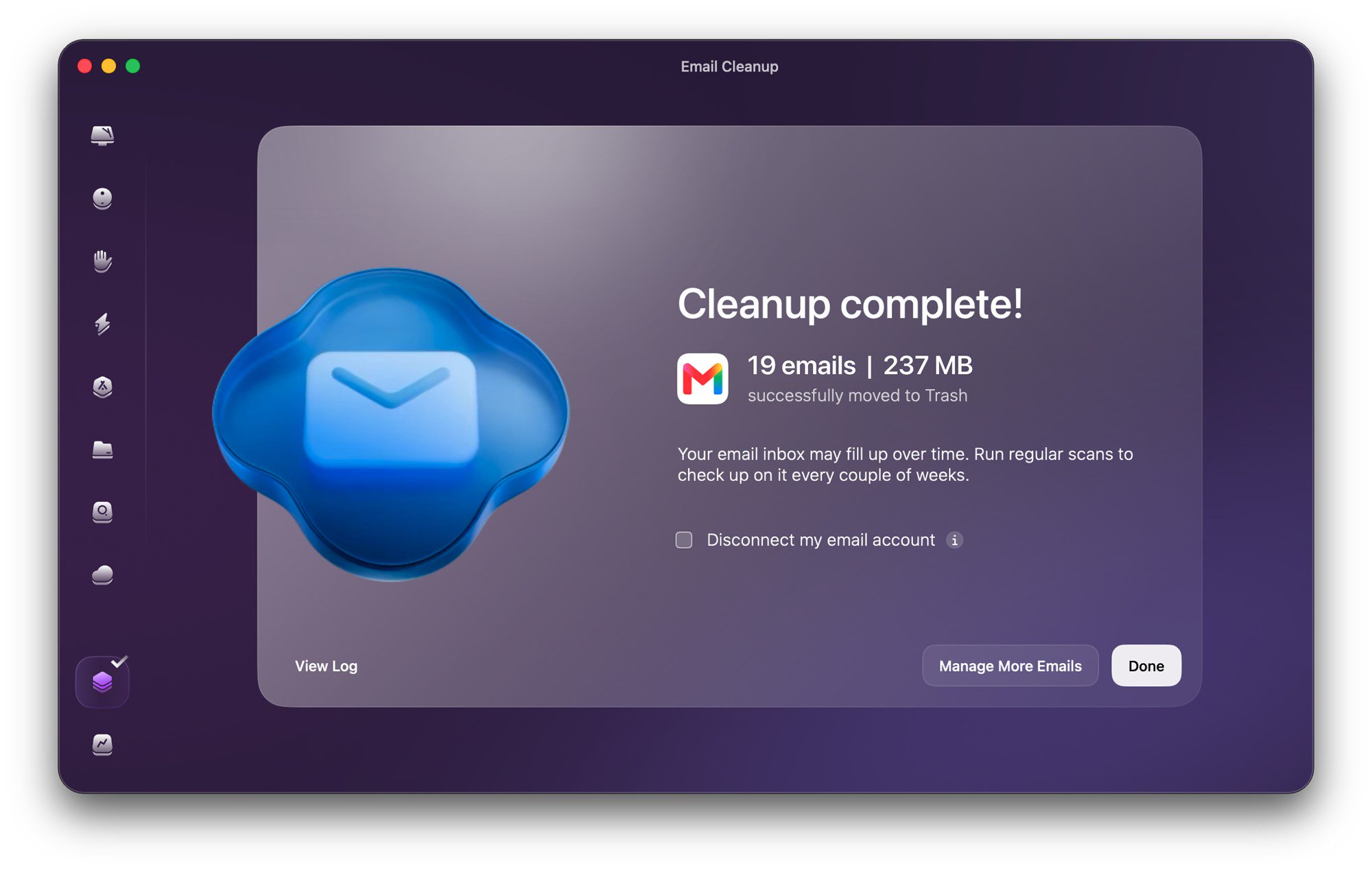
Choose your email service, review the connection details and click Continue. A browser window opens where you sign in to your Google account and grant CleanMyMac permission to access your email. When it finishes, CleanMyMac offers to scan the account right away. You can connect several accounts and pick which mailbox to clean.
MacPaw says Email Cleanup connects through standard Google sign-in, and you can disconnect it at any time from the app. Its support page also says CleanMyMac analyzes email metadata rather than reading your message content.
Step 2: Scan and review categories
Click Scan. MacPaw's announcement says a quick clutter readout appears even before the full mailbox scan finishes. The results are grouped into categories:
| Category | What it is for |
|---|---|
| Smart Cleanup | Ready-made suggestions across all categories |
| Newsletters & Promotions | Promotional mail and newsletters to delete or unsubscribe from |
| Subscriptions | Mailing lists you no longer read |
| Spam | Mail already marked as spam |
| Drafts | Unfinished drafts you no longer need |
| Senders | Every sender, so you can clear mail from specific ones |
MacPaw's release notes also mention review groups such as Old Promotions, Forgotten Emails and Automated Emails. The press release says you can sort mail by sender, category, year or attachment size, which helps you find the old messages with big attachments that use the most storage.
Step 3: Decide what to delete, archive or unsubscribe
Start with Smart Cleanup if you want suggestions, or Subscriptions if your main problem is mailing lists. You can preview messages before acting, and MacPaw says Email Cleanup asks for confirmation before anything is deleted, archived or unsubscribed.
A few rules from MacPaw's announcement are worth knowing before you click:
- Deleted emails go to Gmail Trash and stay recoverable there for 30 days.
- Deleted drafts are removed permanently, so review the Drafts category carefully.
- Storage is reclaimed only after emails are permanently deleted from Trash. Gmail shares storage with Google Drive and Google Photos, so if you are trying to get under your storage limit, empty the Trash in Gmail once you are sure.
Step 4: Disconnect when you are done (optional)
If you prefer not to leave CleanMyMac connected to Gmail, you can disconnect the account in the app, and MacPaw has a support page for doing so. You can reconnect the next time you want to clean.
Cleaning more than one Gmail account
You can connect several Gmail accounts. MacPaw's help page says that if you already have a connected account, you add another from My Tools by clicking the disclosure arrow in Email Cleanup and choosing Connect Email. When you scan, you pick which mailbox to clean, so a personal and a work account stay separate. Clean one account at a time and finish reviewing each before moving on, so you don't mix up which inbox you are clearing.
Tips for a safer email cleanup
- Unsubscribe before deleting. Clearing a newsletter's old mail without unsubscribing means it keeps arriving.
- Search for important senders first. Before bulk-deleting a category, check the Senders list for your bank, employer or school so nothing important goes to Trash.
- Work by year for old mail. Clearing promotions older than a few years is lower risk than clearing recent mail.

If Google storage is your real concern, CleanMyMac's Cloud Cleanup module can also show large files in Google Drive and other cloud storage, which may free more space than email alone.
Part 2: Tame Chrome tabs with Browser Care
Step 1: Install and connect the extension
Browser Care is a Chrome extension that works together with CleanMyMac. MacPaw's support page lists the requirements: macOS 12 or later, Chrome 150.0.7871.125 or later, CleanMyMac 5.7.2 or later installed and activated, and CleanMyMac background items allowed in macOS so its Health Monitor can run. If you use the App Store edition, the CleanMyMac Menu must be turned on and running. Install the extension and connect it to CleanMyMac, then manage it from the Chrome toolbar.
Step 2: See which tabs are slowing your Mac
Browser Care shows how much memory and processor power Chrome uses and which tabs use the most. You can browse every tab from all windows of your current Chrome profile in one list, search it, sort by resource usage or by how long each tab has been open, and group tabs by domain or window.
Step 3: Pause, close or de-duplicate
- Pause tabs you need later but not right now, to free memory and CPU. Resume them whenever you like.
- Close tabs you no longer need.
- Close duplicates. Browser Care finds tabs with the same address across all windows of your current profile. When you close duplicates in bulk, it keeps the most recently opened copy of each page.
- Close stale tabs. Choose a time limit of six hours, one day, three days or a custom number of days, and Browser Care collects tabs open longer than that so you can close them in one click.
MacPaw says Browser Care only closes or suspends tabs when you choose to, and that page content, titles and browsing history stay on your Mac.
Browser Care limitations
According to MacPaw, Browser Care works only in Google Chrome and only within one Chrome profile at a time. If you use Safari, Firefox or several Chrome profiles, it won't cover everything.

A quick checklist
- Update CleanMyMac to 5.7.2 or later and Chrome to the required version.
- Connect Gmail from My Tools or Settings, then run a scan.
- Unsubscribe from lists you don't read, then clear promotions and spam.
- Review drafts before deleting, since they don't go to Trash.
- Empty Gmail Trash when you are sure, to reclaim storage.
- Install Browser Care, then pause or close the heaviest and oldest tabs.
When these tools help, and when they don't
Email Cleanup is most useful if you have years of promotional mail, many newsletter subscriptions or a Google storage warning. Browser Care helps people who keep dozens of tabs open and notice the Mac slowing down. Neither replaces good habits. Unsubscribing at the source and closing tabs you finish with will keep both problems from coming back.
If you are deciding whether CleanMyMac is worth paying for, our CleanMyMac review covers the full feature set, and the CleanMyMac buying guide compares plans, refunds and editions. For the launch announcement, see our news story.
References
- MacPaw via PR Newswire, "MacPaw Introduces Email Cleanup and Browser Care in CleanMyMac," Nov 5, 2026: https://www.prnewswire.com/news-releases/macpaw-introduces-email-cleanup-and-browser-care-in-cleanmymac-to-keep-your-whole-workday-clutter-free-302930673.html
- MacPaw Support, "Get started with email cleanup": https://macpaw.com/support/cleanmymac/knowledgebase/email-cleanup-get-started
- MacPaw Support, "Connect email account": https://macpaw.com/support/cleanmymac/knowledgebase/connect-email-account
- MacPaw Support, "Browser Care": https://macpaw.com/support/cleanmymac/knowledgebase/browser-care
- MacPaw, CleanMyMac What's New (release notes): https://macpaw.com/cleanmymac/whats-new
- MacPaw Support, "Choose your marketplace": https://macpaw.com/support/cleanmymac/knowledgebase/editions
Meet your guide
Lipeiguan
author
What to read next
 Google Adds Computer Use to the Gemini App for Mac in the U.S. On November 19, 2026, Google said computer use is available in the Gemini app for Mac, in English in the U.S. Official requirements include an Apple Silicon Mac on macOS Sequoia 15... How to Use Gemini Computer Use on a Mac: Official Requirements, Permissions and Examples Official Google requirements for computer use in the Gemini app for Mac: an Apple Silicon Mac on macOS Sequoia 15.0 or later, a personal Google account for people 18 or older, a Go...
 How to Choose an LG Monitor in 2026: UltraGear, UltraFine, UltraWide and Smart Models A research-based 2026 guide to choosing an LG monitor, using official LG.com specs and listed U.S. prices as of November 19, 2026, for UltraFine and UltraWide work displays, webOS...