
How to Use MacPaw Moonlock on iPhone: Scam Detect, Safe SMS and Security Score
What MacPaw's November 18, 2026 launch release says the new Moonlock iPhone app can do: paste, scan or share texts, screenshots and QR codes with Scam Detect, optionally enable Safe SMS, read a 0-to-100 Security Score, check Email Breach History, and run device and network checks. The release does not state a price.
Disclosure: This page may contain affiliate links. They do not influence our editorial conclusions. Read the disclosure.
Our pick
- See price at MacPaw
Top pick
MacPaw
MacPaw is a Mac software company founded in Kyiv, Ukraine, best known for CleanMyMac, its Mac cleaning, protection and maintenance app, along with apps such as...
Steps in this guide
MacPaw made Moonlock available for iPhone on November 18, 2026, according to the company's official launch release. The Mac app arrived in 2025; the iPhone app is the first mobile version. This guide explains what MacPaw says the iPhone app can do — Scam Detect, Safe SMS, Security Score, Email Breach History, and device and network checks — and what the announcement does not cover. It is based on the official release and the App Store link MacPaw published, not on a hands-on test of the app.
The launch news records the announcement. If you already use Moonlock on a Mac, the earlier Mac setup guide is still the article for the desktop app. Moonlock also appears in our MacPaw apps overview.

How to get the iPhone app
MacPaw's official release says Moonlock for iPhone is available starting November 18, 2026, and tells people to visit the App Store to learn more and download it. The App Store URL published with that release is apps.apple.com/app/moonlock/id6799935865. The company's product site is moonlock.com.
The launch release does not state a price, a free-trial term, or a list of required iOS versions. Check the live App Store listing for the current price, in-app purchases if any, device compatibility and the minimum iOS version before you download. Those fields can change, and we are not inventing them here.
What official materials say you can do first: Scam Detect
Scam Detect is the feature MacPaw leads with. The company says people can use it to check suspicious messages they encounter during the day. The official inputs are:
- a text message
- a screenshot, including one shared by a friend
- a QR code
The official workflow is to paste, scan or share that content directly with Moonlock. MacPaw says the app then returns an assessment explaining why something may be suspicious. That is the published description of the feature. It is not a guarantee that every scam will be flagged, and this guide does not test sample messages.
Oleg Stukalenko, Head of Product Management at Moonlock by MacPaw, put the product goal this way in the official release: help people "spot a scam before they tap, see where their security stands, and know exactly what to do next." The "before they tap" part is the reason Scam Detect sits at the top of the announcement. The company is positioning the tool as a check you run on a message or code before you follow a link, open a login page or scan a QR code in another app.
If a message looks urgent — a delivery notice, a bank warning, a prize — the official advice implied by that workflow is to send it to Moonlock first, then read the assessment. Keep the original message. If the assessment says the content may be suspicious, use the company's own channels (the real website or a phone number you already have, not a number in the text) to confirm.
Safe SMS
Safe SMS is a separate, optional filter. MacPaw says that when it is enabled, the feature "automatically filters suspected scam texts out of the inbox" and keeps "a record of what was caught and why."
Two official details matter in practice:
- It is described as something you enable. The release does not say it is on by default, so look for an explicit setting in the app after you install it.
- It keeps a record. If a wanted message is filtered, that log is the official place MacPaw points you to see what was caught and why.
Because the release does not publish a false-positive rate, a list of message types it will always allow, or instructions for un-filtering a thread, treat Safe SMS as an official inbox filter with a review log, and confirm the current behavior in the app's own settings and help text.
Security Score
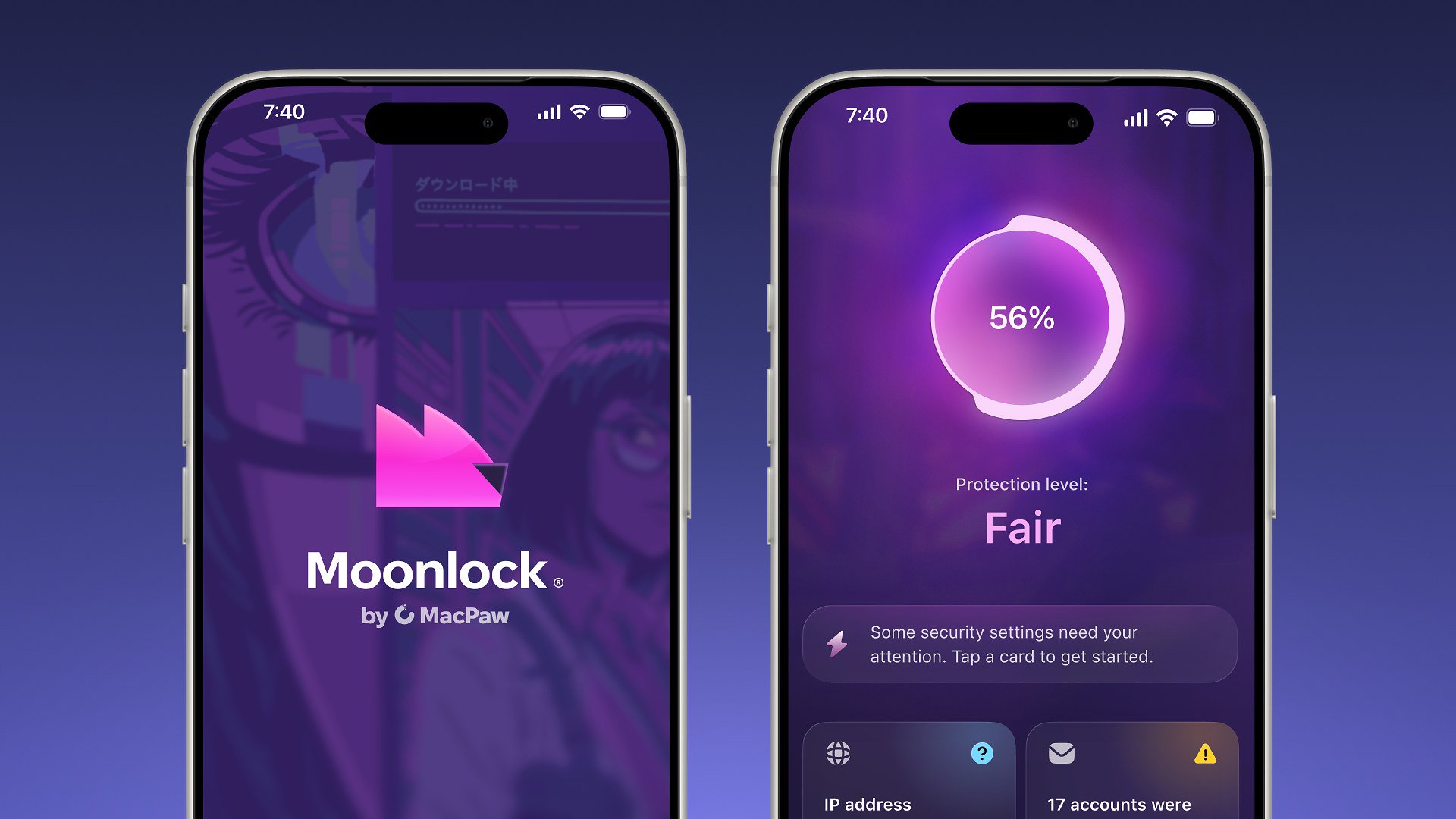
Security Score is the on-screen feature shown in MacPaw's official product photo. In that image, an iPhone displays a circular score of 56 percent and the words "Protection level: Fair," with a notice that some security settings need attention.

According to the launch release, the score runs from 0 to 100 and reflects the iPhone's security setup. MacPaw says the app also gives "one recommended action at a time" to help improve it. That one-at-a-time design is official: the company is not describing a long unchecked list on first launch, but a single next step.
The 56 percent figure in the official photo is an example in marketing artwork, not your device's score. After you install the app, the score you see should be the one generated for your iPhone.
Email Breach History
Email Breach History is MacPaw's official data-leak tool on iPhone. The company says it can tell you:
- whether your email has turned up in a known data breach
- which service leaked it
- when the leak happened
- what was exposed
It then, in MacPaw's words, "walks them through securing each affected account." The release does not name the breach-data source, the number of breaches in the database, or how often the history is refreshed. Those limits belong in any realistic reading of the feature: it can only report what MacPaw's source considers a known breach.
If the app says an account was exposed, the official next step is the in-app walk-through for that account. Typical account-security steps — a new unique password, reviewing recent sign-ins, turning on the account provider's two-factor authentication — should still be done on the official website or app of that service, not on a page reached from a suspicious text.
Device and Network Checks
The fifth official tool is a set of device and network checks. MacPaw says these help users review:
- Wi-Fi safety
- passcode protection
- iOS updates
- signs of jailbreaking
The company also describes "a checklist of recommended one-time fixes" with step-by-step instructions "and an estimate of how long each change takes." That time estimate is an official part of the feature, not a measurement we made.
These checks are about the iPhone's own setup, not about a single incoming message. They complement Scam Detect rather than replacing it. The official photo's "some security settings need your attention" line is the kind of prompt this checklist is meant to support.
What the announcement does not cover
A few important items are missing from the official launch release, and this guide will not fill them in:
- Price, subscription term, or whether features are free.
- The minimum iOS version and compatible iPhone models, beyond the App Store listing MacPaw linked.
- Whether a Mac Moonlock license also covers the iPhone app.
- A published accuracy rate for Scam Detect or Safe SMS.
- Step-by-step screenshots of every settings pane.
For those, use the live App Store page, moonlock.com, and the app's own help text after you install it.
Moonlock for iPhone is a consumer security app as described by MacPaw. It is not a substitute for official account recovery, a bank's fraud desk, or Apple's own stolen-device and Apple ID tools.
A short official-feature checklist
If you are installing Moonlock on iPhone because of the November 18, 2026 launch, this is the sequence that follows from MacPaw's own description:
- Open the official App Store listing linked in the launch release and confirm the current price and compatibility.
- After install, look for Scam Detect if you want to paste, scan or share a suspicious text, screenshot or QR code.
- Decide whether to enable Safe SMS, and use its record if a message is filtered.
- Read your Security Score and the single recommended action the app shows.
- Run Email Breach History for the addresses you actually use.
- Review the device and network checklist, including Wi-Fi, passcode, iOS updates and jailbreak signs.
That is the official feature set, in the order the company presented it.
References
- MacPaw, "MacPaw Brings Moonlock to iPhone, Expanding Scam Detection and Everyday Security to Mobile," PR Newswire, November 18, 2026, 8:03 ET: https://www.prnewswire.com/news-releases/macpaw-brings-moonlock-to-iphone-expanding-scam-detection-and-everyday-security-to-mobile-302942718.html
- Apple App Store, "Moonlock," linked from the official launch release, accessed November 18, 2026: https://apps.apple.com/app/moonlock/id6799935865
- Moonlock official site, accessed November 18, 2026: https://moonlock.com/
- MacPaw official site, accessed November 18, 2026: https://macpaw.com/
Meet your guide
Lipeiguan
author
What to read next
 Google Adds Computer Use to the Gemini App for Mac in the U.S. On November 19, 2026, Google said computer use is available in the Gemini app for Mac, in English in the U.S. Official requirements include an Apple Silicon Mac on macOS Sequoia 15... How to Use Gemini Computer Use on a Mac: Official Requirements, Permissions and Examples Official Google requirements for computer use in the Gemini app for Mac: an Apple Silicon Mac on macOS Sequoia 15.0 or later, a personal Google account for people 18 or older, a Go...
 Google Brings the Gemini App to Eligible Android Go and Lower-Memory Phones On November 18, 2026, Google said the Gemini app is available on eligible Android (Go edition) devices after a re-architecture for lower-memory phones. Official help adds a 2GB RAM...