
Nintendo Switch 2 Camera Guide: Official Camera vs Piranha Plant vs Your Own Webcam
Which camera to use with Nintendo Switch 2: the $54.99 Switch 2 Camera, HORI's $59.99 Piranha Plant Camera or a USB webcam you already own. What GameChat video and CameraPlay need, how to test and set up a camera, and privacy notes.
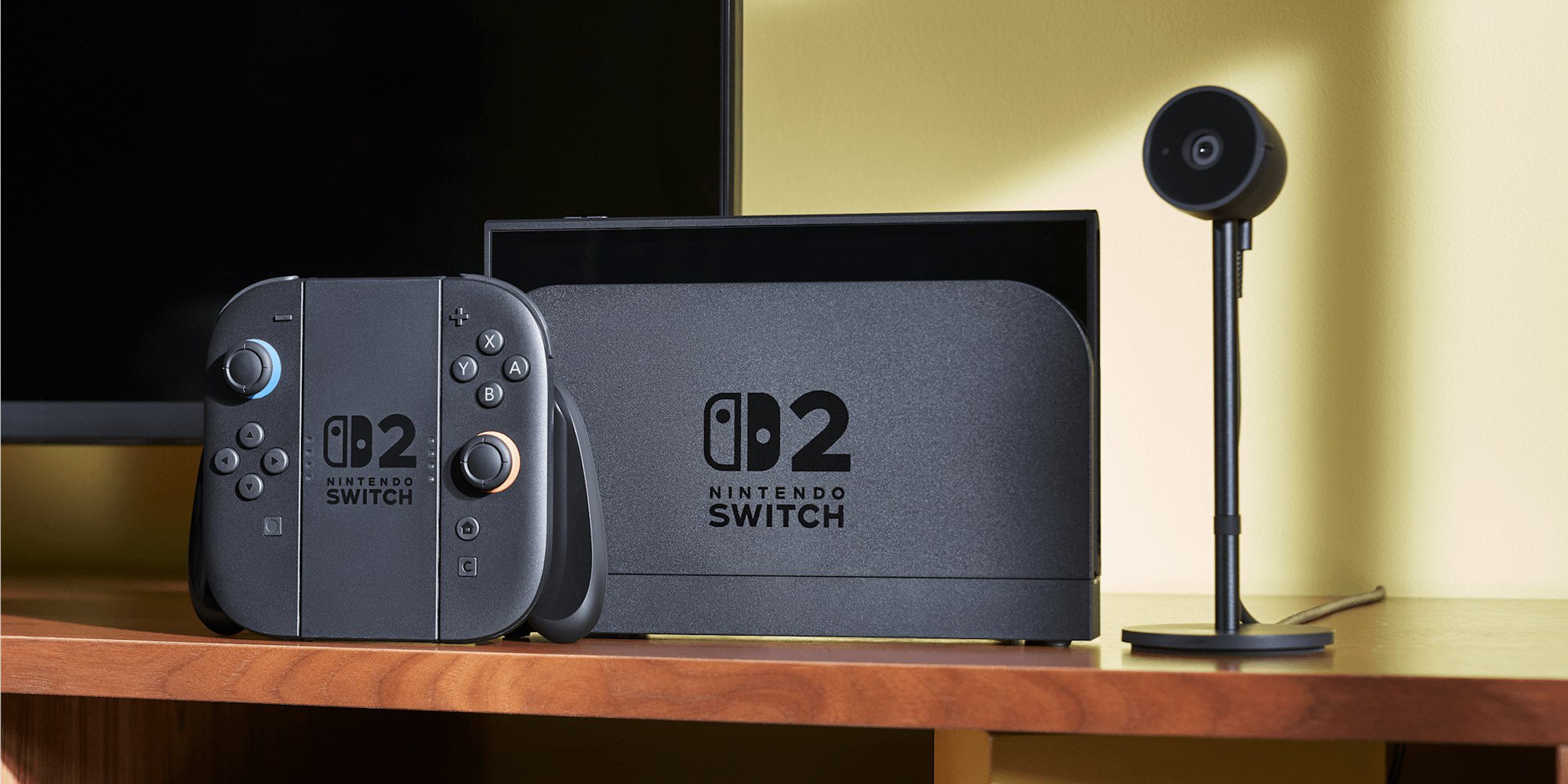
Disclosure: This page may contain affiliate links. They do not influence our editorial conclusions. Read the disclosure.
Our pick
- See price at Nintendo
Top pick
Nintendo
Nintendo is the Japanese video game company behind the Nintendo Switch 2 and Nintendo Switch consoles, Nintendo Switch Online and franchises such as Super Mario...
What this guide covers
The Nintendo Switch 2 has a built-in microphone for voice chat, but no camera. To video chat in GameChat or put yourself into games that support CameraPlay, you need a USB camera, and you have three routes: Nintendo's own Switch 2 Camera, a licensed third-party camera such as HORI's Piranha Plant Camera, or a USB webcam you already own. This guide explains what each option does, what Nintendo says about compatibility, how to set a camera up and what you need besides the camera.
Facts and prices come from Nintendo's Switch 2 camera pages, the Nintendo Store, the Switch 2 FAQ and Nintendo Support, checked on November 13, 2026. This is a research-based guide, not a hands-on test.

What a camera adds to the Switch 2
Nintendo describes two camera features:
- Video chat in GameChat. Up to 12 friends can be in a GameChat room, and up to four of them can share their camera feed and/or their game screen at the same time. Everyone else in the room is audio only. When one of the four turns their video or screen share off, another person can start sharing.
- CameraPlay and other in-game camera features. Compatible games can show players' faces in the game, use full-body motion control, or add AR filters and character avatars to your feed. Nintendo says supported features vary by game, and certain games also support CameraPlay in local multiplayer outside of GameChat.
Nintendo's camera accessory page lists Super Mario Party Jamboree – Nintendo Switch 2 Edition + Jamboree TV and Mario Kart World as featured CameraPlay games. Nintendo Support also has camera guides for Mario Kart World, Animal Crossing: New Horizons – Nintendo Switch 2 Edition and character avatars and AR filters in Star Fox.

What you need besides the camera
A camera alone isn't enough for video chat. According to Nintendo:
- Nintendo Switch Online membership. GameChat requires one. Between June 5, 2025 and March 31, 2026, GameChat was free for all Switch 2 owners during an open-access period, but that has ended. In the US, Nintendo Switch Online costs $19.99 a year for an individual plan or $34.99 a year for a family plan of up to eight accounts; see our Nintendo Switch Online review for the Expansion Pack tiers.
- A persistent internet connection. GameChat runs a connection test during setup, and Nintendo says video may be temporarily disabled if your connection is limited.
- A phone number on your Nintendo Account, verified by text message. For players under 16, a parent registers the number on their own account.
- Chat-approved friends who have approved you back.
- Parental approval for kids. For players under 16 and supervised accounts, a parent must allow each GameChat session in the Nintendo Switch Parental Controls app, and video chat needs separate permission. Parents can also restrict which camera views a child can choose. Our Switch 2 parental controls guide walks through those settings.
Option 1: Nintendo Switch 2 Camera ($54.99)
Nintendo's own camera is the one it recommends. Its Nintendo Store listing price is $54.99, though the store showed it as "Currently unavailable" on November 13, with a "Find retailers" link, so you may need to buy it elsewhere.
What Nintendo says about it:
- It plugs into the USB-C port on top of the console and works in TV, tabletop and handheld modes.
- The wide-angle lens can be angled vertically so a whole room or group of people can fit in the shot.
- A high-sensitivity image sensor adjusts brightness automatically to detect faces.
- A built-in privacy shutter covers the lens with a white film. You open it by gently turning the outer rim clockwise.
- A green status light is on whenever the camera is active. Nintendo says the camera only turns on when you enable it in GameChat or use CameraPlay in a compatible game.
- It gets firmware updates through System Settings > Controllers & Accessories > Update Nintendo Switch 2 Camera.
- A USB-C cable is in the box.

Nintendo Support says typical USB cameras should work, but "we recommend using the Nintendo Switch 2 Camera (sold separately) for the optimal experience." It also only offers a service request for camera problems if you are using Nintendo's camera; with another brand, its advice is to try a different camera.
Option 2: HORI Piranha Plant Camera ($59.99)
The Piranha Plant Camera is made by HORI, is officially licensed by Nintendo and is sold in the Nintendo Store for $59.99 (also listed as "Currently unavailable" there on November 13). The camera unit is a Piranha Plant with a flexible neck, and its mouth closes over the lens as a privacy cover.
HORI's design can be used three ways:
- Stand-alone: the camera sits in a Warp Pipe base that connects to the Switch 2 dock.
- Mounted: a clip on the base attaches it to the top of a TV.
- Attached: the camera unit plugs straight into the top of the console for handheld play.
The box includes the camera unit, the base, a USB-C to USB-C cable and a 3.5mm stereo right-angle adapter so you can still use wired headphones. The listing gives a resolution of 640 x 480 at 30fps. The Nintendo Store listing for Nintendo's own camera doesn't give a resolution, so a direct image-quality comparison isn't possible from the listings alone; the Piranha Plant's appeal is its design, its TV clip and its kid-friendly look.

Option 3: A USB webcam you already own
You don't have to buy a Switch 2 camera. Nintendo's FAQ says your own USB camera "may be compatible," but some devices may not be supported or may be unstable, and GameChat support says compatibility "cannot be guaranteed."
Two practical points from Nintendo Support:
- Where to plug it in. USB-C cameras can plug directly into the console. Standard USB (USB-A) webcams plug into a USB port on the Switch 2 dock, so they work only when the console is docked.
- Test before you rely on it. Go to System Settings > Controllers & Accessories > Test USB Camera. If the camera works, you'll see a live video feed. A "Camera connected" notice also appears briefly in the top-left corner when you plug in a compatible camera.
If you already have a decent webcam, test it first; if it works, you've saved the cost of a new camera. If it doesn't, Nintendo's camera is the supported fallback.
How to set up and use a camera in GameChat
- Finish GameChat setup (membership, phone verification and, for kids, parental controls).
- Plug in the camera: USB-C cameras into the port on top of the console, USB-A webcams into the dock.
- Run Test USB Camera in System Settings to confirm you get a picture.
- Open or join a GameChat room, press the C Button on a Joy-Con 2, Switch 2 Pro Controller or Switch 2 GameCube Controller to open the C Menu, and select the video camera icon.
- In the C Menu settings, choose how much of your camera feed others see: face only, body only, or no filter. Nintendo's privacy FAQ adds that you can show the game you're playing as your background.
If the camera isn't working, Nintendo's checklist is to unplug and replug it (trying another dock port if you're docked), make sure the privacy shutter is open, update the Switch 2 Camera's firmware, rerun Test USB Camera, check your network and adjust the field of view or zoom in the GameChat room. For a child's account, check which camera permissions the parent set.

Privacy notes
- Video chat is optional and needs an extra accessory, and GameChat is limited to friends you've approved.
- Nintendo says chat content, including video and voice, is recorded and stored temporarily on your console and on the consoles of the people you chat with. If someone files a report, the last three minutes of the chat can be submitted with it.
- Screenshots and videos you capture during GameChat include only your own gameplay, not friends' video feeds, shared screens or audio.
Which camera should you buy?
- Most players: the Nintendo Switch 2 Camera, because it's the one Nintendo recommends, it gets firmware updates and Nintendo will service it.
- Kids and Mario fans: the HORI Piranha Plant Camera, for its TV clip, mouth-closing privacy cover and look, at a published 640 x 480 resolution.
- On a budget: a USB webcam you already own, after it passes Test USB Camera.
Whichever you choose, budget for Nintendo Switch Online, because video chat won't work without it. For more Switch 2 accessory ideas, see our Switch 2 gift guide, and for storage, game-key cards and other common questions, our Switch 2 FAQ.
References
- Nintendo, "Have more fun when you plug in a USB-C camera" (Switch 2 camera accessory page): https://www.nintendo.com/us/gaming-systems/switch-2/accessories/camera/
- Nintendo Store, Nintendo Switch 2 Camera: https://www.nintendo.com/us/store/products/nintendo-switch-2-camera-123682/
- Nintendo Store, Piranha Plant Camera for Nintendo Switch 2: https://www.nintendo.com/us/store/products/piranha-plant-camera-for-nintendo-switch-2-126530/
- Nintendo, Nintendo Switch 2 FAQ: https://www.nintendo.com/us/gaming-systems/switch-2/faq/
- Nintendo Support, GameChat Guide and FAQ: https://en-americas-support.nintendo.com/app/answers/detail/a_id/68390/
- Nintendo Support, Video Camera Doesn't Work During GameChat: https://en-americas-support.nintendo.com/app/answers/detail/a_id/68400/
- Nintendo UK, Nintendo Switch 2 USB Cameras: https://www.nintendo.com/en-gb/Hardware/Nintendo-Switch-2/Nintendo-Switch-2-USB-Cameras-2785632.html
Meet your guide
Lipeiguan
author
What to read next
 How to Connect EasySMX S10 and S10 Lite to Switch 2, PC and Phones A research-based setup guide for EasySMX's S10 and S10 Lite: official Switch 2, Switch, PC and Bluetooth pairing steps, firmware updates, charging lights and calibration, as of Nov...
 How to Use Camp Snap 2: CampLock, QuickDraw, Built-In Filters and USB-C Transfer A research-based guide to Camp Snap 2: what's in the box, QuickDraw, CampLock for kids, the six on-camera filters, and USB-C transfer, from official specs and FAQs as of November 1...
 How to Choose a Costway Trampoline: Size, Weight Limits and Safety Nets A research-based Costway trampoline buying guide as of November 18, 2026: official sizes from 36-inch rebounders to an 8-by-14-foot rectangle, published weight limits including sta...