
How to Clean iPhone Storage with MacPaw CleanMyPhone
A research-based CleanMyPhone how-to as of November 18, 2026: grant Photos access, use Declutter and Organize, compress videos or convert Live Photos to stills, and check official free, trial and App Store pricing before you pay.

Disclosure: This page may contain affiliate links. They do not influence our editorial conclusions. Read the disclosure.
Our pick
- See price at MacPaw
Top pick
MacPaw
MacPaw is a Mac software company founded in Kyiv, Ukraine, best known for CleanMyMac, its Mac cleaning, protection and maintenance app, along with apps such as...
Steps in this guide
- 01What you need, and how pricing works
- 02Grant Photos access and run the first scan
- 03Use Declutter to review screenshots, duplicates and large videos
- 04Organize similar photos with the AI categories
- 05Compress videos, or turn Live Photos into stills
- 06Check Health, then protect shots you do not want scanned again
CleanMyPhone is MacPaw's iPhone and iPad photo-library cleaner: it scans the Photos library on the device, groups clutter and similar shots, and can compress videos or convert Live Photos to stills so you can reclaim storage without uploading your pictures to MacPaw. This how-to is a research-based reading of MacPaw's official product page, support knowledge base and the US App Store listing as of November 18, 2026. It is not a hands-on test, and the gigabyte totals and item counts in official screenshots are marketing examples, not a promise of how much space your iPhone will free. For how CleanMyPhone sits next to CleanMyMac, Moonlock, Gemini 2 and ClearVPN, see our MacPaw apps roundup. If you are cleaning duplicate files on a Mac rather than on iPhone, use the Gemini 2 how-to. For the Mac cleaner itself, see the CleanMyMac review and buying guide.

What you need, and how pricing works
Two official sources disagree on the minimum OS, so check your software version before you install. The CleanMyPhone product page, checked November 18, 2026, lists system requirements as "iOS 16.0 and higher," shows the latest version as 2.13.3 dated 12 June 2026, and quotes a 4.6 rating "for all versions, based on 21784 user reviews," with pricing that "start[s] at $3.75/month." MacPaw's device and system requirements article, updated September 23, 2026 — later than the OS line on the marketing page — says the app "works with devices running iOS 17 or later, or iPadOS 17 or later" and that you need "around 120 MB of storage space." The US App Store listing, checked the same day, agrees with that newer floor: "Requires iOS 17.0 or later" and "iPadOS 17.0 or later." It reports a download size of 176.4 MB, a 4.6 rating from 23K ratings, and in-app purchases that include CleanMyPhone: Yearly Access at $36.99 and CleanMyPhone: Monthly Access at $7.99, plus older Gemini Photos price points and an "Unlimited access $34.99" item. Confirm the live plan in the App Store before you pay.
The knowledge-base free trial article, updated August 6, 2026, describes monthly, annual, and lifetime (one-time purchase) options. The annual plan includes a three-day trial with "full and unlimited access to all features." MacPaw requires a payment method "to prevent fraud and abuse" and processes subscription payment "anytime during the last day of the trial period," so you should "cancel the subscription at least 24 hours before the free trial ends." After you cancel, you can still use the app fully until the trial ends. You do not have to start on a paid plan to try the basics. Free and Premium (also updated August 6, 2026) says the free version limits Declutter to Largest Videos and Screenshots, and Organize to the Other category. The Health module — health score, security status, storage analytics and a network speed test — "is available to all CleanMyPhone users, whether or not they have a paid plan."
Grant Photos access and run the first scan
Install CleanMyPhone from the App Store, then open it. The manage clutter article (updated August 6, 2026) is the official first-run path: if this is the first launch after installation, tap Scan, grant full access to Photos, and wait for the scan to finish. Later launches automatically surface new media, and the app "monitors and detects any newly added photos and videos when it runs in the background."
Scope of scanning (updated August 6, 2026) says CleanMyPhone "accesses, scans, and analyzes the entire photo library on your device" in both the Declutter and Organize modules. It "doesn't access or somehow process photos and videos you hid — those in the Hidden album." The Health module does not run a separate scan; it "displays the top 10 space-consuming media categories from both the Declutter and Organize modules." MacPaw's product page and the App Store both emphasize that cleanup happens on the device: CleanMyPhone "doesn't upload or store your photos," and "doesn't save or upload your pictures anywhere." You still choose what to delete. If you remove something by mistake, both sources point you to the Recently Deleted folder in Photos.

Use Declutter to review screenshots, duplicates and large videos
On the tab bar, tap Declutter. The manage-clutter article says you then review each category: tap it, browse items, select what to delete and deselect what to keep, and tap an item for a full-screen view. In that view you can "enhance the item slightly (for photos only), add to an album or Favorites, view metadata, share, or save to Sensitive so it's ignored in future scans." When you finish a category, tap Clean, then Delete, or tap the close button to go back; selections in the category you just left are preserved. Repeat for every category you care about, or deselect entire categories to skip them. After you have reviewed the list, tap Clean, then Delete, and check the results.
The official clutter-list screenshot maps the categories MacPaw advertises — Screenshots, Duplicates, Largest videos, Screen Recordings, Blurred Shots and Instagram — but treat the counts and totals as interface examples. Free users can only work through Largest Videos and Screenshots in this module until they start a trial or a paid plan.

Organize similar photos with the AI categories
Declutter is for obvious waste. Organize is the official path for similar shots and for browsing the library by AI category. The organize photo library article (updated August 6, 2026) says the module lets you review and remove similar photos, manage videos from the Organize groups, compress videos, convert Live Photos to stills, and explore photos and videos by category.
After the first scan, tap Organize, then tap a category. Review items in both the Similars and Unique groups, select what you want to delete, then tap Clean and Delete. The App Store listing says those AI categories include examples such as Travel, People, Pets, Food, Documents, Screenshots and Texts; the official Organize screenshot also shows Architecture, Family, Transport and Other, with example library sizes. Those totals are marketing examples.

Manage similar photos (updated August 6, 2026) defines similars as "sets of alike or almost identical photos taken at short intervals, such as shots of the same scene or object from different angles." You can either open the Similars shortcut to review every set in one place, or work inside a single category's Similars group. Swipe through each set, select the frames you want to remove, then tap Clean and Delete. Sensitive is still available in full-screen view if a set should be skipped later.
Compress videos, or turn Live Photos into stills
If you want space back without throwing the file away, use Optimize Media inside Organize.
Compress videos (updated August 6, 2026) says you tap Organize, then Compress Video under Optimize Media. The app "lists all videos available for compression from both the Organize and Declutter modules." Select up to five videos at a time — Select All caps the same way if there are more than five — then tap Compress and keep the app open until it finishes. On the results screen, tap Continue to replace the originals with the compressed versions, or tap Cancel Compression to keep the originals. After you confirm deletion, the originals go to the Recently Deleted album in Photos, and the compressed videos are saved to your library.

Convert Live Photos to still images (updated August 6, 2026) is the same idea for Live Photos. The app "grabs the Live Photo freeze frame provided by the Photos app and saves it in place of the original HEIC file." Tap Organize, then Turn Live to Still, select up to 100 photos at a time, tap Convert, and keep the app open. On the results screen, tap Continue to replace the originals or Cancel Conversion to keep the Live Photos. Confirmed originals also move to Recently Deleted. The official screenshot repeats the "Select up to 100 photos for faster conversion" cap. The product page adds a storage hint — "one Live Photo takes up as much space as two or three regular images" — which is MacPaw's wording, not a measurement from this site.

Check Health, then protect shots you do not want scanned again
The feature overview (updated May 26, 2026) describes the Health module as a "real-time snapshot" of device condition: a health status with maintenance tips, a security status that runs "network, update, and authentication checks," storage analytics, and a network speed test. All of that remains available on the free plan. The official Phone Health screenshot is a layout demo, including a sample "Good" badge and an example "200,6 GB used by Photos app and iCloud media" line.

If a photo should never appear in cleanup results, the free-and-premium and organize articles both describe moving it to the Sensitive folder so future scans skip it. That is the official replacement for the Ignore list that Gemini Photos users used to keep.
If you used Gemini Photos, you are already on CleanMyPhone
From Gemini Photos to CleanMyPhone (updated May 26, 2026) is the official transition note. "All existing users of Gemini Photos automatically transition to CleanMyPhone without any effort and can enjoy all its features at no extra cost." Items on the old Ignore list "are automatically preserved and migrated." You cannot revert: "Gemini Photos has been entirely replaced by CleanMyPhone and no longer exists in its original form." MacPaw "will maintain the old price for our users with active Gemini Photos subscriptions." If the new app does not meet your needs, the same article says you may request a refund, but it cannot offer other compensation under its product policy. New customers should use the current CleanMyPhone prices and the trial terms above rather than leftover Gemini Photos SKUs still listed on the App Store.
Who this is for
CleanMyPhone is the official MacPaw path when the problem is a full Photos library on an iPhone or iPad: duplicates, near-identical bursts, screenshots, large videos and Live Photos. It is not a general iOS cleaner, and it is not a substitute for Gemini 2 on a Mac. Start with the free Declutter categories or the three-day annual trial if you want the full Organize tools before you pay, and cancel at least 24 hours before that trial ends if you do not want to be charged. Confirm system requirements against the App Store and the September 2026 knowledge-base article if your device is still on iOS 16, and confirm the live price in the App Store on the day you buy.
References
- MacPaw, "CleanMyPhone: Careful iPhone cleaner app" (features, on-device processing, product-page system requirements, version 2.13.3 dated 12 June 2026, starting price and rating, accessed November 18, 2026). https://macpaw.com/cleanmyphone
- MacPaw, "Device and system requirements," updated September 23, 2026. https://macpaw.com/support/cleanmyphone/knowledgebase/system-requirements
- MacPaw, "Free and Premium," updated August 6, 2026. https://macpaw.com/support/cleanmyphone/knowledgebase/free-and-premium
- MacPaw, "Free trial," updated August 6, 2026. https://macpaw.com/support/cleanmyphone/knowledgebase/trial
- MacPaw, "Manage clutter," updated August 6, 2026. https://macpaw.com/support/cleanmyphone/knowledgebase/manage-clutter
- MacPaw, "Organize photo library," updated August 6, 2026. https://macpaw.com/support/cleanmyphone/knowledgebase/organize-photos
- MacPaw, "Manage similar photos," updated August 6, 2026. https://macpaw.com/support/cleanmyphone/knowledgebase/manage-similar-photos
- MacPaw, "Compress videos," updated August 6, 2026. https://macpaw.com/support/cleanmyphone/knowledgebase/compress-videos
- MacPaw, "Convert Live Photos to still images," updated August 6, 2026. https://macpaw.com/support/cleanmyphone/knowledgebase/live-to-still
- MacPaw, "Scope of scanning," updated August 6, 2026. https://macpaw.com/support/cleanmyphone/knowledgebase/scanning-scope
- MacPaw, "Feature overview," updated May 26, 2026. https://macpaw.com/support/cleanmyphone/knowledgebase/features
- MacPaw, "From Gemini Photos to CleanMyPhone," updated May 26, 2026. https://macpaw.com/support/cleanmyphone/knowledgebase/gemini-photos-to-cleanmyphone
- Apple App Store, "CleanMyPhone: Cleanup Storage App," listing for MacPaw Way Ltd (US prices, OS requirement, size, rating and in-app purchases, accessed November 18, 2026). https://apps.apple.com/us/app/cleanmy-phone-cleanup-storage/id1277110040
Meet your guide
Lipeiguan
author
What to read next
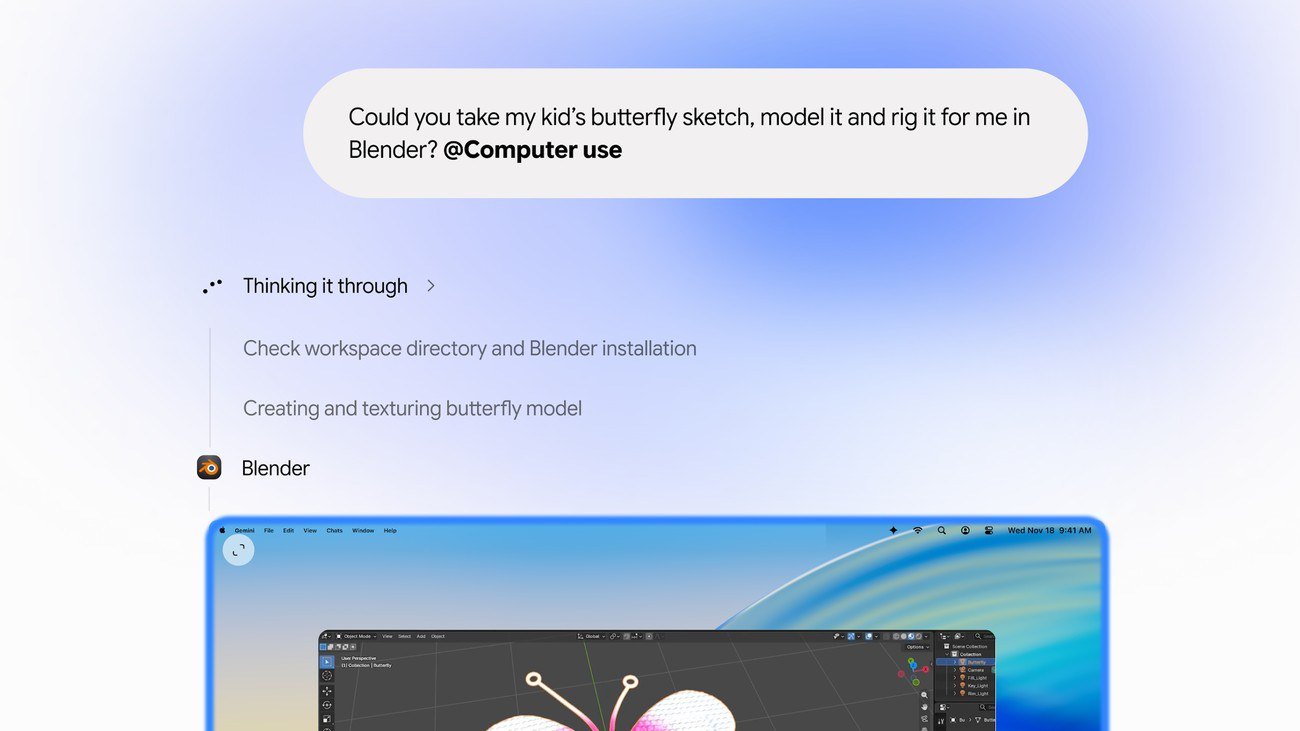 Google Adds Computer Use to the Gemini App for Mac in the U.S. On November 19, 2026, Google said computer use is available in the Gemini app for Mac, in English in the U.S. Official requirements include an Apple Silicon Mac on macOS Sequoia 15... How to Use Gemini Computer Use on a Mac: Official Requirements, Permissions and Examples Official Google requirements for computer use in the Gemini app for Mac: an Apple Silicon Mac on macOS Sequoia 15.0 or later, a personal Google account for people 18 or older, a Go...
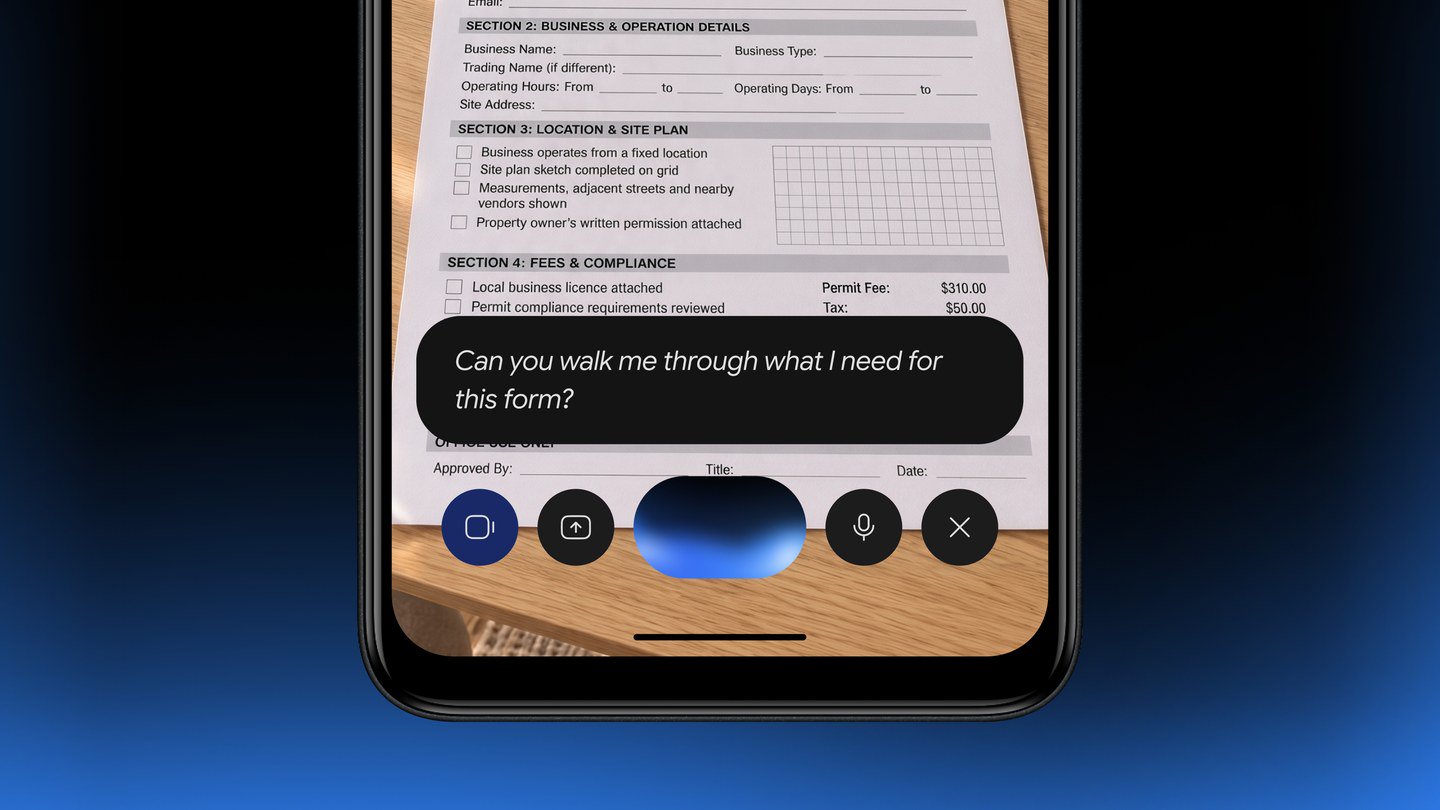 Google Brings the Gemini App to Eligible Android Go and Lower-Memory Phones On November 18, 2026, Google said the Gemini app is available on eligible Android (Go edition) devices after a re-architecture for lower-memory phones. Official help adds a 2GB RAM...