
How to Find and Delete Duplicate Files on a Mac with Gemini 2
A research-based Gemini 2 how-to as of November 17, 2026: install from the MacPaw Store, Setapp or the App Store, scan folders, use Smart Cleanup on identical duplicates, review similar files yourself, and leave Duplicates Monitor running afterward.
Disclosure: This page may contain affiliate links. They do not influence our editorial conclusions. Read the disclosure.
Our pick
- See price at MacPaw
Top pick
MacPaw
MacPaw is a Mac software company founded in Kyiv, Ukraine, best known for CleanMyMac, its Mac cleaning, protection and maintenance app, along with apps such as...
Steps in this guide
Gemini 2 is MacPaw's dedicated duplicate file finder for Mac. It scans folders you choose, groups identical files as duplicates and near-matches as similar files, then lets you remove the extras with Smart Cleanup or after a manual review. This how-to is a research-based reading of MacPaw's official Gemini 2 product page, support knowledge base and user guide as of November 17, 2026. It is not a hands-on test, and the storage figures shown in official screenshots are marketing examples, not a promise of how much space your Mac will free. For how Gemini 2 sits next to CleanMyMac, Moonlock and CleanMyPhone, see our MacPaw apps roundup. For CleanMyMac itself, use the review, the buying guide and the safety FAQ. If you are choosing a cleaner versus a disk-space map, the CleanMyMac vs DaisyDisk comparison is the closer article.

What you need, and how to install it
The official Gemini 2 product page lists system requirements as macOS 10.10 and higher and 115 MB of space. The same page, checked November 17, 2026, shows the latest version as 407, dated 4 September 2026, a 4.5 rating "for all versions, based on 469 user reviews," and pricing that "start[s] at $1.95/month." Confirm the live plan on MacPaw's store before you pay; this guide does not invent a multi-Mac or monthly-versus-annual table beyond that product-page starting price.
MacPaw's supported macOS versions article, last updated October 4, 2023, is more granular: fully supported on macOS 10.13 High Sierra and later, and only partially supported on 10.12 Sierra through 10.10 Yosemite, where the company tells you to install Gemini 2 v. 2.9.8, an earlier edition that "gets no updates." That list runs through macOS Sonoma (14). If you are on a later macOS, use the current product page and the in-app "Check for Updates" path.
You can install Gemini 2 from three official channels, according to the install and activate article (updated February 5, 2026). From the MacPaw website, download the latest build, open Gemini2.dmg, drag the app to Applications, then click Unlock Full Version and sign in with a MacPaw account or enter an activation key from an order-confirmation email (you do not receive a key if you already have an account). If you already have Setapp, the same article says you already have Gemini 2: find it in the Setapp catalog and install it there. From the App Store, install the app, then use Unlock Full Version to buy it or Restore Purchases if it is already on your Apple ID.
An official user guide PDF, still linked from the support center, adds that a single license is valid for one Mac and all of its user accounts, and that you can deactivate it under Gemini 2 → Activation Info to move it. The PDF is dated 29 June 2021, so treat the product page and 2026 knowledge-base articles as the live source when they differ.

Add folders, then start the first scan
The first window, as shown on official product shots and described in Start scanning for duplicates (updated February 5, 2026), is a plus button labeled "Add or Drop Folders." You can click plus and pick a recommended location or Choose Custom Folder (hold Command or Shift to select more than one), drag folders onto the window, add more with plus, or hover and click the x to remove a location.
The knowledge base says choosing the Home folder will find all duplicates, and that this scan "may take a while." The 2021 user guide also notes that the App Store version must be granted Home folder access before the first scan.
When at least one location is listed, click Scan for Duplicates. If the scan is slow, the scanning and cleanup customization article (updated February 5, 2026) says you can turn off similar-file search in Preferences, or raise the minimum file size on the General tab. You can stop a run, or click Start Over to discard results and return to the start screen.
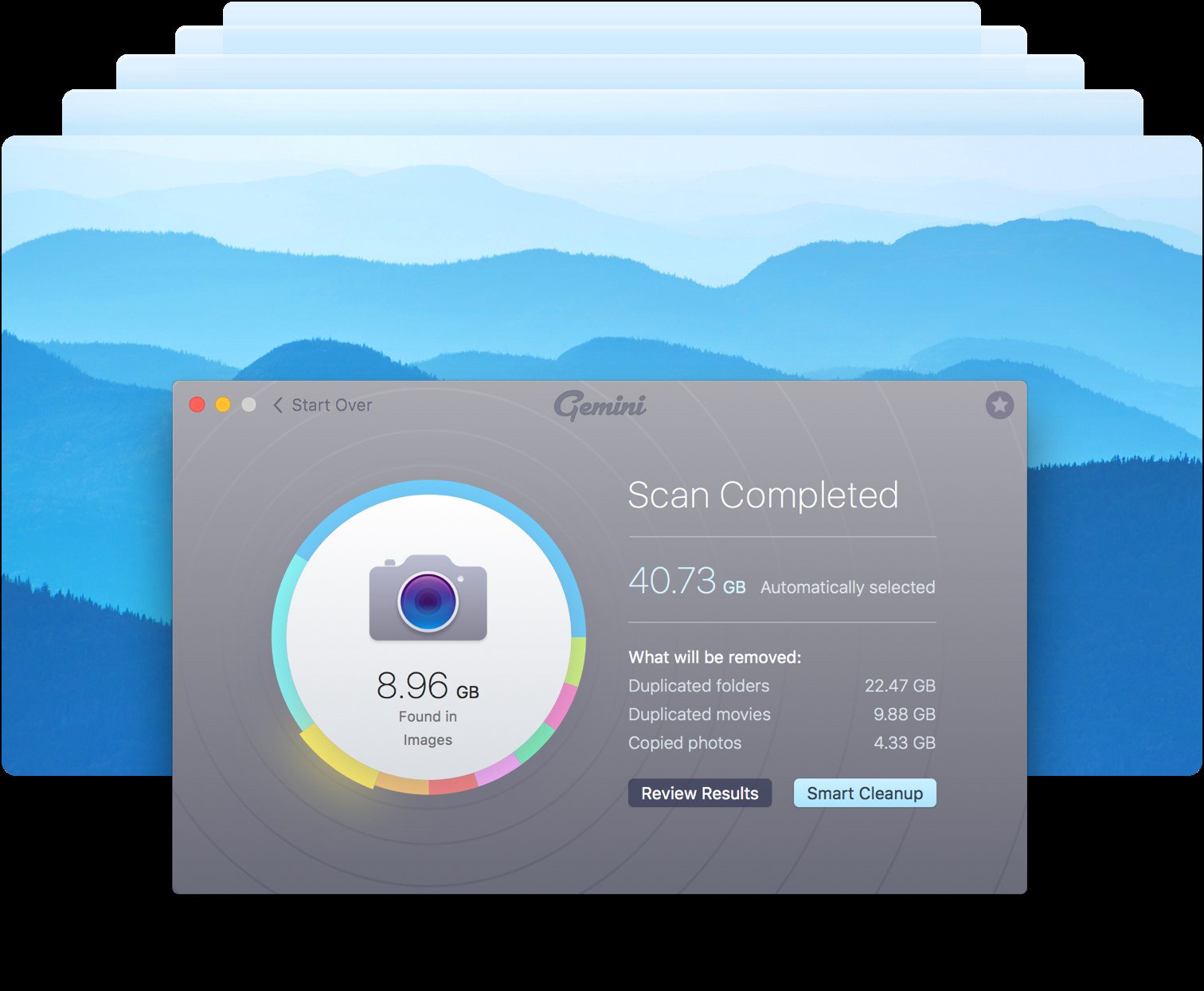
The official summary window then shows a category diagram on the left and, on the right, the amount automatically selected for removal, split by type. The knowledge base gives two next steps: Review Results, or Smart Cleanup, which "removes only 100% safe duplicates by default." Select More is the official path for similar files and any duplicates that were not auto-selected.
Review results before you delete anything
Reviewing scan results (updated February 5, 2026) is the article to follow if you want to look before you clean. Click Review Results, the middle of the diagram circle, or a category. Complete duplicates and similar files are grouped in the sidebar, and a Selected section lists both auto-selected files and anything you pick yourself.
MacPaw documents a view switch next to the search bar, with Grid view recommended for comparing photos; difference icons next to a set name that sort by location, file name, last modification date and size; a Select Duplicates menu with Deselect All, Automatically (the "intelligent algorithm" for files that are "most likely unneeded: old, rarely used, etc."), Newest, Oldest, Any (keeps one random copy and selects the rest), or Manual; and a "Sort by" menu. The official results screenshot shows this layout: an Images category, a set named B_5D4223 with three of four copies selected, and a preview of the kept photo. Treat those file names and gigabyte totals as interface examples, not as a benchmark for your disk.

Use Smart Cleanup for identical files, and review similar files separately
All about Smart Cleanup (updated February 5, 2026) is the official description of the automatic path. Gemini 2 "automatically selects identical files ('duplicates'), which can be safely removed with a single click, without review. Originals of these files remain on your Mac after cleanup." Clicking Smart Cleanup moves those selected duplicates to the Trash by default.
Two limits matter. First, similar files "require your review—Gemini 2 doesn't offer to remove them automatically," unless you later accept a Smart Selection rule that includes them. Second, when you scan the Home folder, Smart Selection "marks duplicates in Downloads and Desktop for removal automatically. However, duplicates in Documents will not be selected." If your duplicates live in Documents, plan on a manual review rather than expecting Smart Cleanup to take them.
As you accept or reject suggestions, Gemini 2 "analyzes the way you make choices and offers to set new rules." You can inspect, disable or restore those rules on the Smart Selection tab in Preferences, including Always Select and Never Select lists for specific locations.
Similar files are the other half of the product. The What are similar files? article (updated June 7, 2021) says Gemini compares "the exact lengths of the file data and a set of other parameters." Exact matches go to All Duplicates; slight differences go to All Similars and "will stay on your Mac until you choose to remove them." Official examples include application files, images and audio, such as two photos "made with a 2-second delay where an object and background are the same." The product page illustrates that with Golden Gate Bridge shots. To compare similar photos, MacPaw tells you to switch to Grid view, double-click a thumbnail, use the magnifier icon to reveal a file in Finder, and apply the same Select Similars filters listed above.
If you do not want similar files in the scan at all, uncheck "Similar files" (the customization article also calls this the "Scan for similar files" checkbox) on the General tab of Preferences.

By default, removed files go to the Trash so you can restore them. The customization article also documents three other official removal options on the Removal tab: move files to a folder you choose, replace duplicates with hard links, or delete files permanently. The last option is the one to leave alone unless you are sure you will not need a file back. The product page's own wording is the same idea in plainer language: "Nothing's deleted for good — until you say so."
Keep Duplicates Monitor on after the cleanup
The start-scanning article ends with a standing recommendation: once you have cleaned the clutter, keep Duplicates Monitor running so new copies do not pile up again. That article, updated September 2, 2025, describes Duplicates Monitor as a menu-bar app included with Gemini 2. When you open Gemini 2.8.0 or higher for the first time, the Monitor launches too. It watches folders you have just cleaned and "alerts you as soon as a new copy is detected." Official examples include downloading the same report or song again.
Two official limits: the Monitor "focuses on identical copies of files and ignores duplicate folders and similar files," and it starts automatically on the folders you just cleaned. You can also add folders by hand. The adding locations article (updated September 2, 2025) says a first-time setup uses Add Folders, which opens Preferences; on the Duplicates Monitor tab, click plus, choose a folder and click Open. Later, use the gear icon in the Monitor. Click the x next to a location to stop watching it.
When a new copy appears, Reviewing and removing new duplicates documents three official actions from the notification or the Monitor list: show the file in Finder, Review to compare copies, or Remove, which places the file in the Trash. The official Monitor screenshot shows a Recently Found list, a Last Session card and an Open Gemini button.

Where Gemini 2 fits, and where it does not
Gemini 2 is a duplicate and similar-file finder, not a general Mac cleaner or an antivirus. If you want a system-wide cleanup of caches, large files and unneeded apps, that is CleanMyMac. If you want malware scanning, a VPN and a scam checker in a standalone MacPaw app, that is the Moonlock how-to. You do not need to buy all three for a duplicate-photo pass.
Public comments on the official product page describe the same job from the customer side. Leslie Hetherington is quoted as recovering 35 gigabytes; Abigail Wright is quoted as consolidating files from two computers and calling the interface "simple, amusing, and intuitive." Those are MacPaw-published comments, not test results from this site.
Use Gemini 2 when you already suspect you have copies: photo retakes, downloaded archives sitting next to unarchived folders, or a Music library copied during a migration. Add the folders that matter, run the scan, read the summary, and prefer Smart Cleanup plus Trash-based removal so you can undo a mistake. Use Review Results, and especially the similar-files tools, before you let the app touch Photos or a carefully named Documents folder. Then leave Duplicates Monitor on the folders you just cleaned so the same copies do not come back the next time you click Download.
References
- Gemini 2 product page, MacPaw
- Install and activate Gemini 2
- Supported macOS versions
- Start scanning for duplicates
- Reviewing scan results: hints and tips
- All about Smart Cleanup
- What are similar files?
- Scanning and cleanup customization
- About Duplicates Monitor
- Adding new locations for monitoring
- Reviewing and removing new duplicates
- Gemini 2 User Guide PDF, linked from MacPaw Support
- Gemini 2 support center
Meet your guide
Lipeiguan
author
What to read next
 Google Adds Computer Use to the Gemini App for Mac in the U.S. On November 19, 2026, Google said computer use is available in the Gemini app for Mac, in English in the U.S. Official requirements include an Apple Silicon Mac on macOS Sequoia 15... How to Use Gemini Computer Use on a Mac: Official Requirements, Permissions and Examples Official Google requirements for computer use in the Gemini app for Mac: an Apple Silicon Mac on macOS Sequoia 15.0 or later, a personal Google account for people 18 or older, a Go...
 How to Choose an LG Monitor in 2026: UltraGear, UltraFine, UltraWide and Smart Models A research-based 2026 guide to choosing an LG monitor, using official LG.com specs and listed U.S. prices as of November 19, 2026, for UltraFine and UltraWide work displays, webOS...