
How to Set Up Govee Christmas String Lights 2: Wrapping, App Pairing, Shape Mapping and Matter
A step-by-step setup guide for Govee Christmas String Lights 2, from choosing the length and wrapping the tree to pairing, shape mapping, Matter and outdoor safety, based on Govee's manual.
Disclosure: This page may contain affiliate links. They do not influence our editorial conclusions. Read the disclosure.
Our pick
- See price at Govee
Top pick
Govee
Smart lighting brand founded in 2017, known for app-controlled LED strip lights, TV backlights, floor lamps and permanent outdoor lights controlled from the Gov...
What this guide covers
Govee Christmas String Lights 2 is the brand's main tree light for 2026, and most of what makes it different happens after the lights are on the branches: app pairing, shape mapping, voice control and Matter. This guide walks through the setup in order, using only what Govee's product page and user manual say, so you can get a tree lit and mapped in one evening without guessing.
If you are still deciding which Govee holiday light to buy, start with our Govee Christmas lights buying guide, which compares String Lights 2 with the Sparkle, C9, Icicle, Cone Tree, Curtain, Net and Projector models.

Before you start: pick the right length
Govee sells String Lights 2 in four lengths, and the product page gives a clear tree-size recommendation:
| Model | Length | Recommended tree | Price on us.govee.com |
|---|---|---|---|
| H70C4 | 66 ft | 6 ft (1.8 m) | $99.99 |
| H70C5 | 99 ft | 7.5 ft (2.3 m) | $129.99 |
| H70C7 | 164 ft | 9 ft (2.7 m) | $179.99 to $199.99 |
| H70C9 | 328 ft | Large displays | $399.99 |
Prices were listed on November 5, 2026, and can change. The length matters more than usual because Govee's specification table lists String Lights 2 as "End-to-End Unconnectable." You cannot join two strands into one longer run, so if you are between sizes, buy the longer one rather than planning to add a second set later.
What's in the box
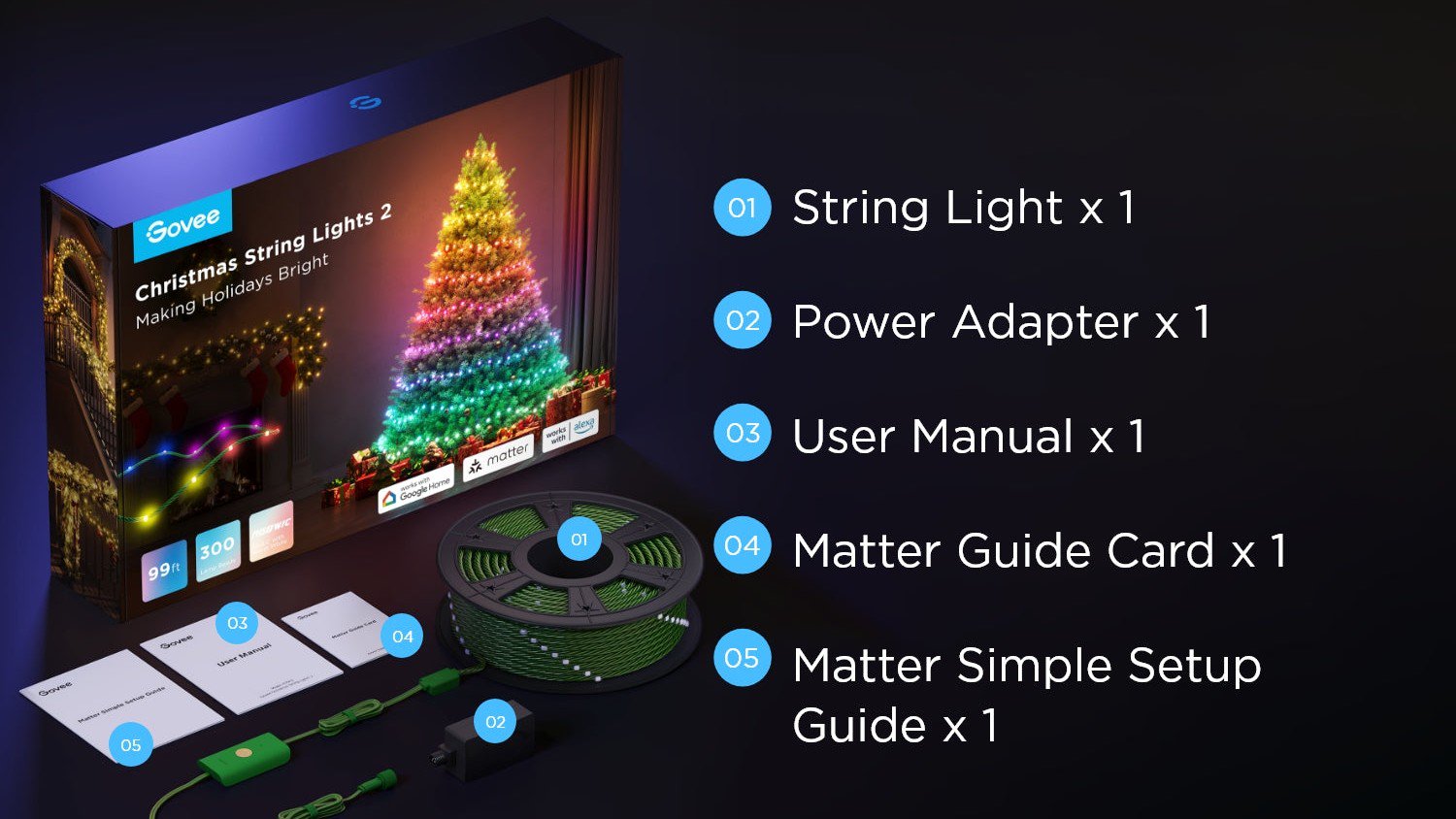
Govee's product images show five items in the box: the string light, a power adapter, a user manual, a Matter guide card and a Matter simple setup guide. Keep the Matter cards. They carry the QR code you need if you want to add the lights to Google Home or Apple Home later, and the same code also appears in the Govee Home app.
You also need three things Govee does not supply:
- A 2.4GHz Wi-Fi network. The manual says the lights need a router supporting the 2.4GHz 802.11 b/g/n bands. 5GHz is not supported.
- A phone or tablet running iOS or Android, with Bluetooth turned on.
- An outlet near the tree. The power cord is 8.2 ft (2.5 m) including the control box. Outdoors, Govee's safety instructions say to use a GFCI (ground fault circuit interrupter) outlet.
Step 1: Wrap the tree from the bottom up
The manual's installation steps are short:
- Connect the control box to the power adapter.
- Fix the start of the string at the bottom of the tree, then wrap around the branches from the bottom to the top.
- Plug into power.
Starting at the bottom keeps the control box and adapter near the outlet and the stand, where they are easy to reach. Wrapping toward the top also matters for shape mapping later, because the app works out where each bulb sits no matter how evenly you spaced the loops.
Govee's safety notes add a few rules worth following while you wrap:
- On a live tree, the tree should be fresh and well watered. Do not use the lights on a tree whose needles are brown or break off easily.
- The tree should be stable and well secured.
- Do not secure the wire with staples or nails, and do not hang ornaments or other objects from the cord.
- Inspect the string before each season and discard it if the insulation is cut or frayed or any wire is exposed.
Step 2: Pair with the Govee Home app
With the lights plugged in, pairing takes a few taps:
- Download the Govee Home app from the App Store or Google Play.
- Turn on your phone's Bluetooth.
- Open the app, tap the "+" icon in the top right corner and search for your model number (for example, H70C5 for the 99 ft set).
- Tap the device icon and follow the on-screen instructions.
The control box has one button. A press turns the lights on or off, and pressing and holding for five seconds resets them. You will only need the reset if pairing or Matter setup fails.
If the app can't connect the lights to Wi-Fi, the manual's troubleshooting list is practical: keep the control box within about 98.5 ft of the router, with as few walls and windows in between as possible, double-check the Wi-Fi name and password, and make sure you're on the 2.4GHz network.
Step 3: Map the shape of your tree

Shape mapping is the feature Govee highlights most on this product. The product page describes it as technology that "identifies the position of each LED bead to create vivid, customized lighting effects." In practice, you film the lit tree with your phone and the app calculates where each light actually sits. Effects then follow the shape of the tree, so a rising wave climbs from the trunk to the star instead of jumping around in wiring order.
Govee's how-to video for the H70C series walks through the steps:
- Open the device page in Govee Home and tap the settings icon in the top right corner.
- Choose "Lamp Bead Recognition" and tap "Ready."
- Hold the phone steady with the whole tree inside the camera frame. Recognition takes about eight seconds. Don't move or rotate the phone during that time.
- Review the preview of the mapped result. You can zoom in to check it.
- Use Finger Sketch to draw directly on the mapped tree, and save designs to the DIY page.
Map the tree after it is in its final spot and fully wrapped. If you move it or rewrap the lights later, run recognition again so effects line up.
Step 4: Choose scenes, music mode and AI effects

Once the lights are mapped, there are three ways to get effects without building them by hand:
- Preset scenes. The product page lists more than 130 preset animated scenes, grouped in the app by occasion, such as Christmas, Thanksgiving and Easter.
- Music mode. A microphone built into the control box syncs the lights to music, with more than 10 music modes. The troubleshooting guide says to keep the control box close to the music source if the sync looks off, which is easy if you tuck the box near the speaker under the tree.
- AI Lighting Bot. You can describe an effect by voice or text, or upload an image, and the app generates a lighting effect you can then edit.
The lights are RGBWIC, which means each bulb can show its own color and there is a separate warm white. That is useful if you want a classic white tree on most nights and color for parties.

Step 5: Add Alexa, Google Home or Matter
Govee lists String Lights 2 as compatible with Alexa, Google Home and Matter.
Alexa or Google Assistant. Link your Govee account in the Alexa or Google Home app. If voice control stops working, the manual says to check that Wi-Fi is stable, then go to the device's Settings page in Govee Home and follow the steps under "User Guide" to pair it again.
Matter. Matter lets you add the lights to platforms such as Google Home or Apple Home directly. The manual sets three conditions:
- On first use, you need to complete the Matter connection within 15 minutes of powering on the lights.
- Your network must support IPv6.
- Changing your network afterward may stop Matter from working.
The steps are: find the Matter QR code or device number (on the product or on the Device Settings page in Govee Home), turn on Bluetooth, open your Matter app and scan the code. If it fails, hold the control box button for five seconds to reset, wait, and try again.

One limit to know if more than one person uses the app: the manual says each device can only be controlled by one Govee account. Family members who want app control should sign in to the same account. Voice assistants and Matter apps are a simpler way to share control.
Using String Lights 2 outdoors
String Lights 2 is rated for indoor and outdoor use. The product page lists an IP65 rating for the string and an operating range of -20°C to 40°C (-4°F to 104°F). The power adapter is different: Govee says it is for dry locations, so outdoors it should go somewhere dry or inside an outdoor waterproof box.
The manual also describes String Lights 2 as a seasonal product that is "not intended for permanent installation or use." If you want lights that stay on the roofline all year, Govee sells a separate permanent line. Our Permanent Outdoor Lights 2 vs 2 Pro vs Pro vs Prism comparison covers those, and our Govee year-round lights news explains why Govee is pushing them.
Everyday safety and storage
Govee's instructions cover a few habits that are easy to skip:
- Unplug the lights when you leave the house, go to bed or leave them unattended.
- Keep them away from heaters, fireplaces and candles, and out of reach of small children.
- Do not close doors or windows on the cord.
- Use only the supplied power adapter. External dimmers cannot be used.
- When the season ends, unwind the string carefully instead of pulling it off the branches, and store it somewhere cool and dry, out of the sun.
The bulbs are not replaceable. When the light source reaches the end of its life, the whole string needs replacing.
Warranty and support
The manual lists a 12-month limited warranty and lifetime technical support. For how returns, shipping and order support work on Govee's own store, see our Govee shopping guide.
Quick setup checklist
- Pick the length for your tree size, because strands can't be joined.
- Wrap from the bottom up with the control box near the outlet.
- Pair on 2.4GHz Wi-Fi with Bluetooth on.
- Run Lamp Bead Recognition once the tree is in its final spot.
- Add Matter within 15 minutes of first power-on, on an IPv6 network.
- Keep the adapter dry and use a GFCI outlet outdoors.
References
- Govee. "Govee Christmas String Lights 2." Govee US official store. https://us.govee.com/products/christmas-string-lights-2 (accessed November 5, 2026).
- Govee. "Govee Christmas String Lights 2 User Manual, Model H70C5." https://govee-oss-public.oss-us-east-1.aliyuncs.com/prod/permanent-directory/skuDescriptionFile/H70C5.pdf (accessed November 5, 2026).
- Govee. "Govee H70CX Smart Christmas String Lights: App Mapping & AI Lighting Bot Guide" (video). Manuals+. https://manuals.plus/video/643dc2257600c73df0217853c95998907cf8f3f0bb8e7060b3782e1be6be027d (accessed November 5, 2026).
Meet your guide
Lipeiguan
author
What to read next
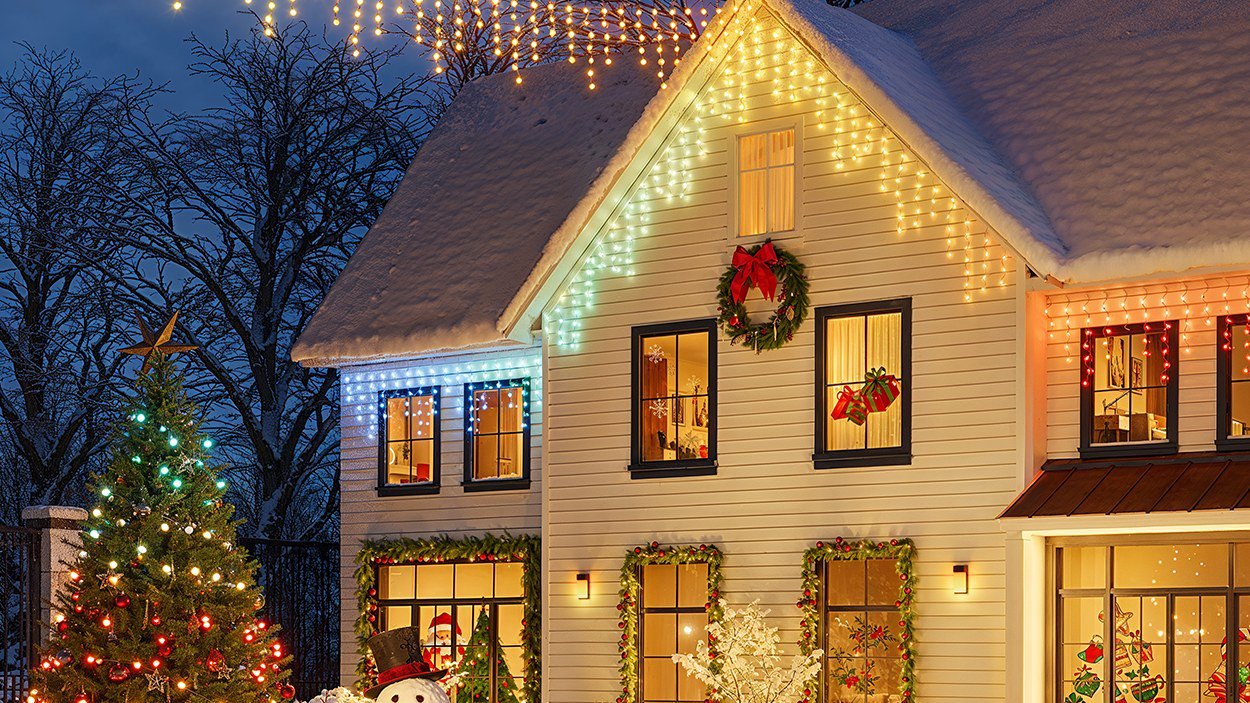 Best Govee Christmas Lights (2026): String, C9, Icicle, Cone Tree, Curtain and Projector Picks Which Govee holiday lights to buy for a tree, roofline, patio, window, hedge or house front, with official sizes, weather ratings and us.govee.com prices.
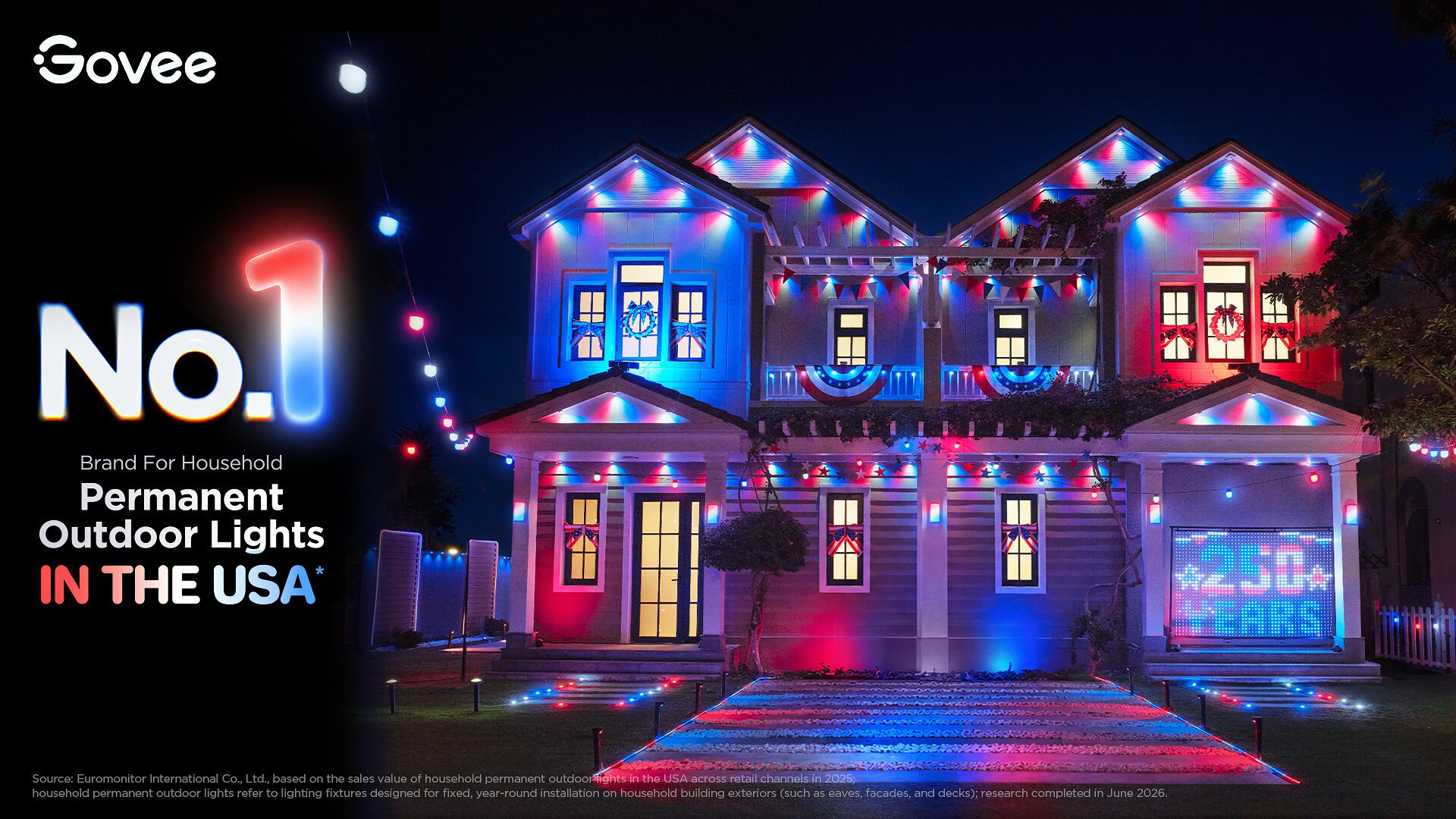 Govee Pushes Year-Round Permanent Outdoor Lights: YouGov Survey, Four-Model Lineup and Prices Govee released a YouGov survey finding 58% of U.S. adults are interested in year-round outdoor lighting, and laid out its four permanent light models, priced from $179.99 to $859.9...
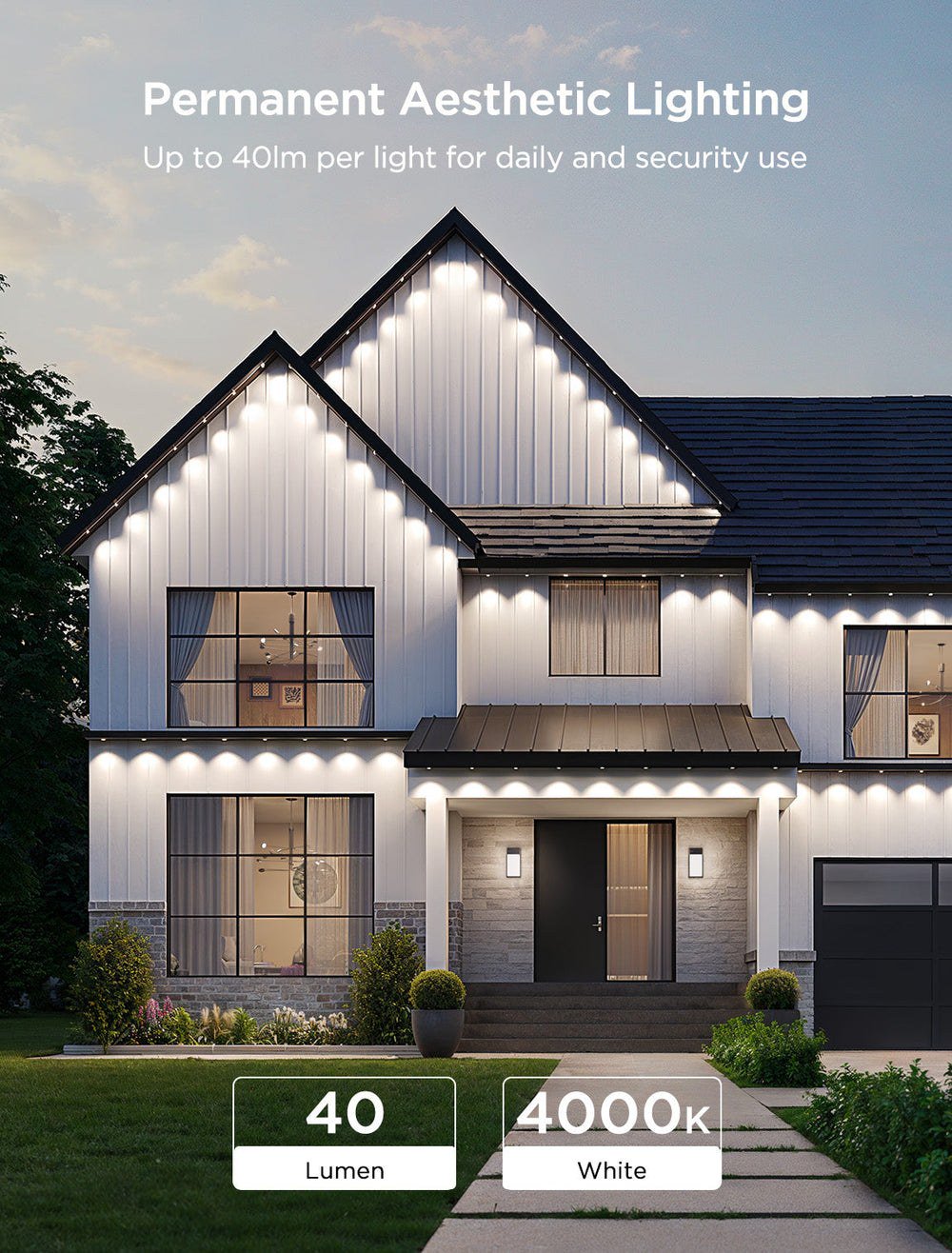 Govee Permanent Outdoor Lights 2 vs 2 Pro vs Pro vs Prism: Which to Buy Govee's four permanent outdoor light systems side by side: prices, lengths, white range, brightness, cuttability, weather ratings and which home each one suits.