
How to Switch From iPhone to Pixel 11: Transfer Photos, iMessages, eSIM and Passwords
A step-by-step guide to moving from an iPhone to a Pixel 11, based on Google's Pixel Help instructions: what to do before setup, how the transfer and eSIM move work, what data carries over and how to fix a stalled transfer.
Disclosure: This page may contain affiliate links. They do not influence our editorial conclusions. Read the disclosure.
Our pick
- See price at Google Store
Top pick
Google Store
Google's online store for Pixel phones, Fitbit wearables, Nest devices and accessories.
What this guide covers
Moving from an iPhone to a Pixel 11 is far less painful than it used to be. On Pixel 10 and later phones, Google's setup process can pull most of your iPhone data across wirelessly, including passwords and passkeys, Wi-Fi networks, texts, photos, contacts, apps and calendars, and it can move your eSIM at the end. A few things still need manual steps, though, and the order you do them in matters. This guide walks through the whole switch using Google's own Pixel Help Center instructions, so you know what to do before the box arrives, during setup and in the days after.

Before your Pixel arrives
Google lets you start preparing as soon as you order. If you bought from the Google Store, the order confirmation page, your order history and the emails Google sends include a Start now or Get ready for your Pixel button. Tapping it on your iPhone walks you through three things:
- Choosing the Google Account you will use on the Pixel. You need one for some data types, including notes, passwords and apps.
- Reviewing photo and video backup with Google Photos. If the app is not installed, you will be asked to download it and back up.
- Updating iOS. Google says updating to the latest available version lets more data transfer automatically. If your iPhone cannot get the latest update, it shows extra instructions for moving password data.
If you ordered on a computer, the same page shows a QR code. Scan it with the iPhone you are moving from. If you bought the Pixel as a gift, Google also lets you send the recipient a link so they can prepare their own data.
The checklist for the day of the switch
Google's preparation list is short, but skipping it is the most common reason a transfer stalls:
- Charge both phones fully.
- Use strong Wi-Fi and keep the phones close together. Turn on Wi-Fi and Bluetooth on the iPhone.
- Know your iPhone passcode. You will be asked for it.
- Update the iPhone to the latest iOS.
- Have a USB-C cable handy. It is optional, but the Pixel may ask for one if the wireless connection is weak.
- Check Pixel storage. Google warns that the transfer can pause if the Pixel runs out of space, so pick a storage tier larger than what your iPhone actually uses.
There are also two iPhone-specific steps to do first.
Turn off iMessage and FaceTime. Google tells iPhone users to switch both off before transferring. Its iMessage help page explains why: if you remove the SIM card without turning iMessage off, your texts can keep going to your old iPhone instead of the new phone. On the iPhone, go to Settings, then Messages, and set iMessage to off. If you have already lost access to the old iPhone, Google points you to Apple's tool for deregistering your phone number from iMessage.
Check where your photos live. Only photos saved on the iPhone itself are transferred during setup. If your library is in iCloud Photos, Google suggests either syncing it with the Google Photos app on the iPhone or using Apple's iCloud migration tool, which Google says moves photos, videos and music playlists.
Step by step: transferring from iPhone to Pixel 11
These steps are Google's instructions for Pixel 10 and later, which covers every Pixel 11 model.

Step 1: Pair the phones
- Turn on the iPhone and the new Pixel.
- On the Pixel, choose a language.
- On the Setup using another device screen, tap iPhone or iPad.
- Scan the QR code on the Pixel with the iPhone's camera.
- Keep following the prompts, including setting a screen lock on the Pixel.
Google notes that the Pixel may ask to install a software update partway through. Let it, or the transfer will not continue. If no QR code appears or scanning fails, Google offers an older "classic" transfer method instead, covered below.
Step 2: Copy apps and data

- On the Pixel's Copy apps & data screen, tap Next.
- On the iPhone, under Apps and Data, choose what to bring over.
- Leave the iPhone on the transfer screen until it finishes. If you leave it, reopen the iPhone's Settings app to get back.
You can keep setting up the Pixel while the data copies. If the iPhone already has your Google Account signed in and you transfer app data, Google says the account may carry over automatically. If not, sign in to your Google Account on the Pixel or create one.
Step 3: Move your eSIM
When the data transfer ends, keep the iPhone on and connected, and the Pixel will offer to transfer your eSIM. Choose the line, then follow the steps shown on the iPhone. If the option does not appear, Google says your device or carrier may not support eSIM transfer yet, and you should contact your carrier.
You can also do this later on the Pixel: open Settings, then Network and Internet, SIMs, Add SIM, Transfer a SIM from another phone and choose iPhone.
Step 4: Finish setup

After setup, the Pixel shows what is left to do. Google's list for iPhone switchers includes making sure iMessage and FaceTime are off, moving WhatsApp history and using Apple's iCloud migration tool for anything stored only in iCloud.
What transfers, and what does not
Google's table compares three methods. The newer "upgraded" flow, which Google says is available on Pixel 8 and later running Android 17, copies the most. The Pixel 11 launched with Android 17, so it uses this flow.
| Data | Upgraded flow (Pixel 11) | Classic, cable | Classic, Android Switch app |
|---|---|---|---|
| eSIM | Yes | No | No |
| Google Account | Yes | No | No |
| Passwords and passkeys | Yes | No | No |
| Wi-Fi logins | Yes | No | No |
| Texts and iMessages with attachments | Yes | Yes | No |
| Photos and videos (on device) | Yes | Yes | Yes |
| Contacts (device, iCloud and synced) | Yes | Yes | Yes |
| Calendar events (device and iCloud) | Yes | Yes | Yes |
| Apps | Yes | Yes | No |
| Notes, call history, alarms, voice memos | Yes | Yes | No |
| Home screen layout and custom wallpaper | Yes | Yes | No |
| WhatsApp chat history | Yes, after setup | Yes | No |
Two caveats from Google. Photos only transfer if they are stored on the iPhone itself, so an iCloud-only library needs Google Photos or Apple's migration tool. And WhatsApp history has to be moved after initial setup, using a cable.
Passwords saved in Apple Passwords
The upgraded flow lists passwords and passkeys as transferable. Google's classic instructions, however, say passwords stored in Apple Passwords do not move automatically: you export them on the iPhone and import them into Google Password Manager or another password manager. If anything is missing after setup, that export and import route is the fix.
If the transfer stalls or misses something
Google's troubleshooting page covers the common problems:
- "Phone may not be supported" or pairing fails. Install updates on the old phone and restart it.
- Wi-Fi too weak. The Pixel will suggest a cable, either instead of Wi-Fi or alongside it.
- "Try another cable." Unplug and replug both ends, check the ports for debris and try a different cable. Google points out that not every USB-C cable carries data.
- Lost power or connection. The transfer may finish partly complete.
- Duplicates. If you copy data again after setup, the Pixel tries to merge it, and in rare cases some items appear twice.
On Pixel 9 and later you do not need to factory reset to try again. Open Settings, go to Accounts & backup and use Copy data using Android Switch, then pick the data to copy. Google notes you can only restore from one previous device this way. Google also says a Finish setting up your Pixel notification appears within a few minutes of setup, and for a few days afterward the same option sits at the top of the Settings app.
Do you need a Quick Switch Adapter?
Probably not. Google says a USB-C to USB-C cable works for newer iPhones, and wireless transfer is also an option. The adapter is meant for an iPhone X or older, connected with a Lightning cable. Pixel 9 and later phones do not include one in the box. Google says you can add one at checkout or ask Google Support.
Life after the switch

A few things that make the first week easier, according to Google's Switch to Pixel page:
- Group chats with iPhone friends. Google's iMessage page says to start a new group chat so you keep getting messages. With RCS now on iPhone, Google says texting between the two platforms supports high-quality photos, reactions, read receipts and editing group membership.
- Sharing with Apple devices. Google says Quick Share now works with AirDrop for sending photos, videos and files between a Pixel and iPhone, iPad or Mac, without an internet connection.
- Accessories. Google lists AirPods and MagSafe chargers among the accessories that pair with a Pixel.
- Updates. Pixel 11 phones get seven years of OS and security updates.
Where to buy
If you have not picked a model yet, our Pixel 11 vs Pixel 11 Pro comparison covers the differences. Google Store prices were cut through November 8, as our Pixel 11 sale news explains, and our Google Store shopping guide covers trade-in, financing and returns. Trading in your iPhone is worth checking before you wipe it, but finish the transfer first.
References
- Google Pixel Help. "Transfer data from your previous device to a Pixel phone" (iPhone & iPad version). https://support.google.com/pixelphone/answer/7129955?hl=en&co=GENIE.Platform%3DiOS (accessed November 5, 2026).
- Google Pixel Help. "Get your data ready for your new Pixel device." https://support.google.com/pixelphone/answer/16504913?hl=en (accessed November 5, 2026).
- Google Pixel Help. "Fix issues with data transfer on a new Pixel phone." https://support.google.com/pixelphone/answer/7176563?hl=en (accessed November 5, 2026).
- Google Pixel Help. "Switch texting from iMessage to Google Messages." https://support.google.com/pixelphone/answer/6156081?hl=en (accessed November 5, 2026).
- Google Pixel Help. "Use a Quick Switch Adapter." https://support.google.com/pixelphone/answer/15273705?hl=en (accessed November 5, 2026).
- Google Store. "Switch to Pixel from iPhone & Transfer Data." https://store.google.com/us/magazine/switch-to-pixel?hl=en-US (accessed November 5, 2026).
- Google Store. "Google Pixel 11" product page. https://store.google.com/us/product/pixel_11?hl=en-US (accessed November 5, 2026).
Meet your guide
Lipeiguan
author
What to read next
 Best Bose Earbuds 2026: QuietComfort Ultra vs QuietComfort vs Ultra Open vs Sport Open vs Wired All five Bose earbuds compared on Bose's published specs and prices, from the $299 QuietComfort Ultra Earbuds (2nd Gen) and Ultra Open Earbuds (2nd Gen) to the $99 Noise Cancelling...
 How to Set Up Bose QuietComfort Ultra Earbuds (2nd Gen): Pairing, Fit, Multipoint and Reset Step-by-step setup for Bose QuietComfort Ultra Earbuds (2nd Gen) from Bose's owner's guide: app and Bluetooth pairing, Fast Pair, eartip and band fit, touch controls, multipoint, c...
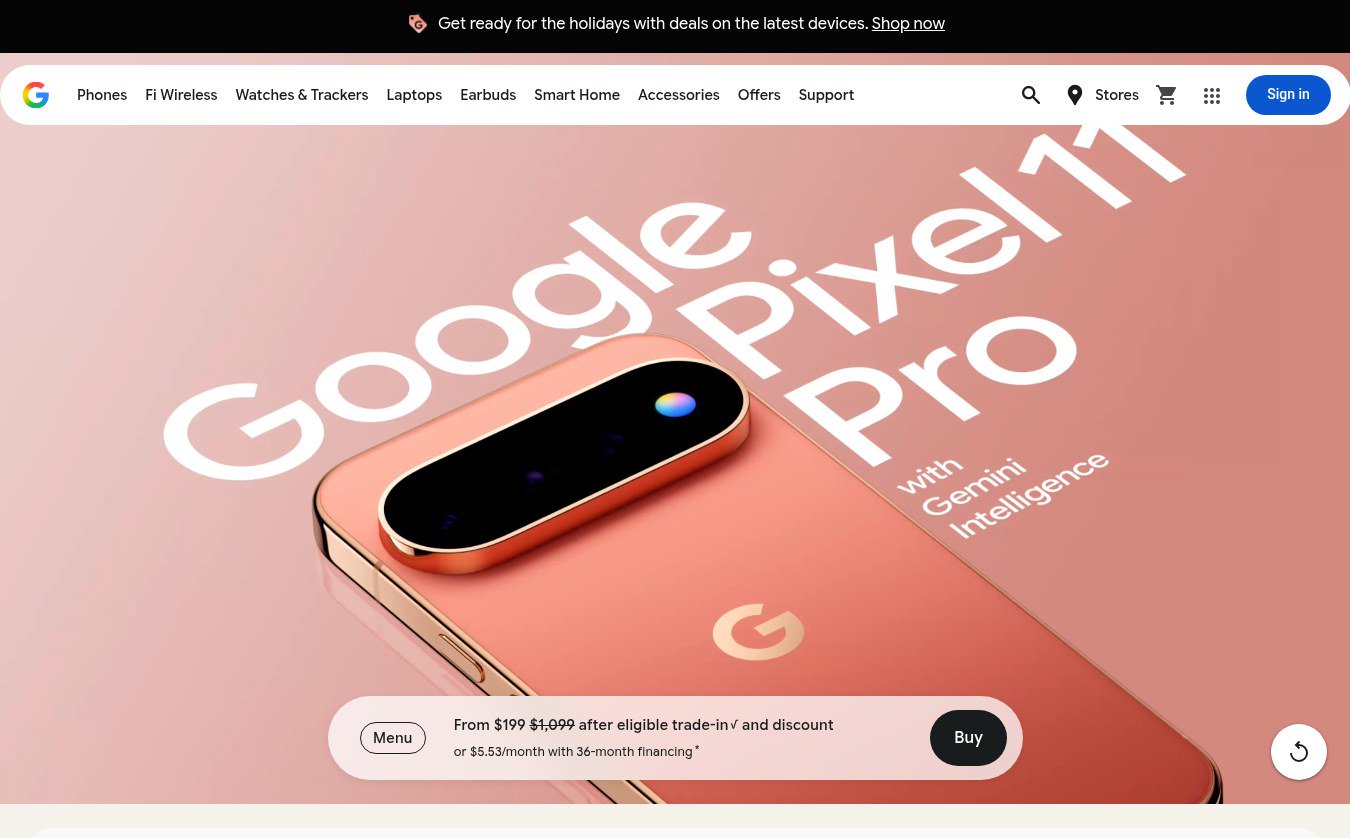 Google Store Cuts Pixel 11 Pro to $799 and Pixel 11 to $699 Through November 8 The U.S. Google Store has the unlocked Pixel 11 Pro at $799 (was $1,099), the Pixel 11 at $699 (was $899) and $350 off the Pixel 11 Pro XL until November 8, 2026 at 11:59 PM PST, p...